-(1).png)
Entering Dividends and Distributions
In this article
Dividends for corporations, or distributions for LLCs and partnerships, are a way to pass profits along to the company's owners or shareholders.
Companies can issue dividends at different times, although they are commonly distributed after profits have been determined. In financials, you can forecast a specific dividend amount or calculate the distribution as a percentage of Net Income.
The system gives you two ways to set up dividends. You can describe your expected distributions and let Finance AI create a starting point for you, or you can create the dividend entries manually.
Adding a Dividend
Creating Dividends with Finance AI
- 1
-
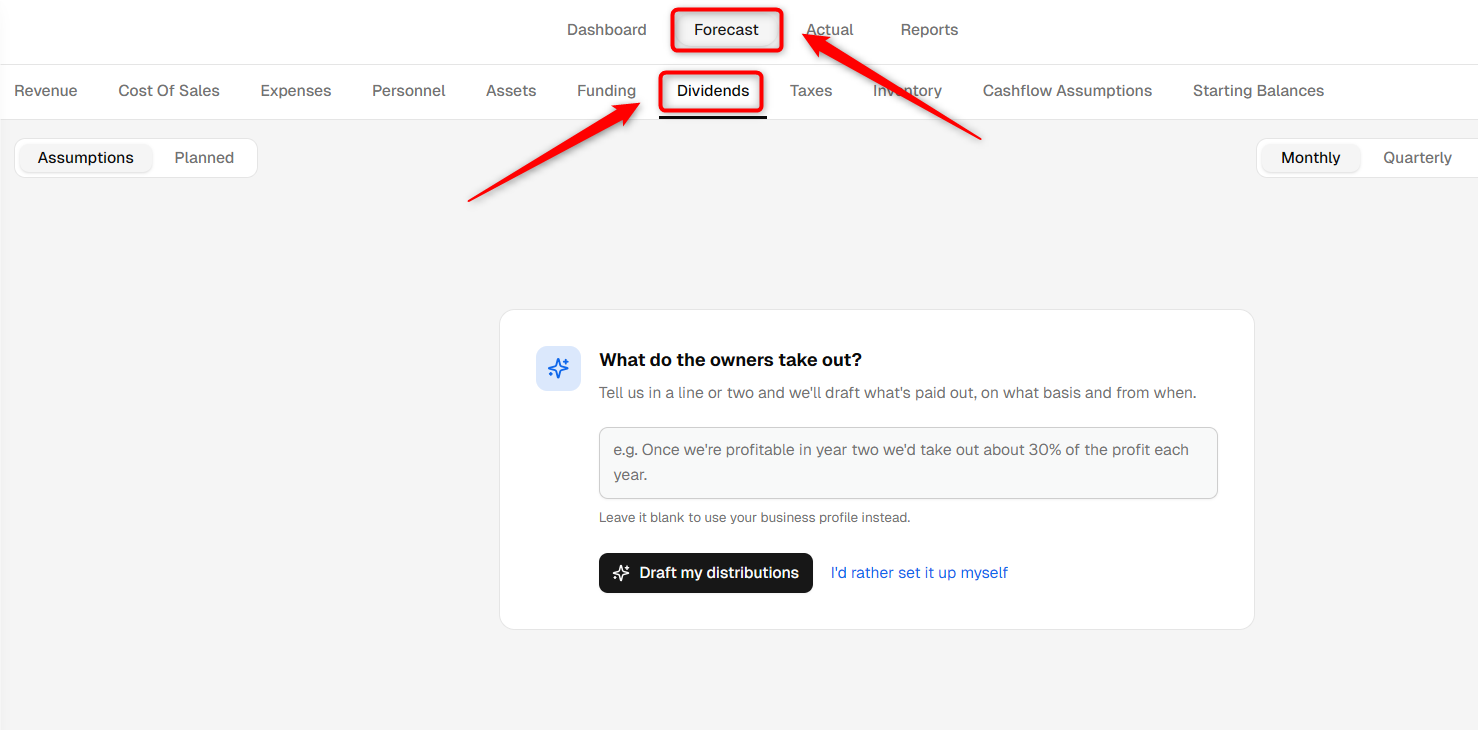
Go to the Finance Forecasting module, select the Forecast tab, and open the Dividends section.
You will see the guided setup where you can describe the dividends or distributions you expect your business to make.
- 2
-
Describe the dividend or distribution in plain text. Include details such as the expected amount, whether it is based on Net Income, how frequently you expect to make the distribution, and when it should begin.
Click on Draft my distributions.
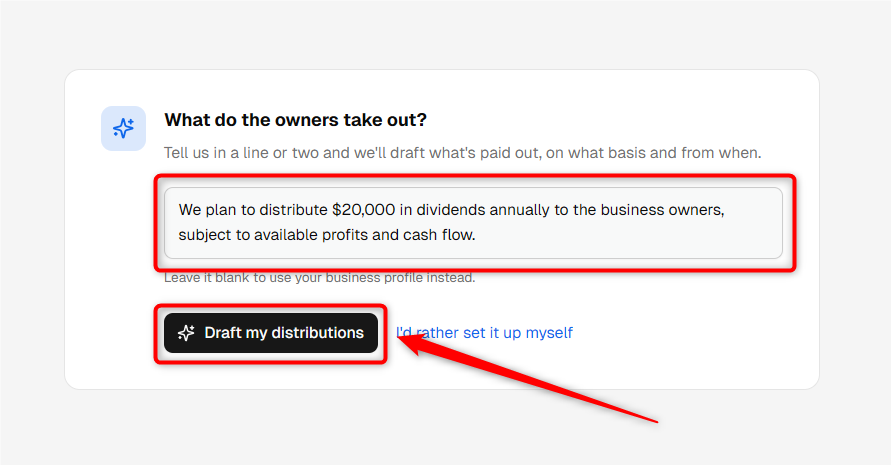
TIP: Include the expected dividend amount or percentage of Net Income, payment frequency, and timing. This helps Finance AI create a more relevant starting point.
- 3
-
Finance AI will create suggested dividend groups and entries based on your description.
Review the proposed dividend name, calculation method, amount or percentage, frequency, and timing. Use the Edit option if you need to make changes before adding it.
Once the details look correct, keep the required dividend selected and add it to your forecast.
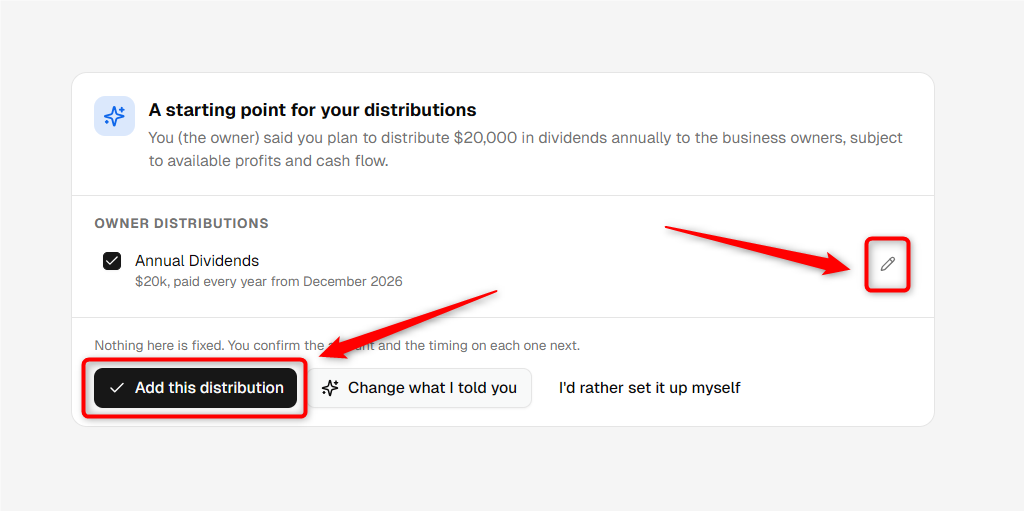
NOTE: Finance AI provides a starting point. Review the amount, percentage, frequency, and timing to make sure the assumptions match your actual distribution plans.
- 4
-
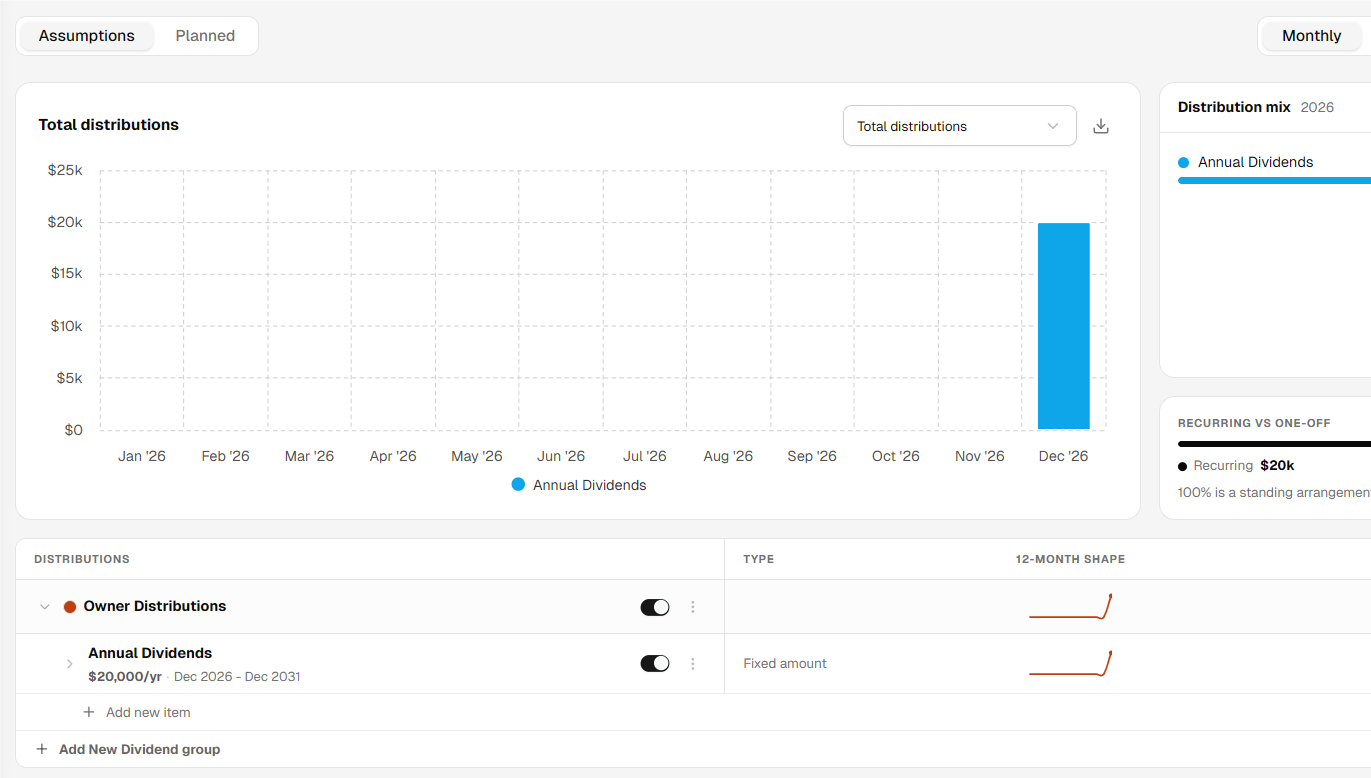
The selected dividend entries will be added to the Dividends section of your forecast.
You can review each dividend and update its assumptions whenever required.
Creating Dividends Manually
- 1
-
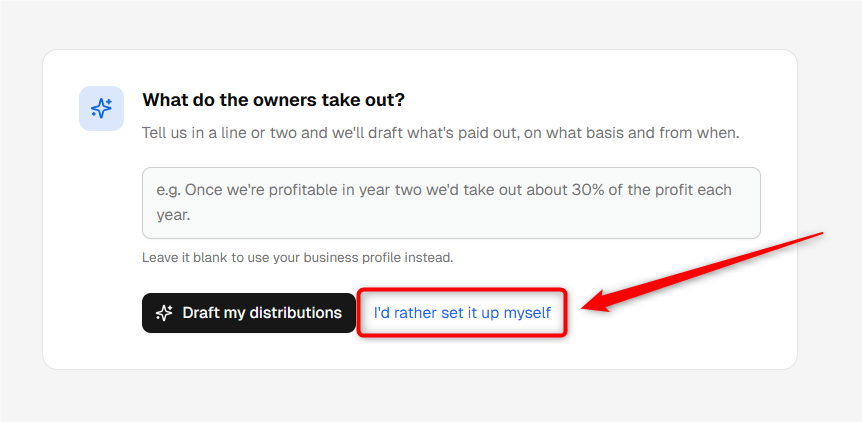
If you do not want Finance AI to draft your dividends, click I'd rather set it up myself from the initial Dividends setup screen.
- 2
-
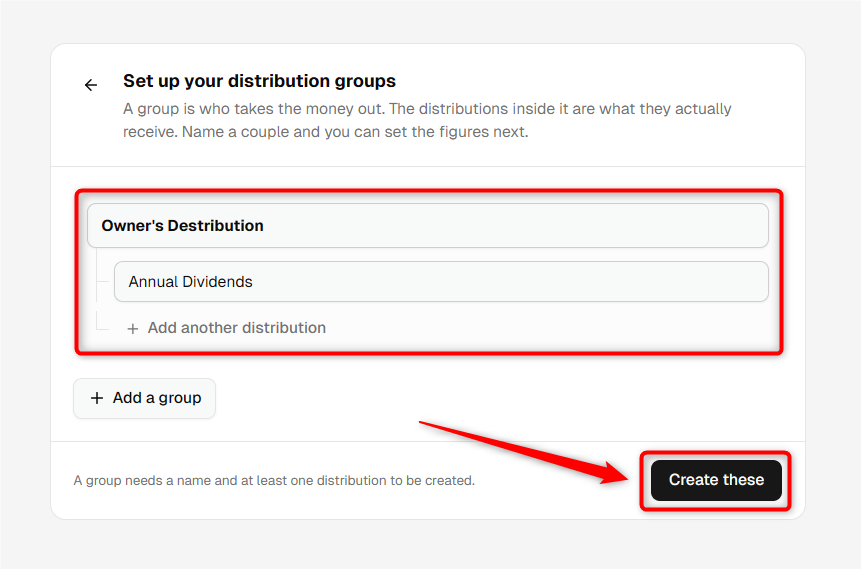
In the manual setup window, enter a name for the Dividend Group and at least one dividend or distribution within that group.
You can add more dividend entries to the same group or create another group if required.
When you are ready, click Create these.
- 3
-
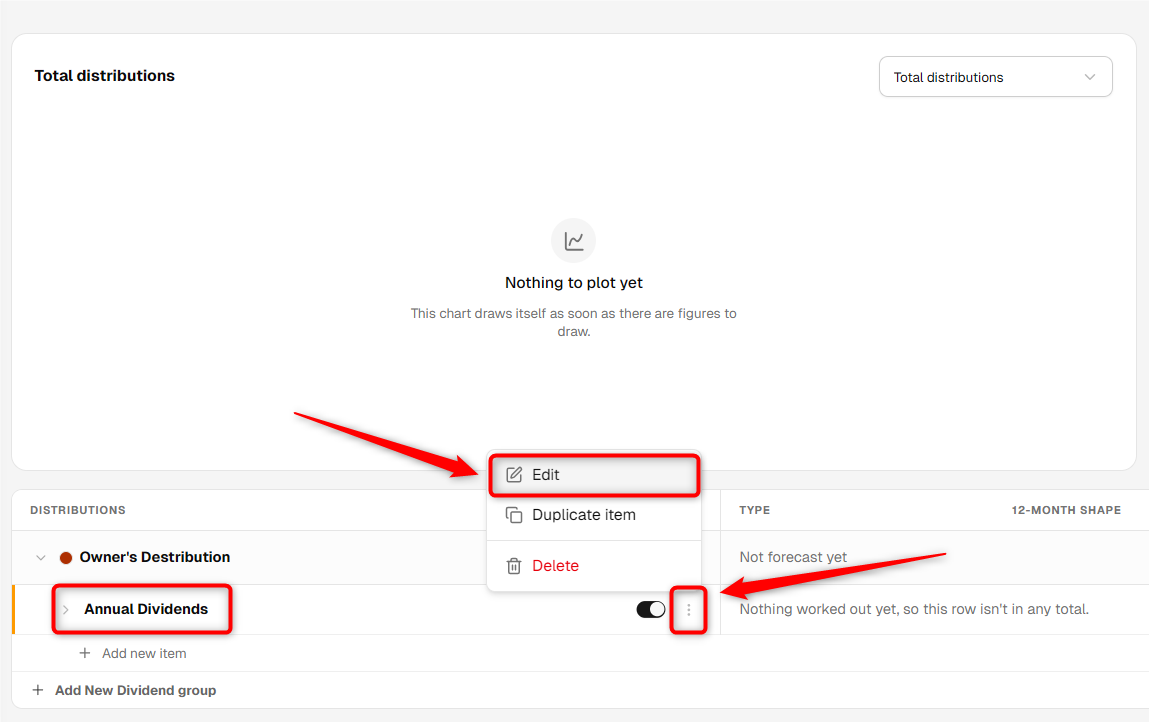
The system will create the dividend group and entry in your forecast.
Open the newly created dividend to enter its detailed assumptions.
- 4
-
In the dividend assumption form, review the dividend name and select how you want to calculate the distribution.
Choose Direct Amount if you want to specify an exact amount to distribute.

Alternatively, choose % of Net Income if you want the dividend to be calculated based on the company's Net Profit.

- 5
-
Next, select how frequently the dividend or distribution should occur.
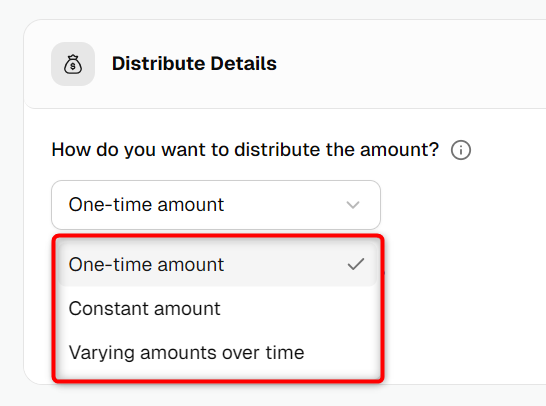
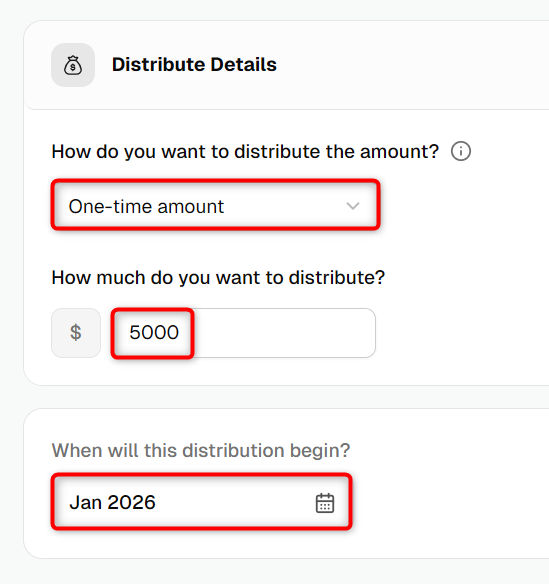
- One-time Amount: Use this when you plan to issue the dividend only once. Enter the amount and select the month and year when it will be distributed.
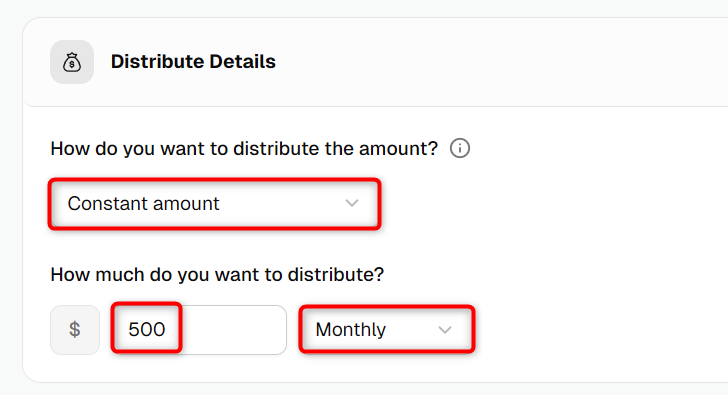
- Constant Amount: Use this when you plan to distribute the same amount regularly. Enter the amount and select whether the dividend will be issued monthly, quarterly, or yearly.
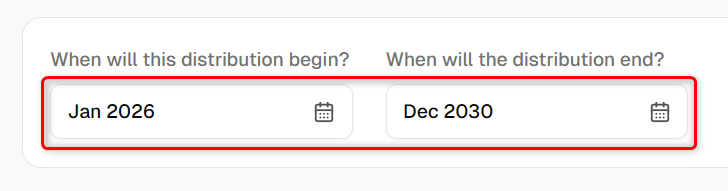
Select when the first dividend will be issued and the applicable timing for subsequent distributions.
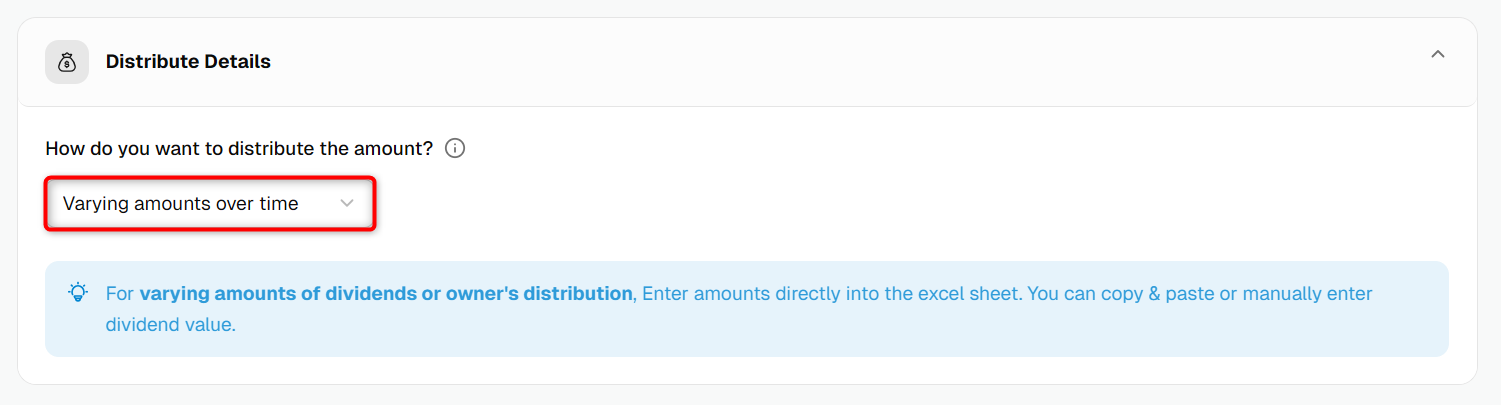
- Varying Amounts Over Time: Use this option when the dividend amount will change across different forecast periods.
Enter the amounts you plan to distribute in the applicable months.
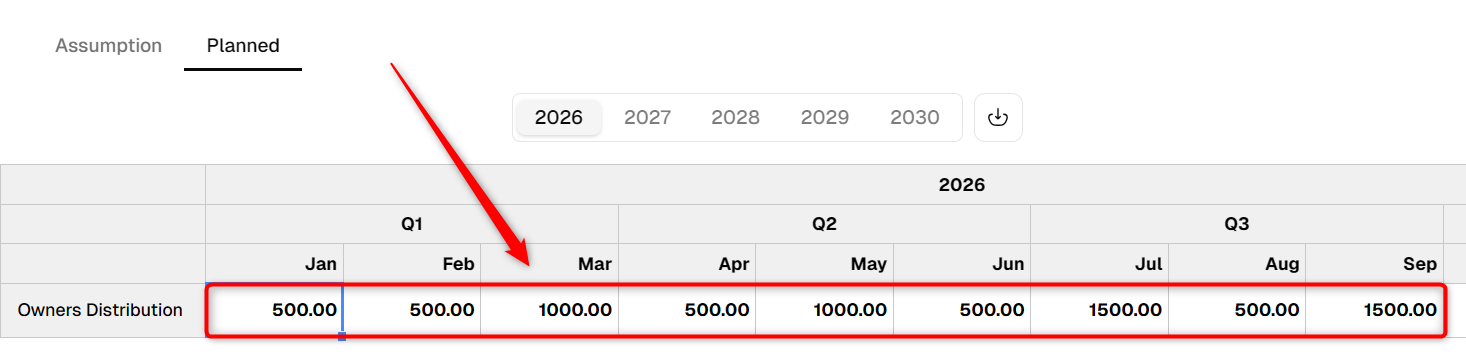
- One-time Amount: Use this when you plan to issue the dividend only once. Enter the amount and select the month and year when it will be distributed.
- 6
-
Review the dividend assumptions and click Save.
The platform will calculate the dividend or distribution in your forecast based on the assumptions you entered.
Editing or Deleting Dividends
You can edit an existing dividend, delete an individual dividend, or remove an entire dividend group from your forecast.
For detailed step-by-step instructions, refer to How to edit dividends, delete dividends, and delete a dividends group.
TIP: Moving finance items from one group to another is hassle-free. For a detailed walkthrough, check out our help guide here.
Where does this entry appear in the financial statements?
Dividends are not listed as a separate operating expense in the Profit & Loss statement. Instead, dividend payments reduce earnings when calculating Retained Earnings.
The effect of the distribution carries forward after the month in which it is paid. This does not mean the same dividend is deducted again each month; the previous distribution remains reflected in the calculation of retained earnings.

In the Cash Flow statement, the dividend payment reduces available cash in the period when it is paid. You can see this under Dividends & Distributions.

Once your dividend forecast is set up, you can return to the Dividends section whenever you need to review or update the distribution amount, percentage of Net Income, frequency, or timing.