-(1).png)
How to enter Owner and Shareholder Equity?
A clear depiction of ownership equity is important for any effective business plan. Recording contributions from owners, founders, and shareholders helps ensure your financial forecast accurately reflects how the business is funded.
The platform gives you two ways to add owner or shareholder equity. You can describe the investment and let Finance AI draft the funding source for you, or you can create the funding source manually.
Adding Owner and Shareholder Equity
Automatic forecasting:
- 1
-
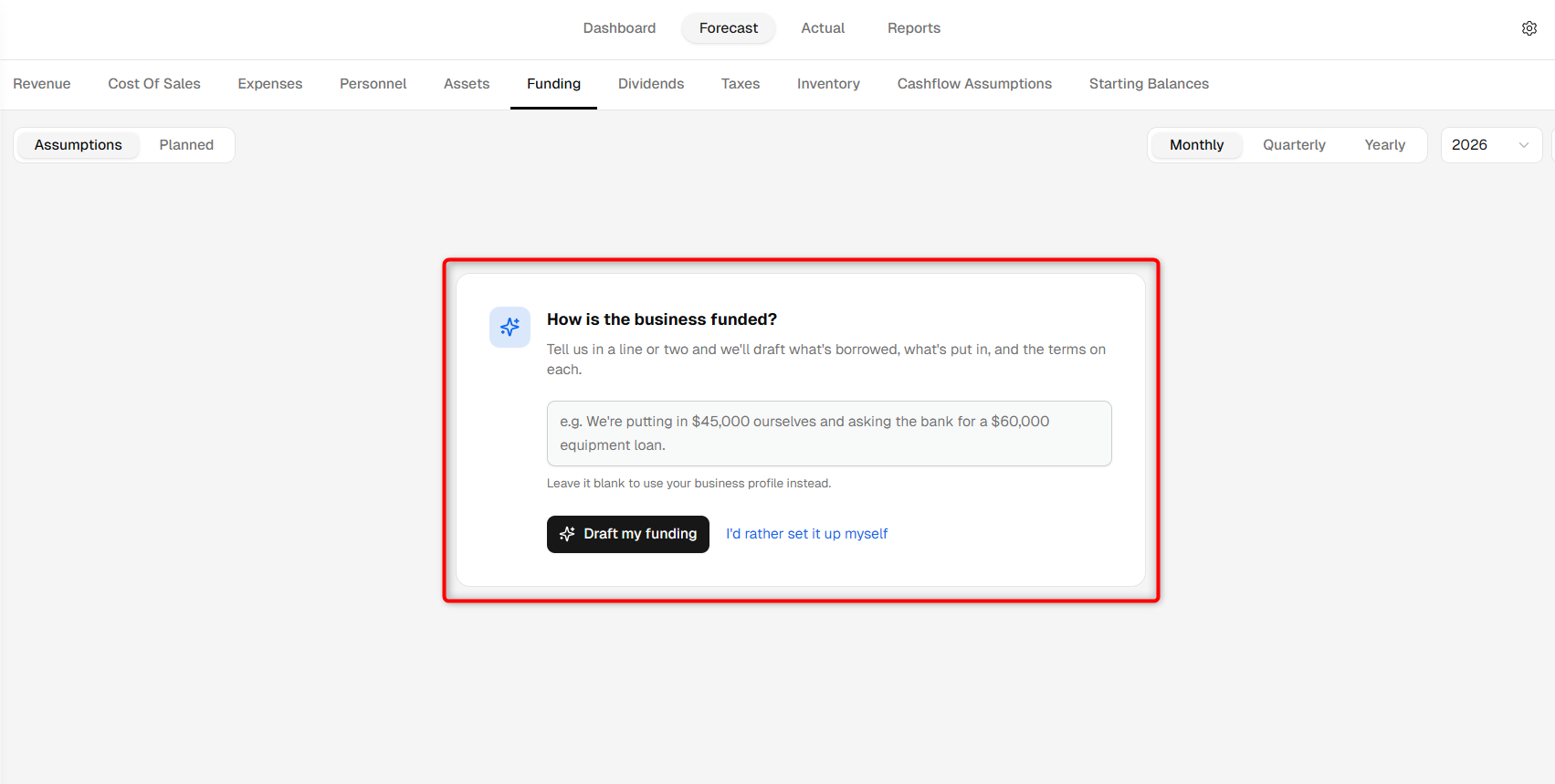
Go to the Finance Forecasting module, select the Forecast tab, and open the Funding section.
You will see a guided setup where you can describe how your business is being funded.
- 2
-
Describe the owner, founder, or shareholder investment in plain text. Include details such as the investment amount, investment date, and whether the funding is an owner's contribution, common stock, or preferred stock.
Once you have entered the details, click Draft my funding.
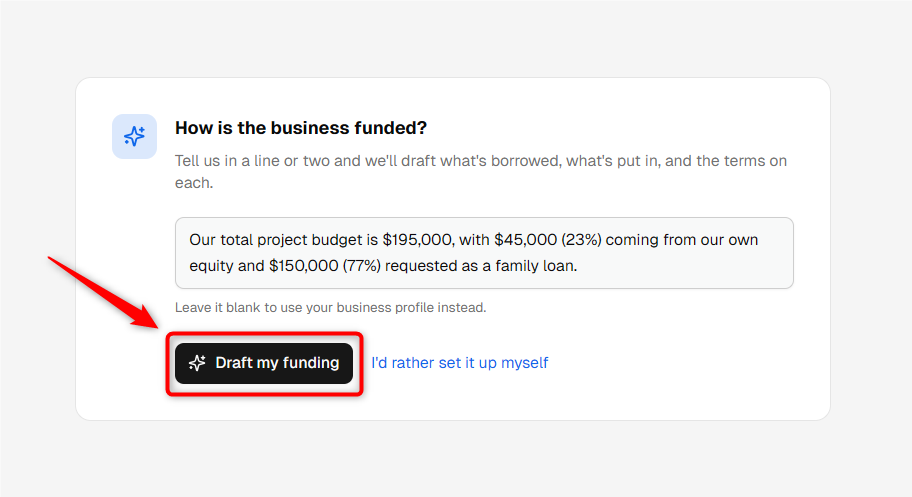
TIP: Mention who is making the investment, the expected amount, and the type of equity funding. This helps Finance AI create a more relevant starting point.
- 3
-
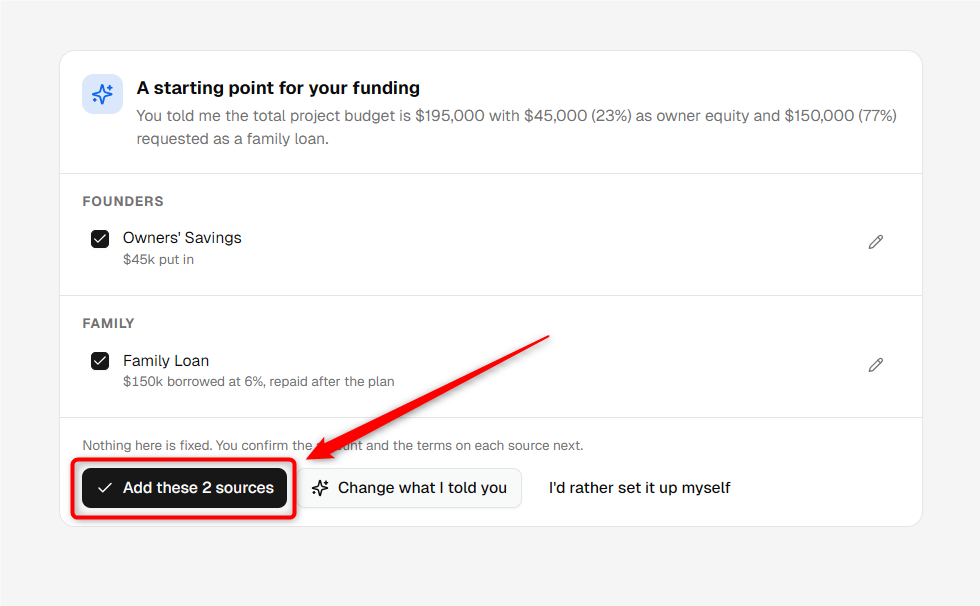
Finance AI will create suggested funding sources based on the information you entered.
Review the funding source name, amount, timing, and funding type. You can click Edit if you need to make changes before adding it.
Once the details look correct, keep the required funding source selected and click Add these sources.

NOTE: Finance AI provides a starting point. Review the investment amount, timing, and equity classification before adding the funding source to your forecast.
- 4
-
The selected funding source will be added to the Funding section.
You can review the source and update its assumptions whenever required.

Manual forecasting:
- 1
-
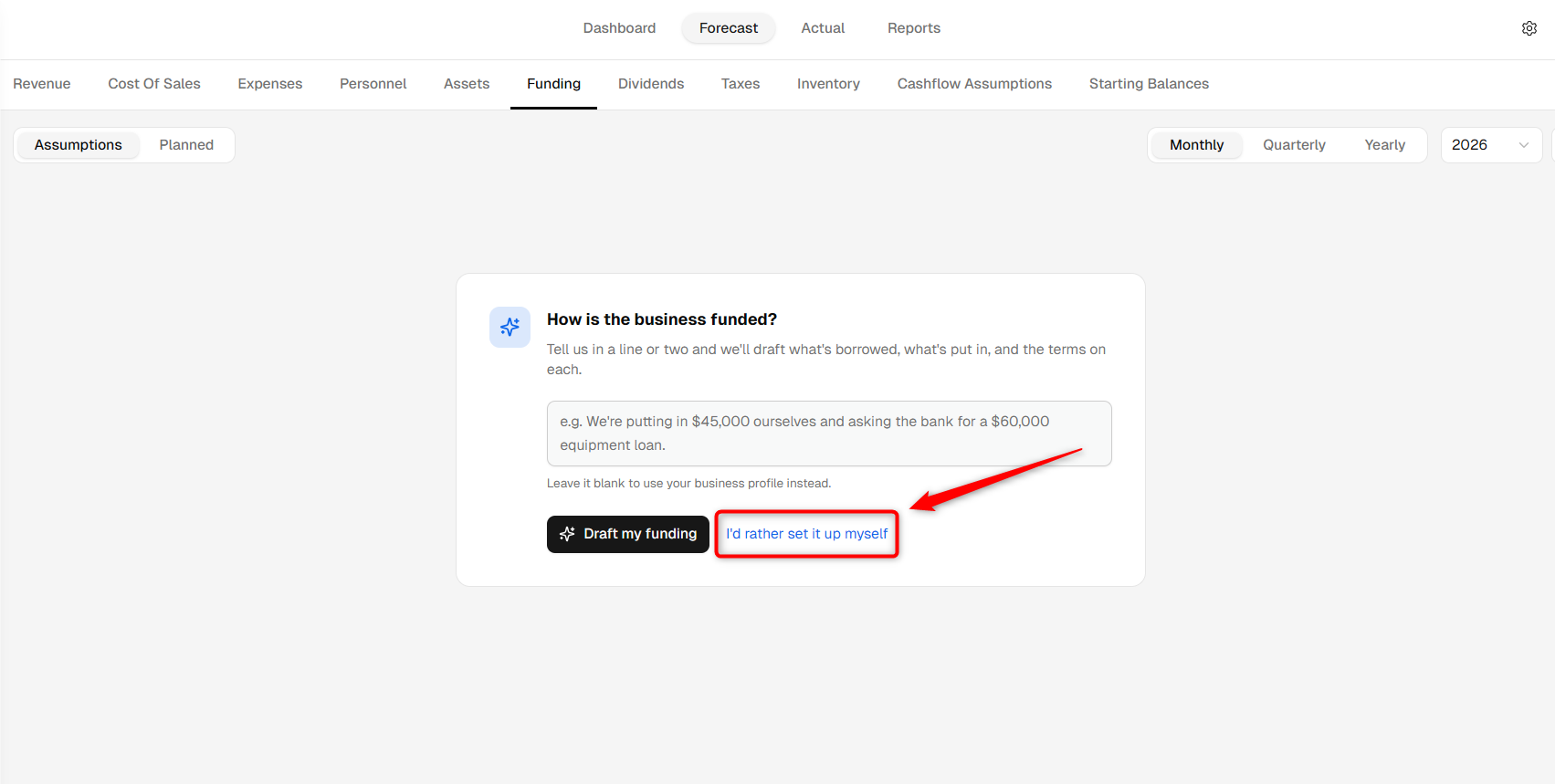
If you do not want Finance AI to draft the funding source, click I'd rather set it up myself from the Funding setup screen.
- 2
-
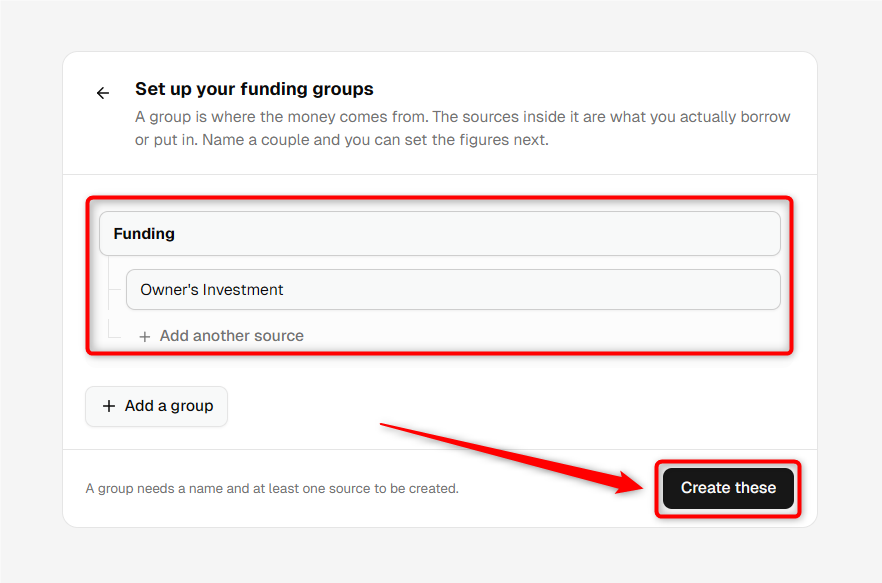
In the Set up your funding groups window, enter the funding group name and the name of the owner or shareholder investment.
You can add additional funding sources or groups if required.
When you are ready, click Create these.
- 3
-
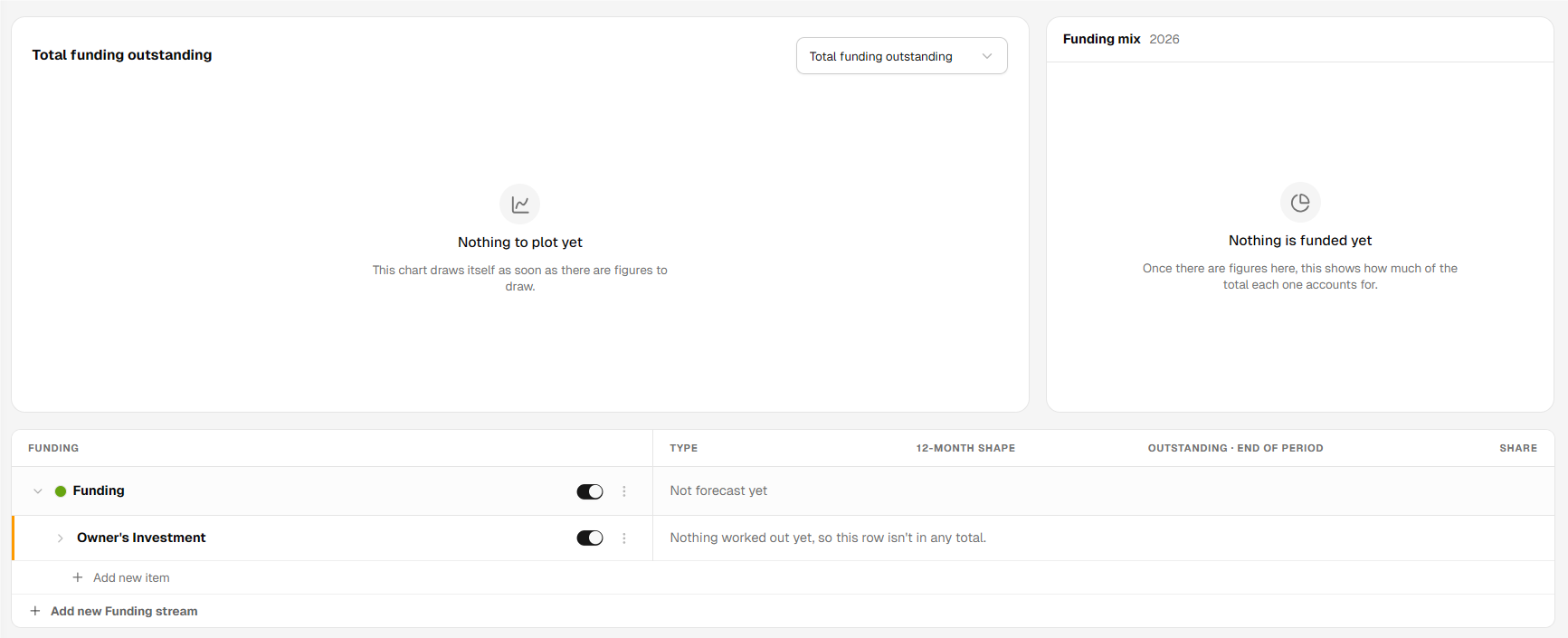
The system will create the funding source in your forecast.
Locate the newly created source under the Funding section.
- 4
-
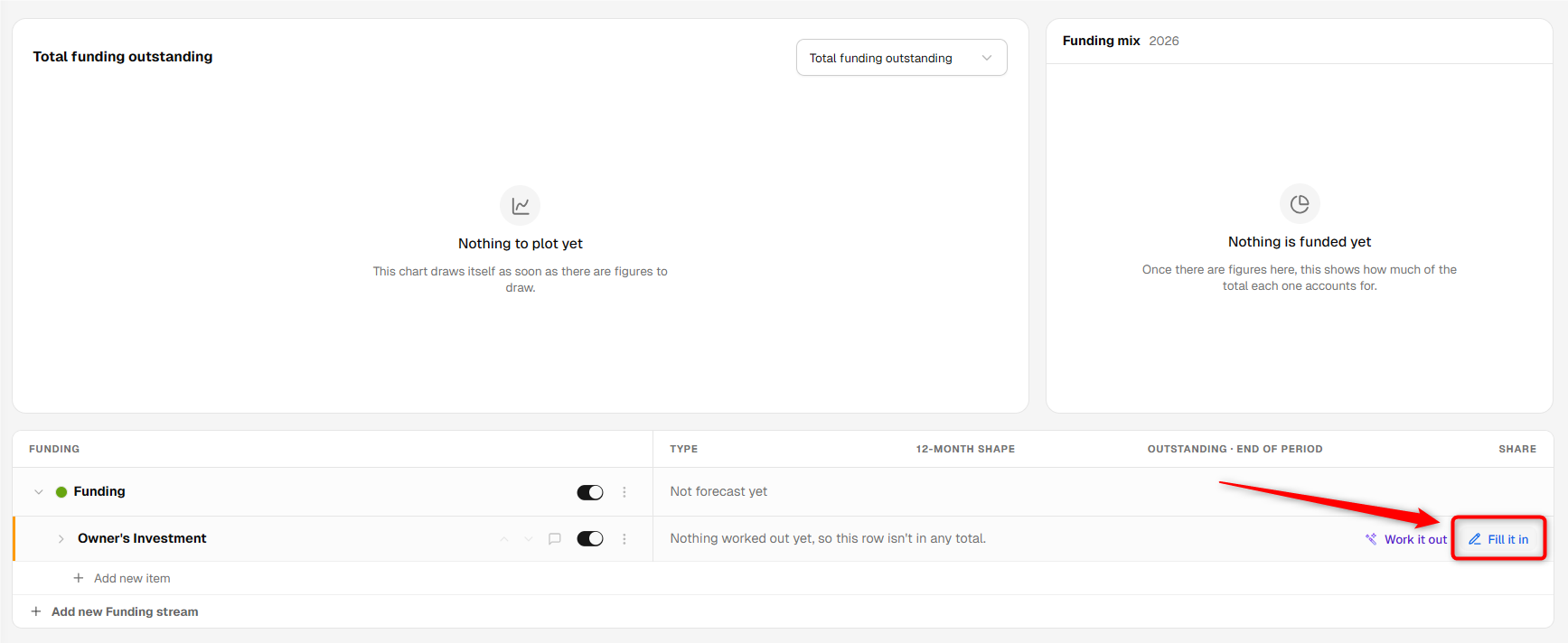
Click Fill it in to open the funding assumptions.
- 5
-
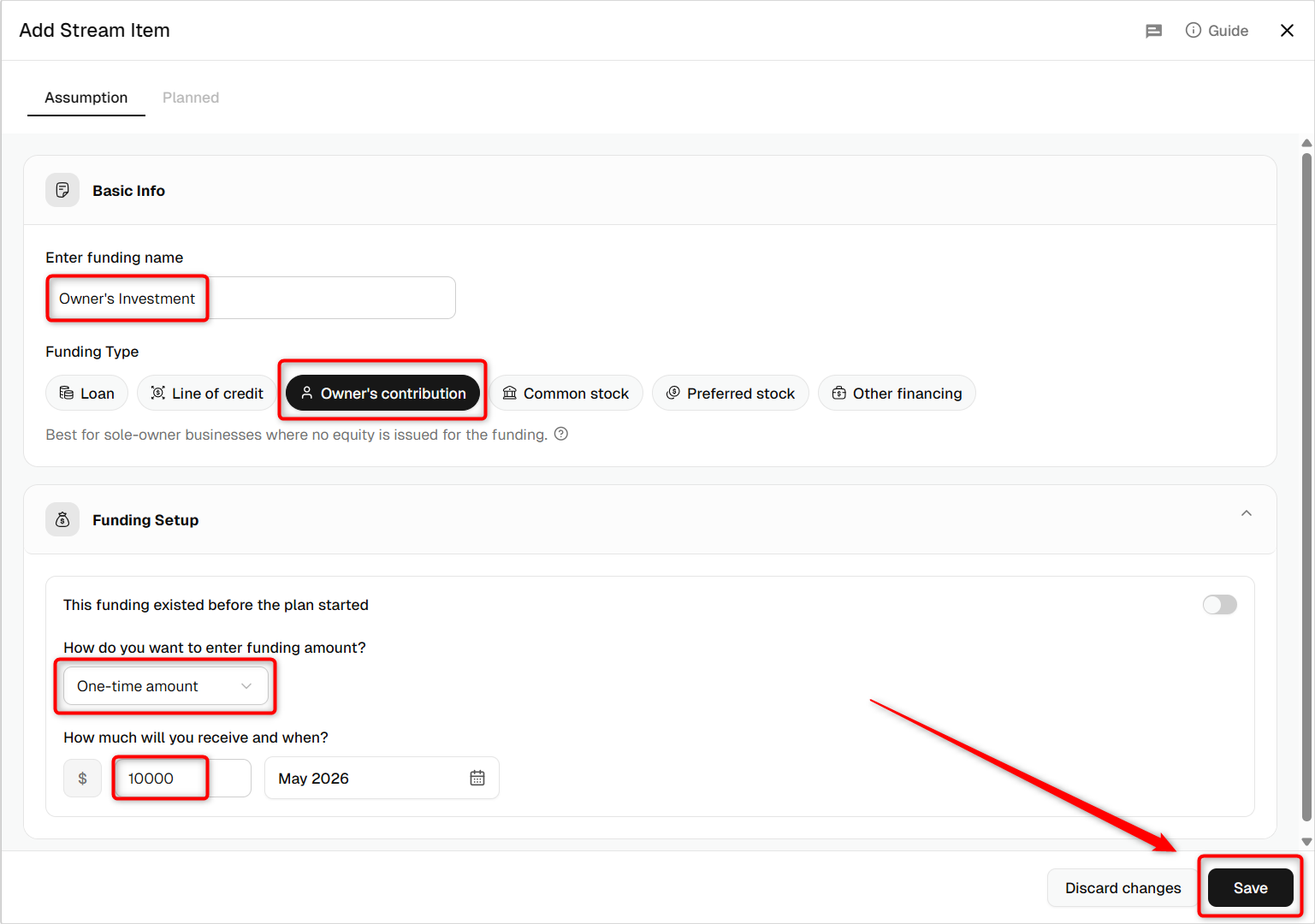
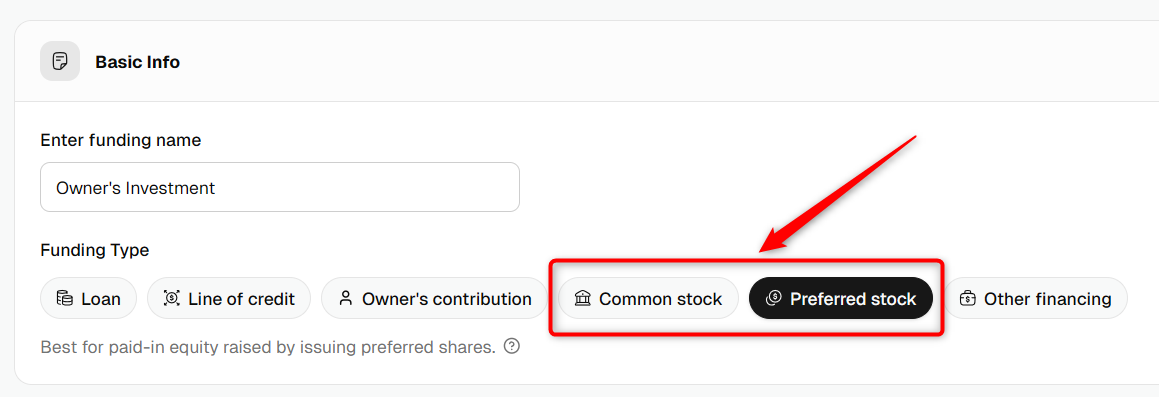
If the investment comes directly from the owner or founder as a personal investment, select Owner's Contribution.
Enter the applicable contribution amount and timing.
- 6
-
If the investment from an owner, founder, or shareholder is made through equity shares, select Common Stock or Preferred Stock, as applicable.
Enter the investment details and save the funding assumptions.
TIP: Moving finance items from one group to another is hassle-free. For a detailed walkthrough, check out our help guide here.
Where does this entry appear in the financial statements?
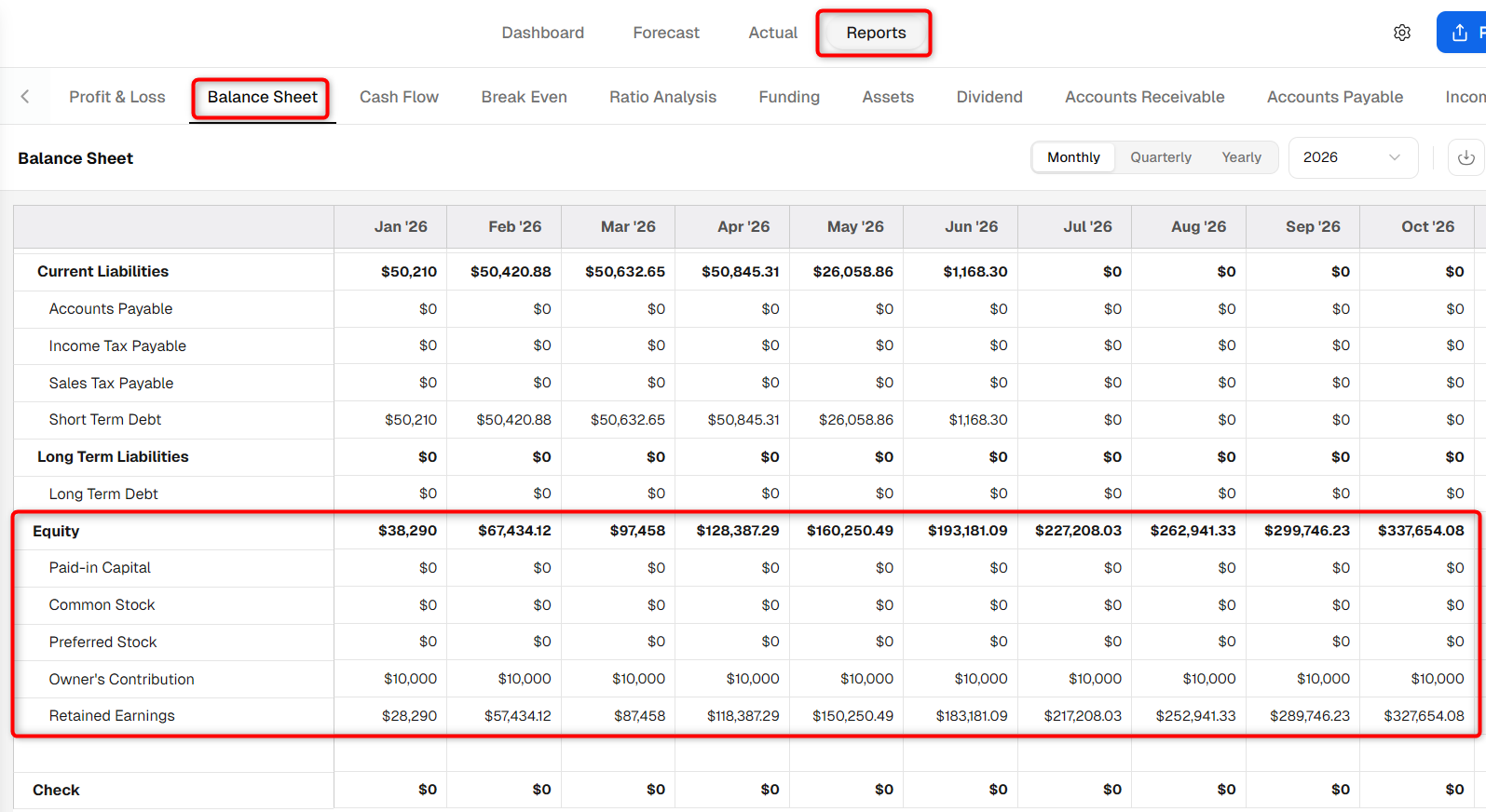
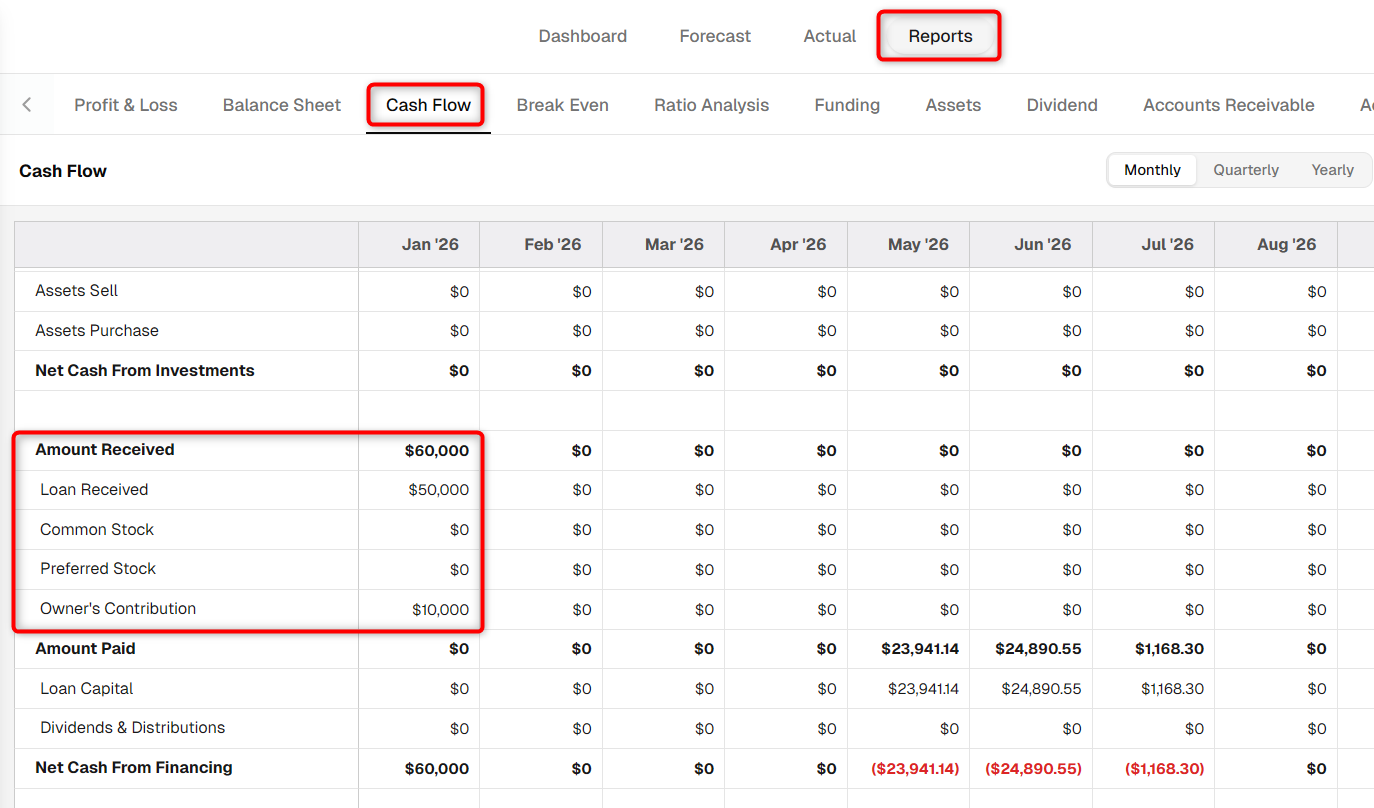
In the financial statements, owner and shareholder equity entries are reflected in the Balance Sheet and Cash Flow reports.
In the Balance Sheet, owner and shareholder equity entries appear in the Equity section.
In the Cash Flow statement, the investment is reflected under the applicable Amount Received section.
For additional details about the funding source, you can also review the Funding report.
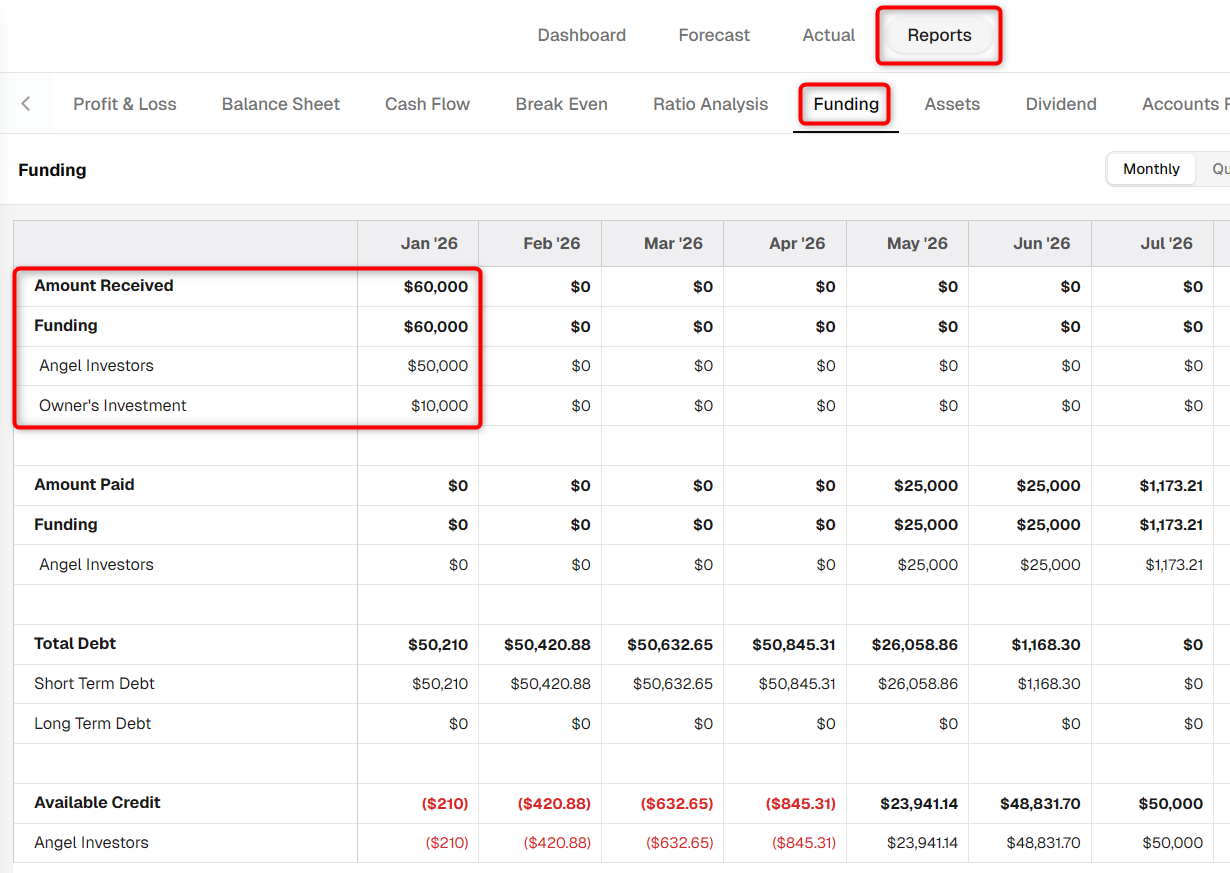
Once the investment is added, you can return to the Funding section whenever you need to review or update the owner contribution, shareholder investment, amount, timing, or equity classification.