-(1).png)
How to Edit Dividends, Delete Dividends and Delete Dividends Group
This article shows how to manage dividend entries in the Finance Forecasting module. You’ll learn how to edit dividends, delete individual dividends, and delete a dividends group so your plan stays accurate.
Use the quick links below to jump to a section:
How to Edit Dividends
- 1
-
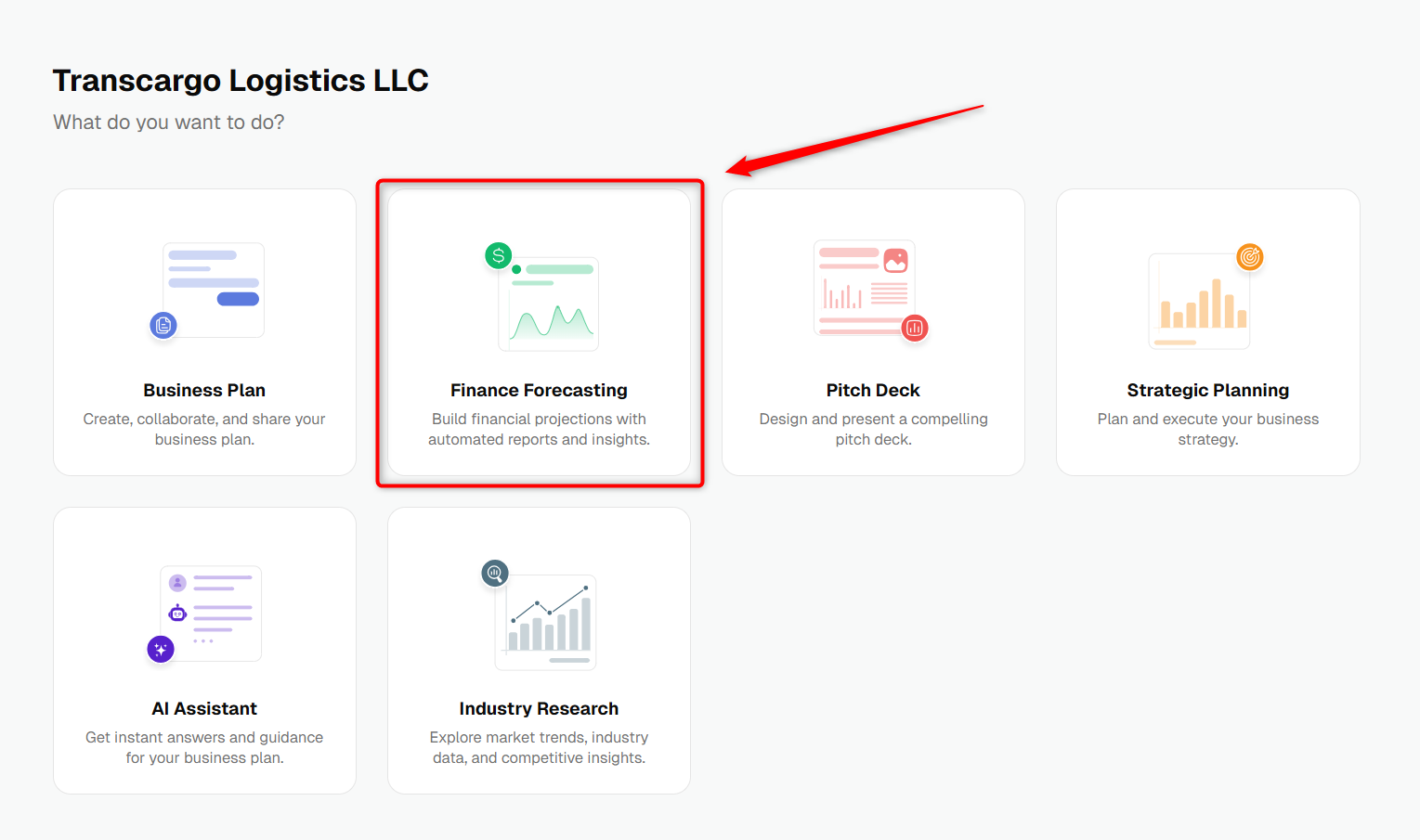
From your company menu, click the Finance Forecasting module.
- 2
-
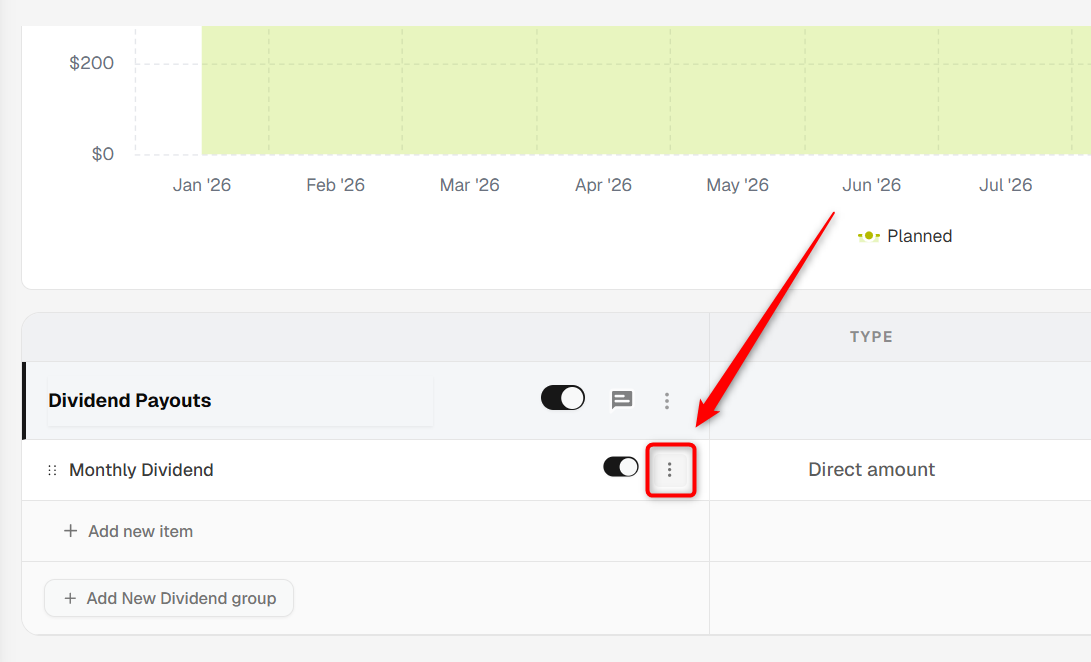
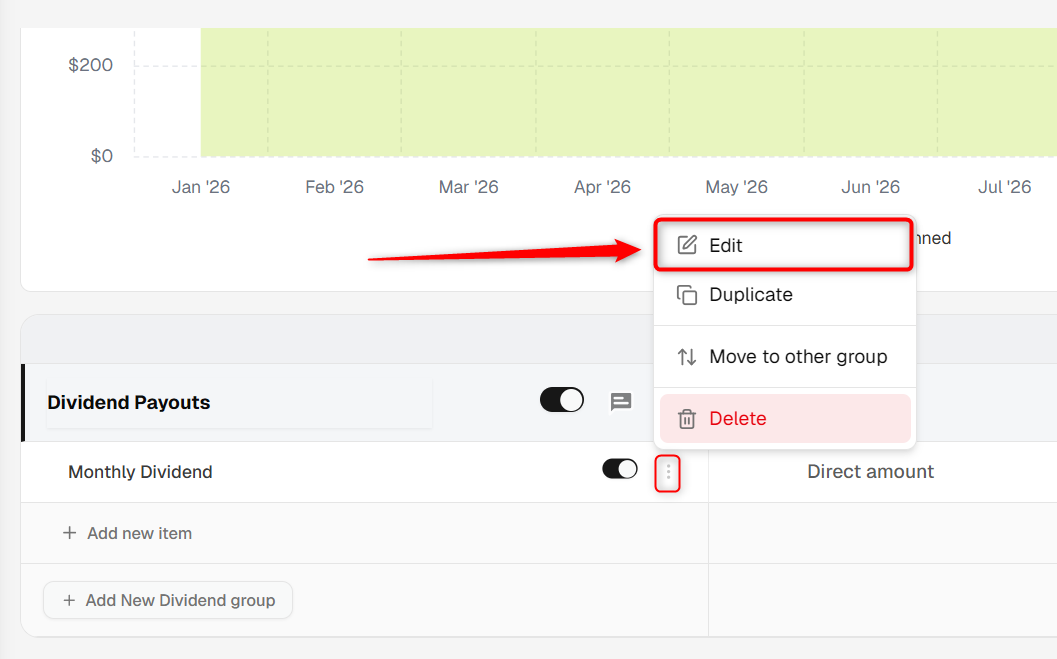
Go to the Forecast tab and click Dividends. In your Dividends Group, click the Three dots on the dividend and select edit option.
- 3
-
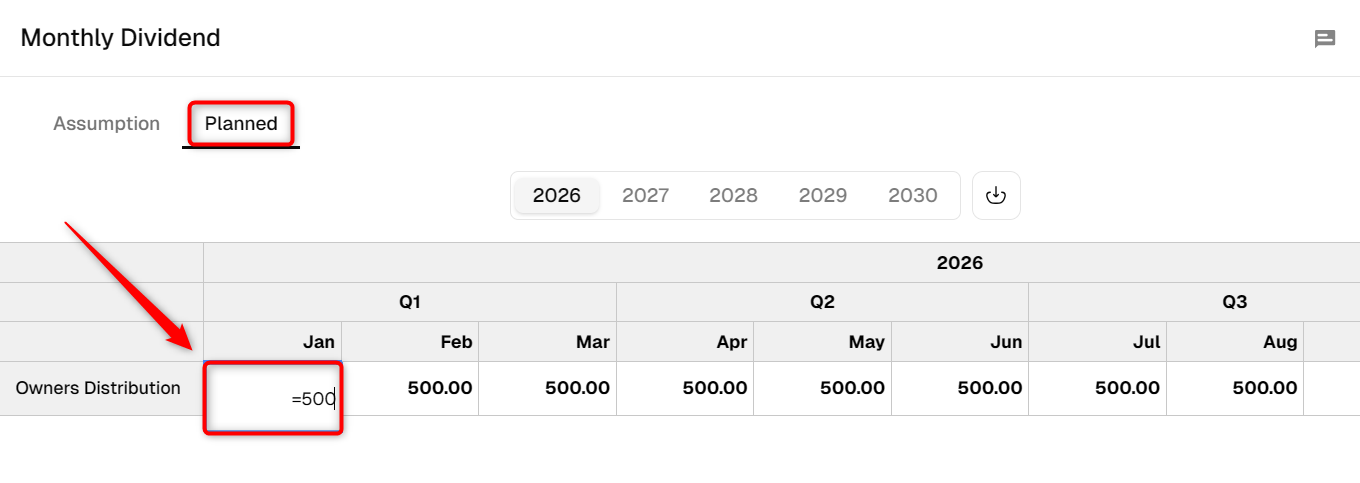
The Forecasting Sheet opens. Double-click a cell (e.g., Owners Distribution) to change values. Changes are auto-saved.
- 4
-
To change base inputs, click the Assumptions tab to open the Forecasting Form. Update type, frequency, or amount, then click Save.
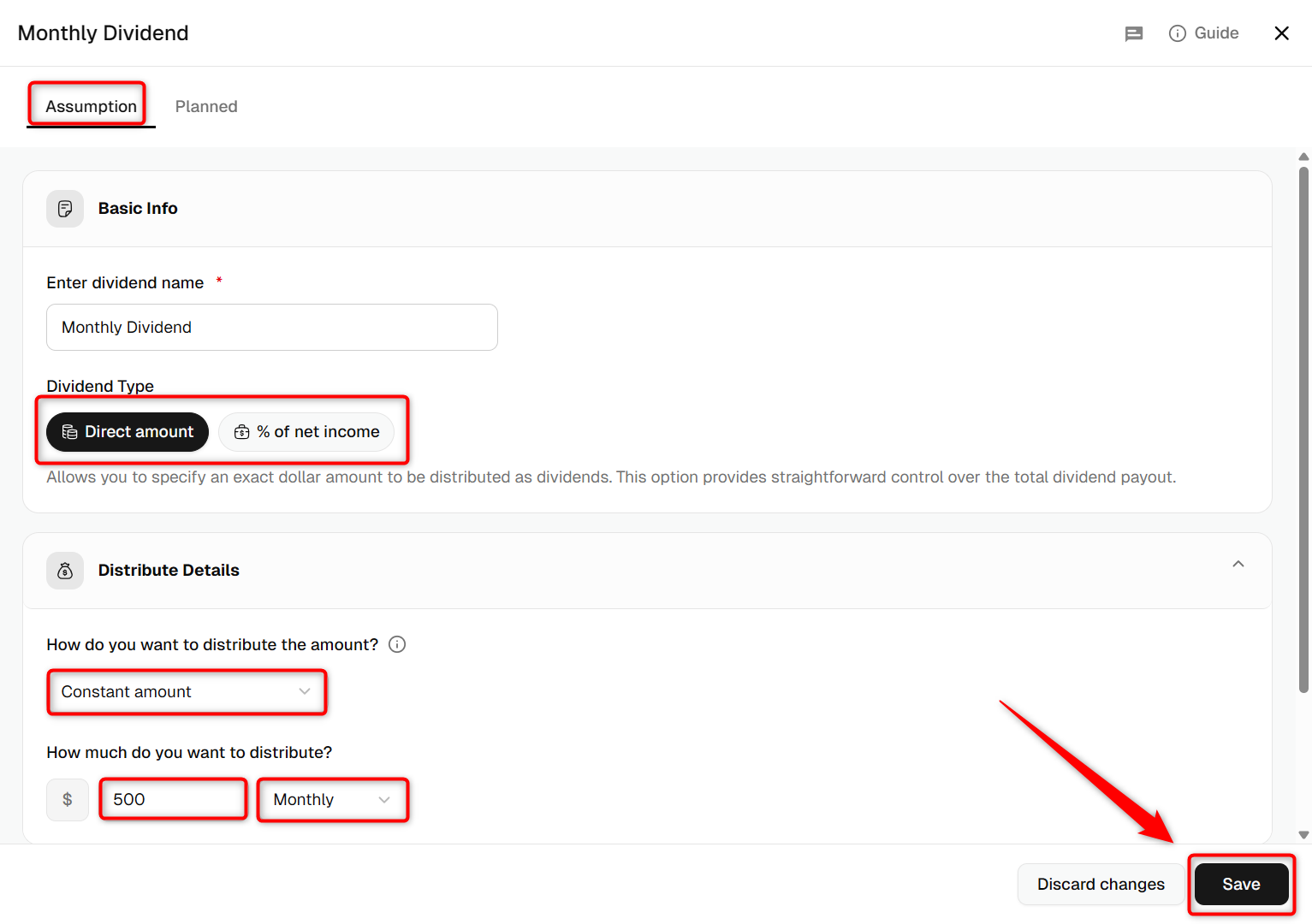
TIP: Use the Planned tab for month-by-month overrides while keeping your assumptions intact.
How to Delete Dividends
- 1
-
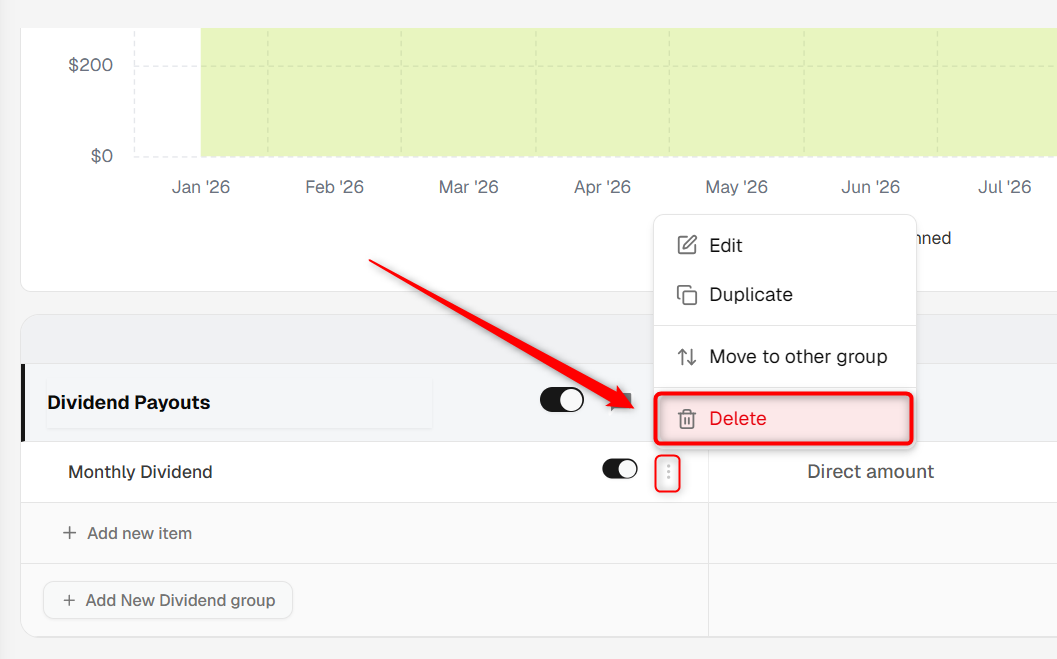
In Forecast > Dividends, find the dividend item. Click the three dots menu next to it.
- 2
-
Select Delete option from the dropdown.
- 3
-
In the confirmation pop-up, click Delete Item.
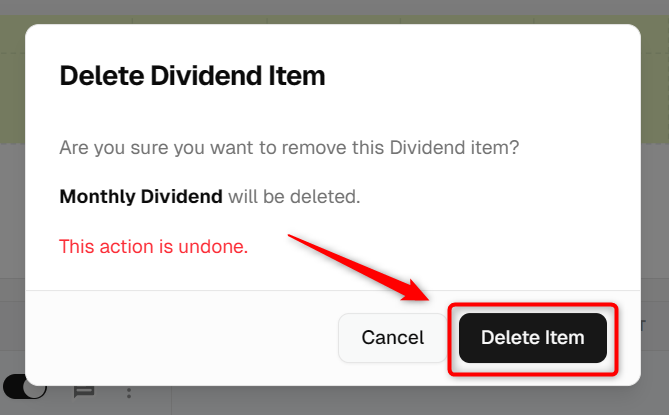
NOTE: Deleting a dividend item is permanent and cannot be undone.
How to Delete a Dividends Group
- 1
-
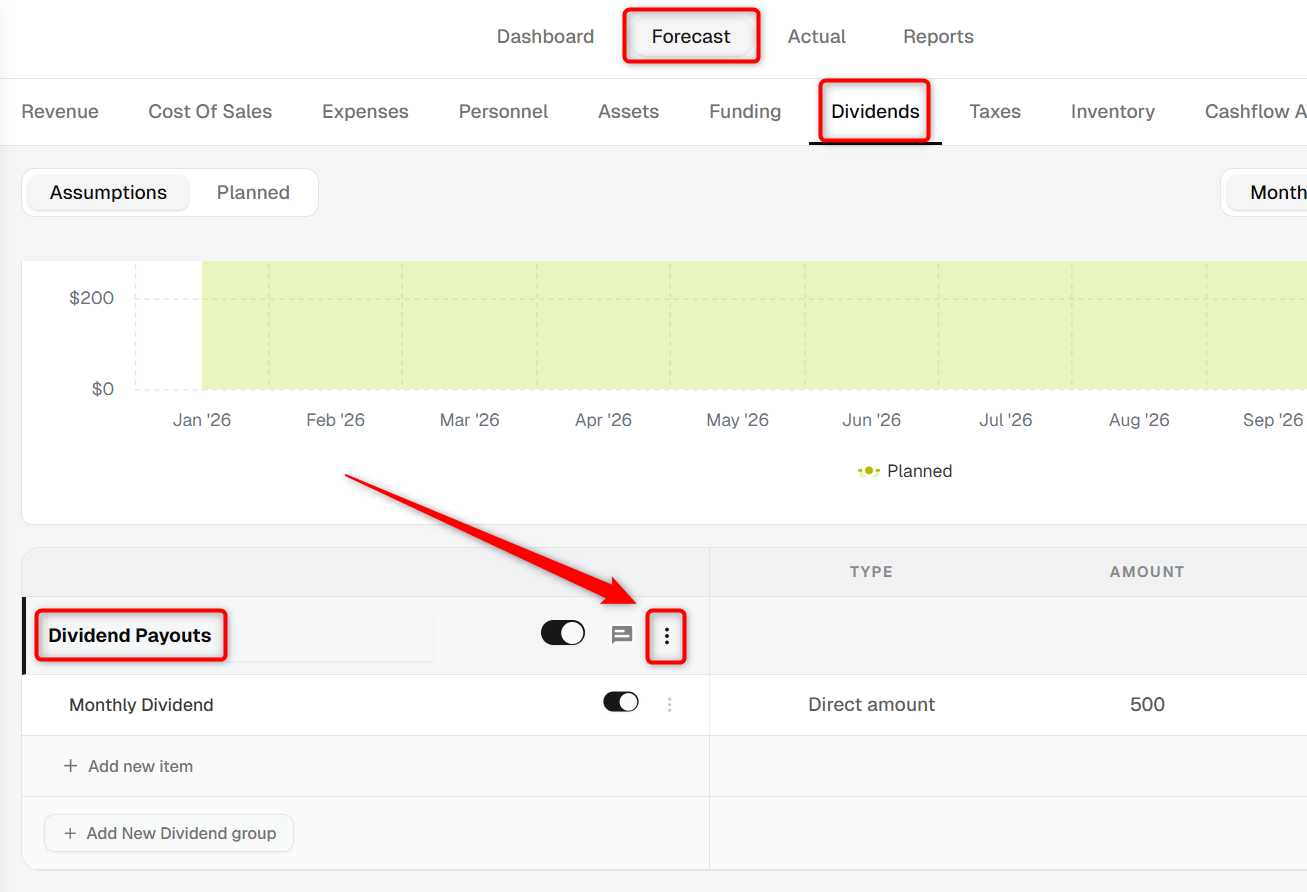
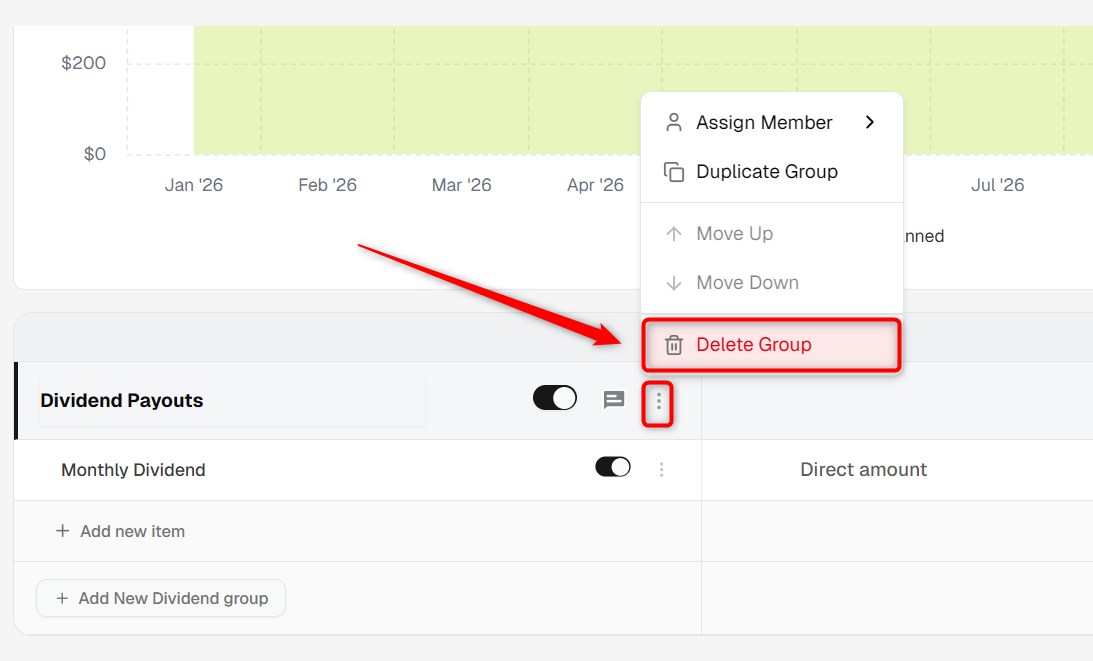
In Forecast > Dividends, locate the group to remove and click the three dots menu on the group card.
- 2
-
Click Delete Group.
- 3
-
Confirm by clicking Delete Group in the pop-up.
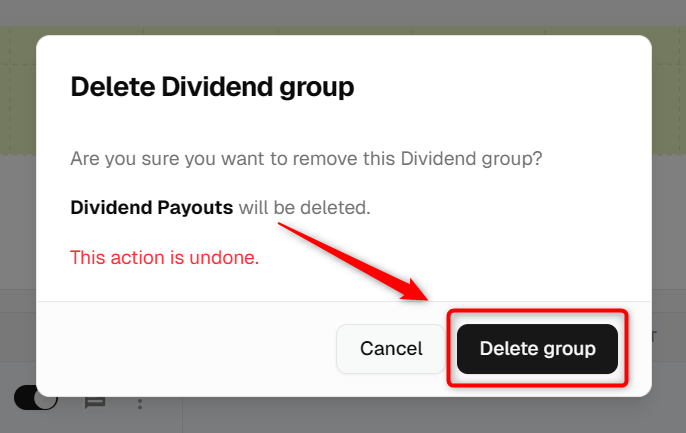
NOTE: Deleting a dividends group removes all dividend items inside it. This action cannot be undone.
You’ve learned how to edit dividends, remove a single dividend, and delete an entire dividends group to keep your forecast clean and accurate.