-(1).png)
How to import your existing business plan document?
Starting a new business plan doesn't mean you have to start from scratch. With the 'Import Document' feature, you can effortlessly import/ upload your existing business plan and use it as a foundation for a new one.
This feature can save you time and effort, allowing you to update and refine your ideas on a familiar platform without redoing all your hard work.
Users can upload their existing business plans in DOC or DOCX format. You can follow this guide for step-by-step instructions to generate your complete business plan by uploading an existing one.
Understanding Document Formatting When Importing:
When you import an existing business plan document, the platform recognizes your document's structure according to specific formatting rules to maintain its organization.
Here's how your document's formatting will be applied:
| Existing Doc | In Platform |
|---|---|
| Heading 1 (H1) | Every H1 is converted into a new chapter. |
| Heading 2 (H2) | It will appear as a Section Title within the chapters. |
| Heading 3 (H3) | Will be designated as subsections. |
Text Organization:
Interface recognizes only H1, H2, and H3 headings from imported DOC.
- Any text immediately after H3 in the original document is categorized under that H3 subsection in Platform.
- In the original document, if there is no H3 and all text is after any elements, this text will be treated as a normal text section in Platform.
Regarding the existing Document
WARNING: High graphics of your existing business plan can lead to formatting issues in a newly generated plan. We recommend taking matters into your own hands and managing the formatting parts manually.
Steps to Import Existing Business Plan:
- 1
-
Start by logging into your account. Complete the initial company setup if it's not yet done.
- 2
-
Once your company setup is finished, head over to the " Business Plan" section.
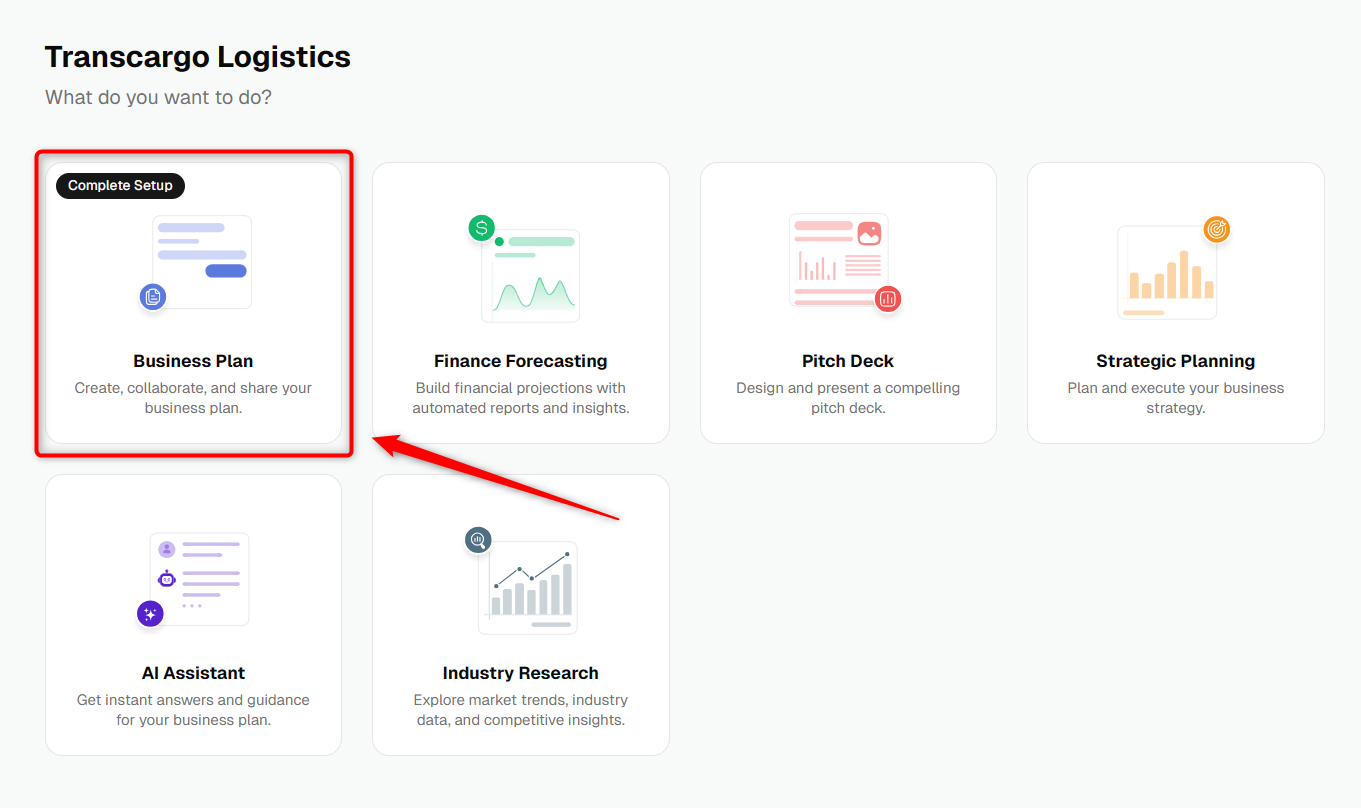
Clicking on this will redirect you to the template selection page. Here, look for and select the “Import from Document” option.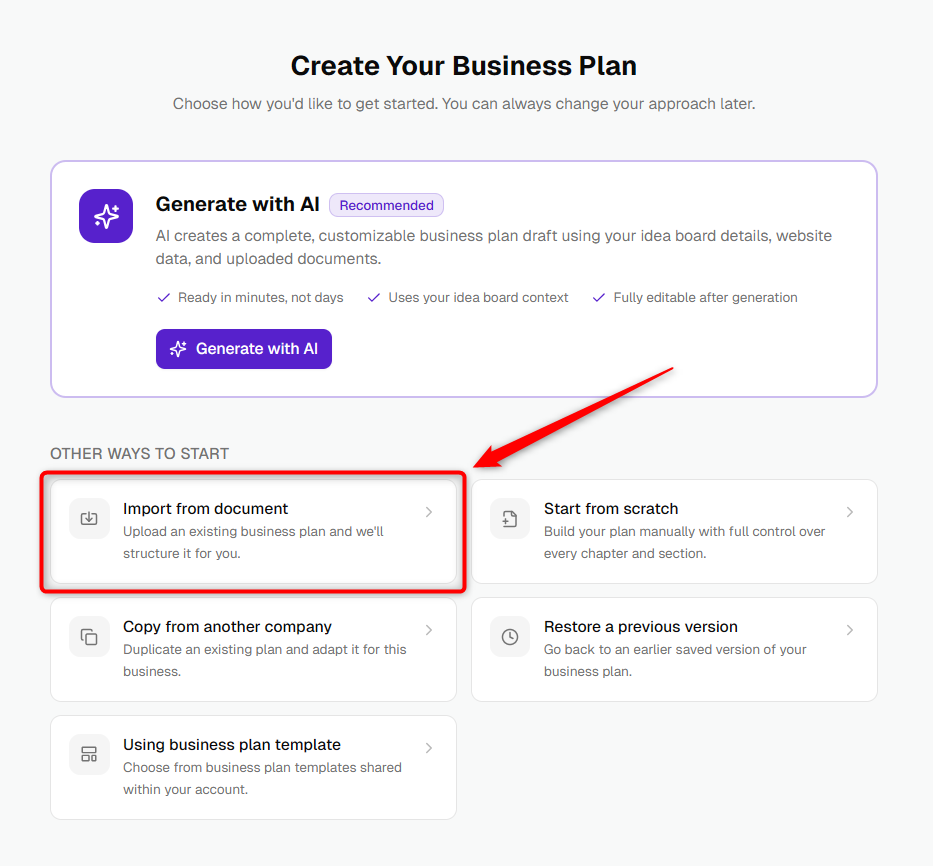
- 3
-
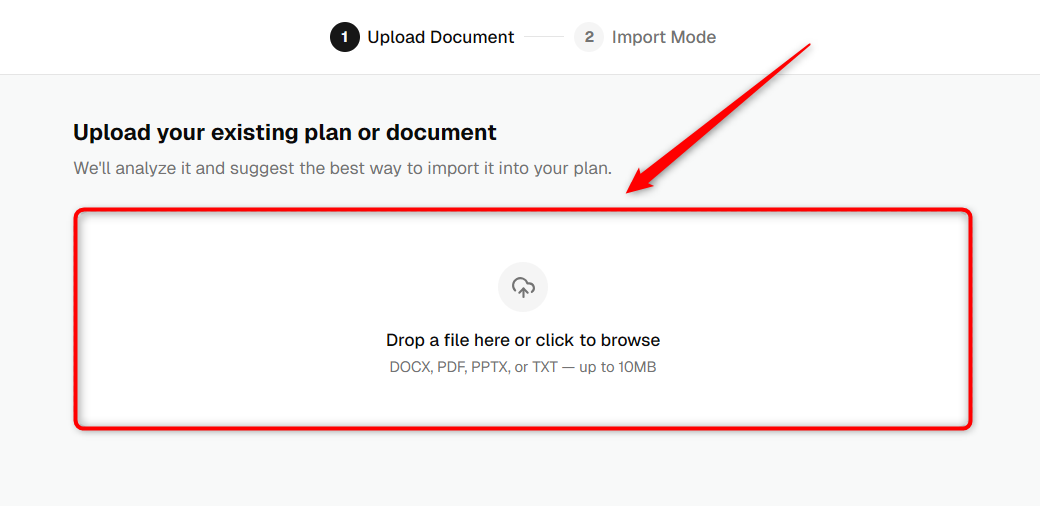
After selecting “Import Document,” you’ll see an option to upload your document. Click on the upload field and choose the document you want to import.
- 4
-
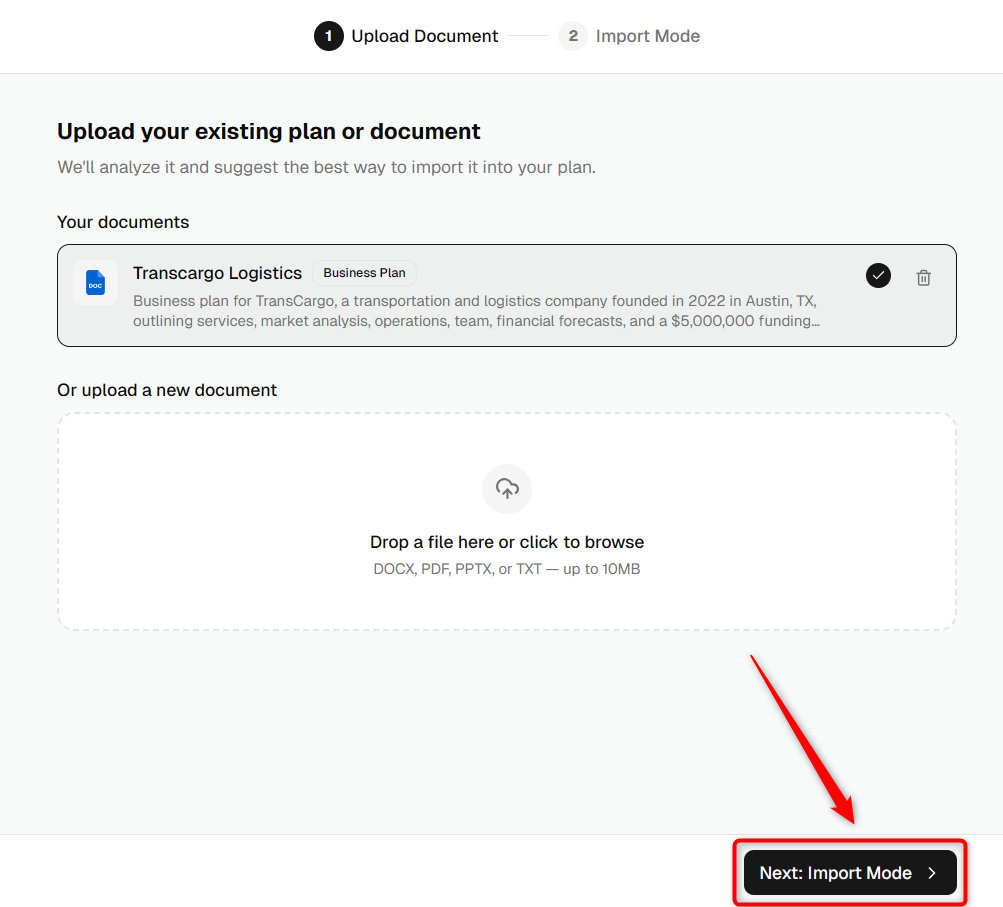
Once your file is selected, you'll be able to see the document you've chosen with quick summary of the content of the document. Now, click on the Import Mode option.
- 5
-
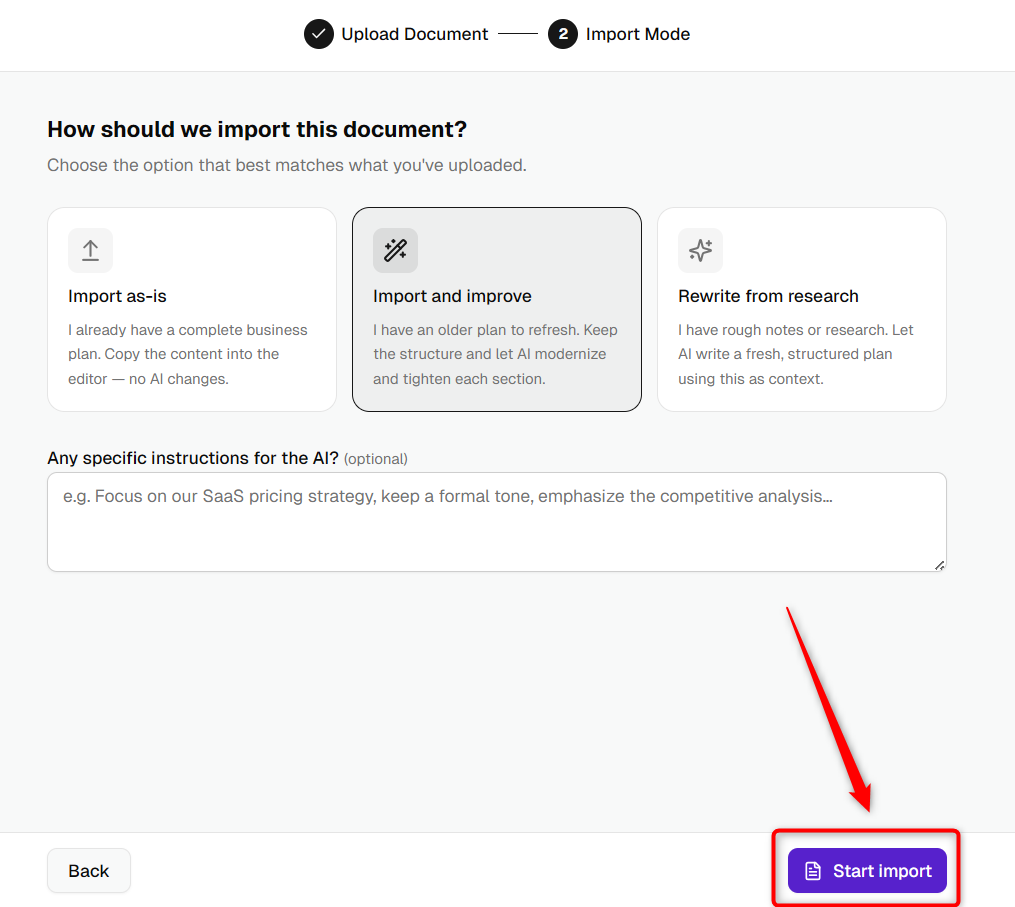
After clicking Import Mode, you will see three import options:
-
Import as is: Keeps your content exactly as written with no AI changes.
-
Import & Improve (Recommended): Enhances your writing while keeping the original structure intact.
-
Rewrite from research: Generates a completely new, structured business plan based on your document.
If you choose Import & Improve or Rewrite with AI, you can also add custom instructions for AI to guide improvements (e.g., Focus on SaaS business model, add a competitive analysis chapter, target investor audience).
-
- 6
-
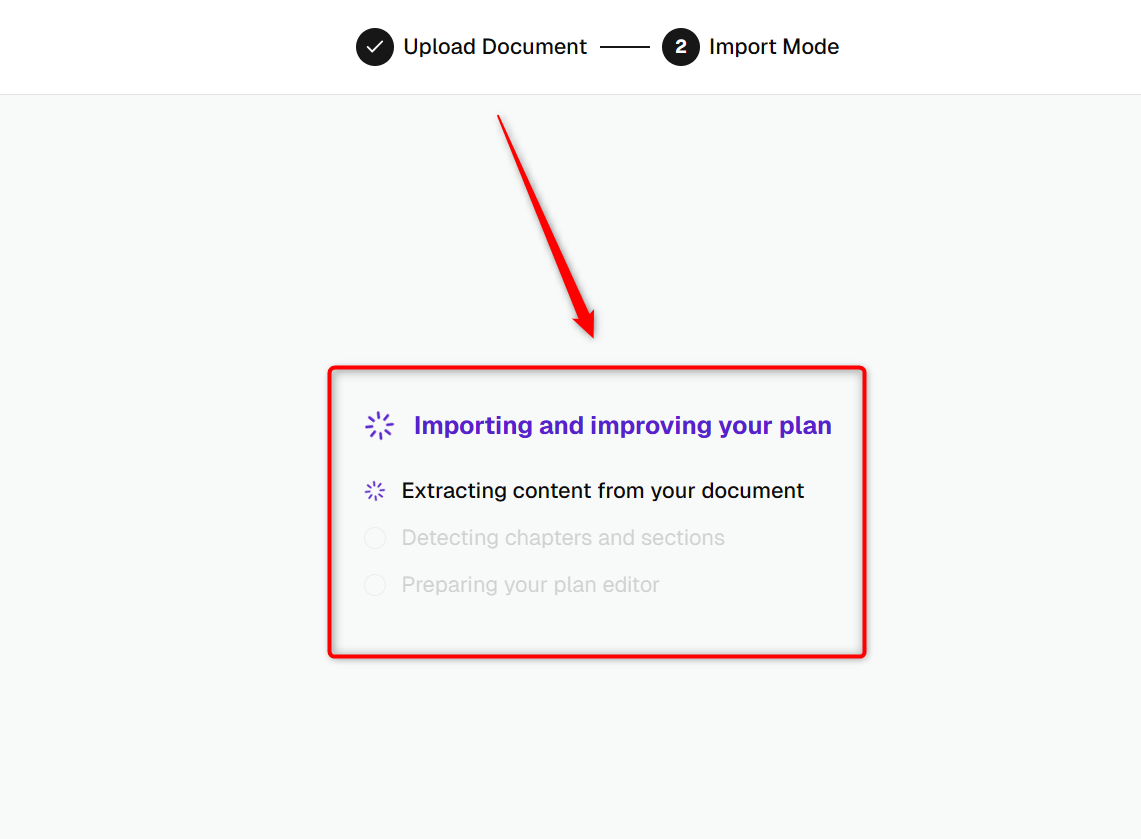
The system will then begin to analyze your document and start generating your business plan based on the content provided in your document.
- 7
-
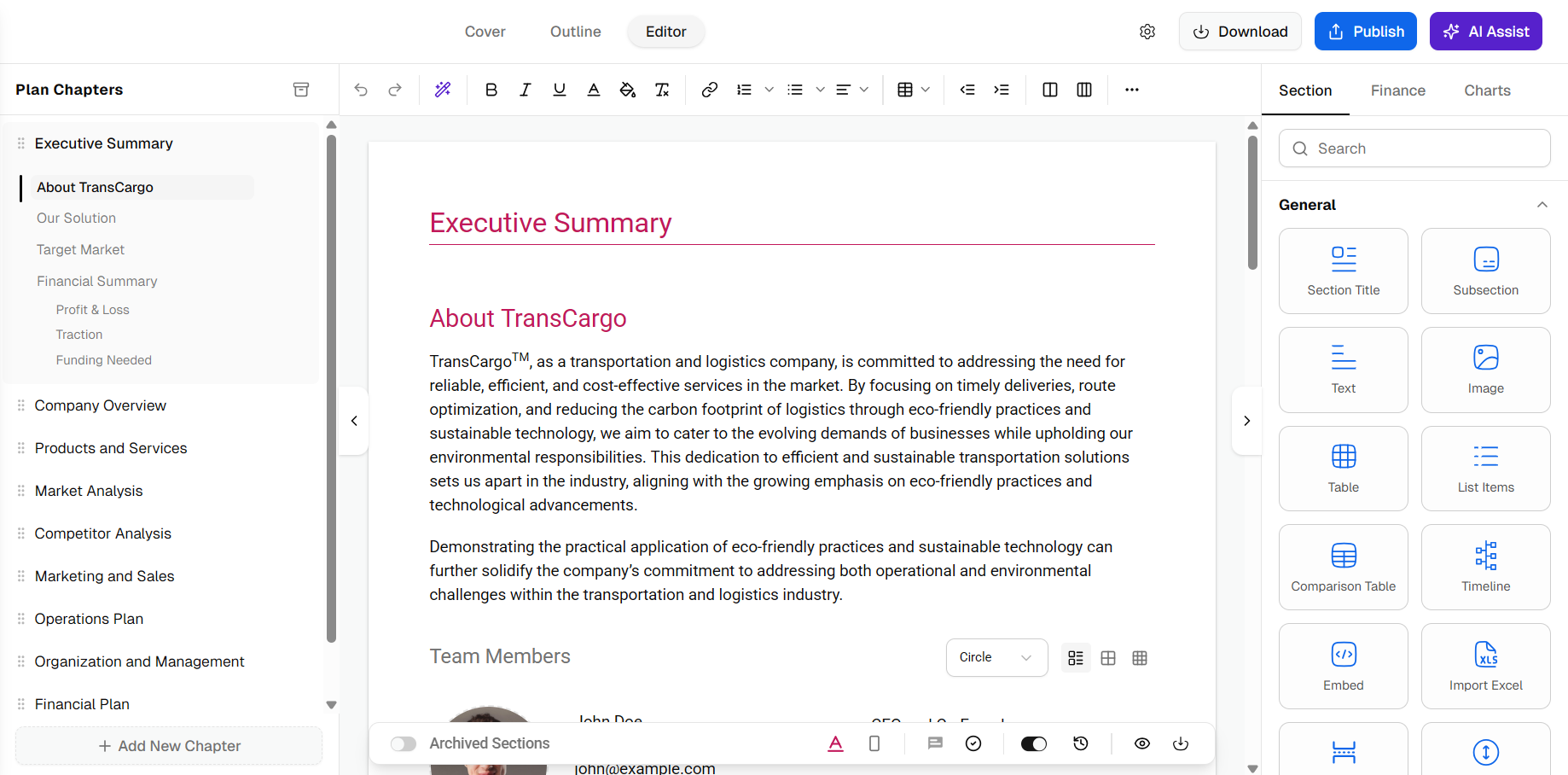
Once the upload process is complete, you will be redirected to your Business Plan Builder interface, where you can see your business plan generated from the uploaded document.
NOTE: Your document must be in DOC or DOCX format to be compatible, and make sure it’s no larger than 10 MB.
