-(1).png)
How to add starting/ initial inventory?
If your business begins with inventory in hand, it's essential to log this in the finance forecast module for accurate tracking. Starting inventory is crucial as it represents the total value of goods available for sale at the beginning of the period and directly impacts the cost of goods sold and profitability.
This guide will take you through the step-by-step process of entering your starting inventory and ensure that your starting inventory is reflected correctly in your financial statements.
In this article
Steps:
- 1
-
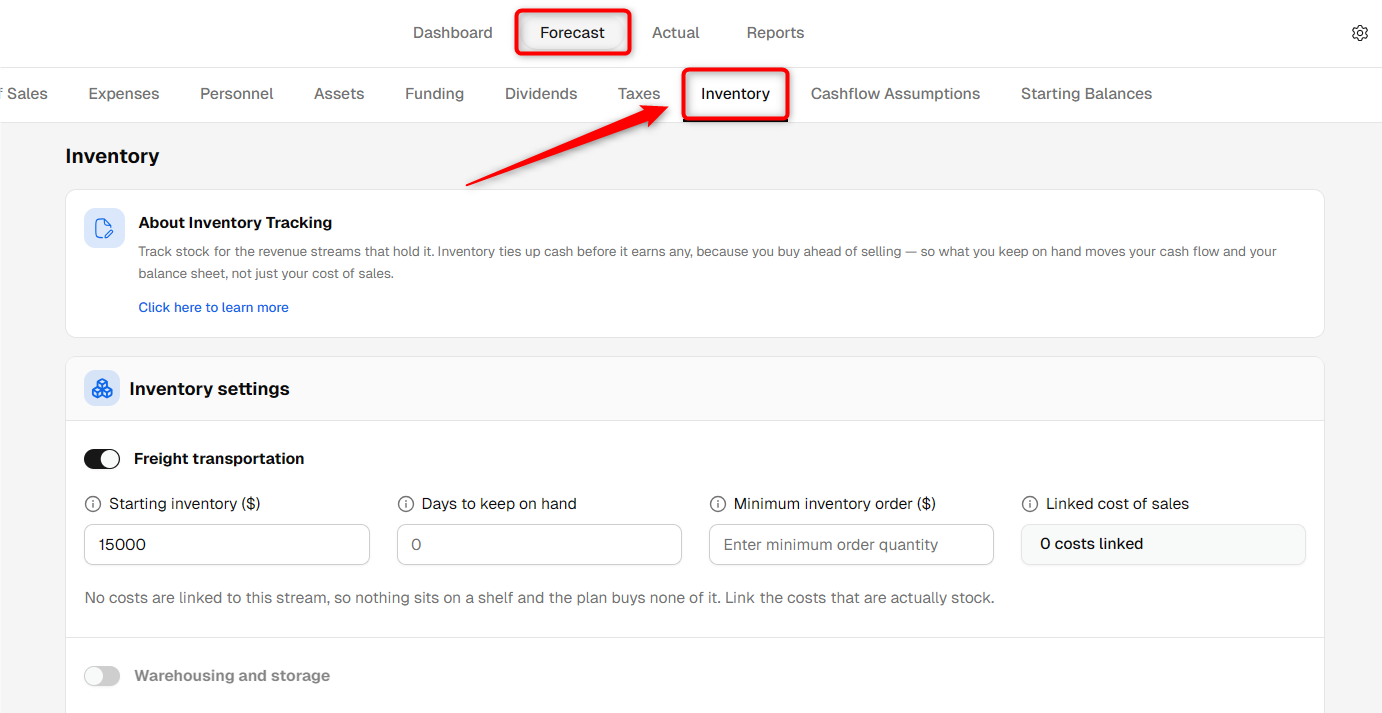
In the Forecast section, go to the Inventory tab.
- 2
-
In the Inventory section, locate the Starting Inventory field and enter the inventory amount.
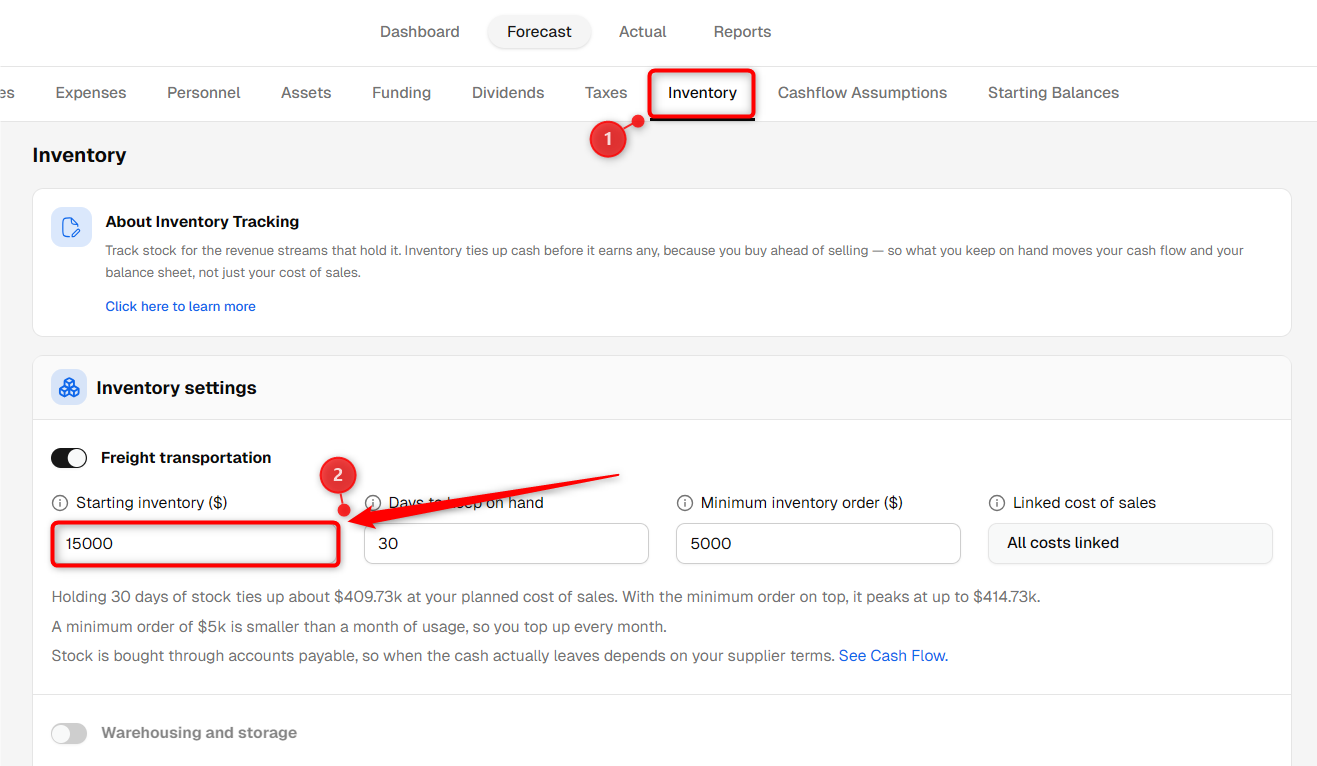
TIP: Get started with inventory tracking in your finance module by clicking here.
- 3
-
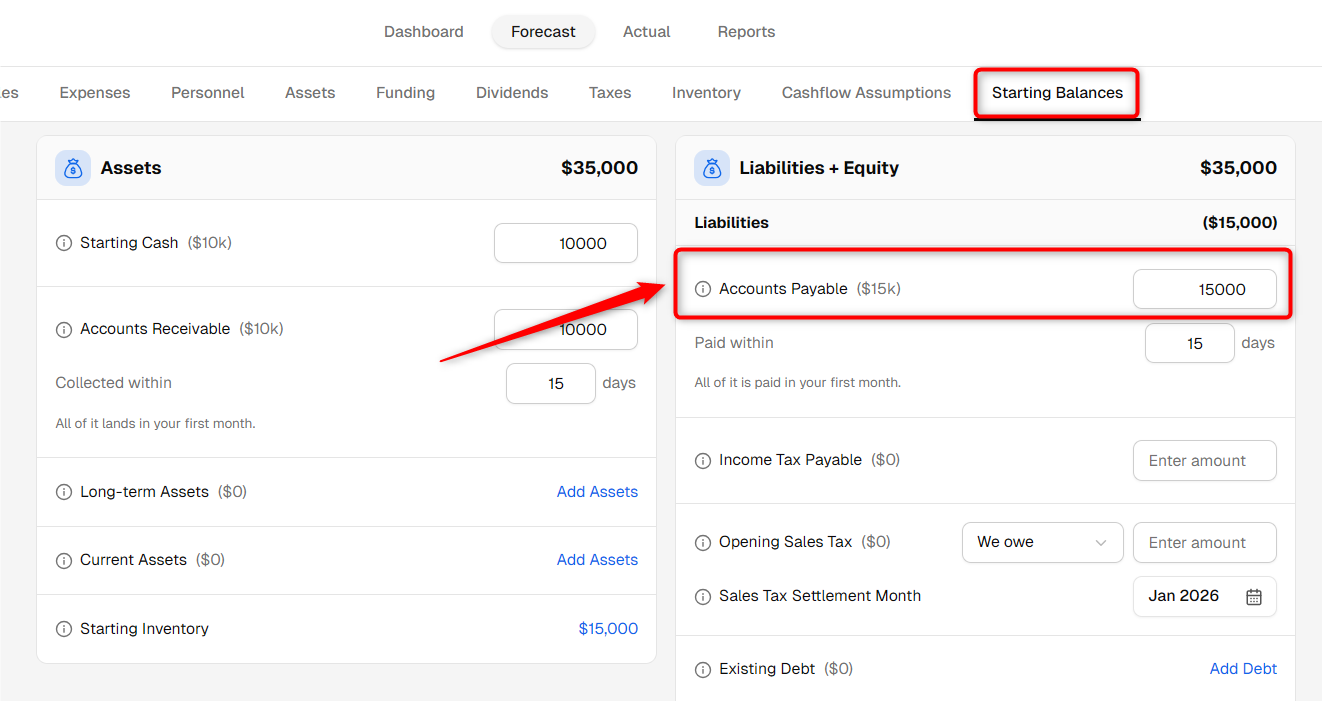
Now, return to the Starting Balances section, where you will see the added starting inventory. However, the starting balances must be balanced.
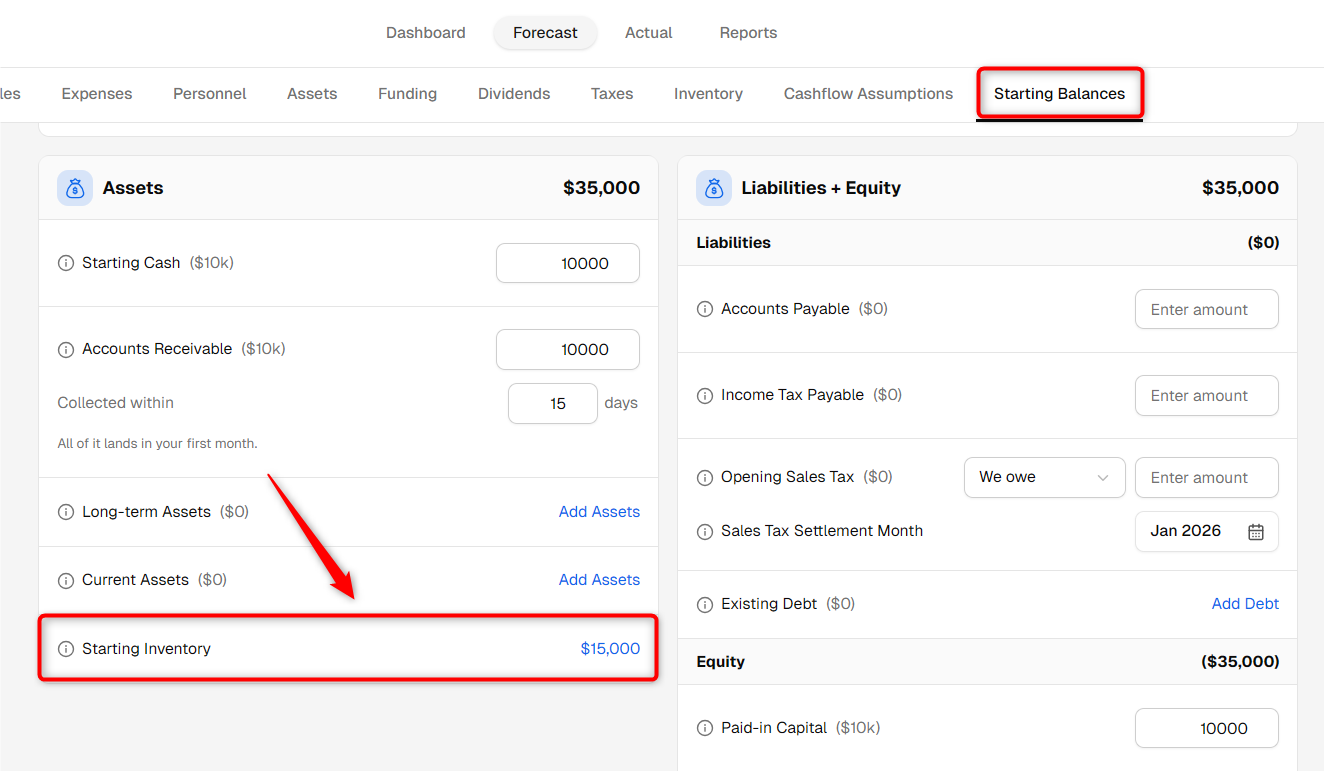
Since this represents inventory purchased before starting the business, make sure to add an equivalent Liability or Equity entry to balance the starting balances.
Once everything is settled, the system will save it automatically.
Where will the starting inventory be reflected in financial reports?
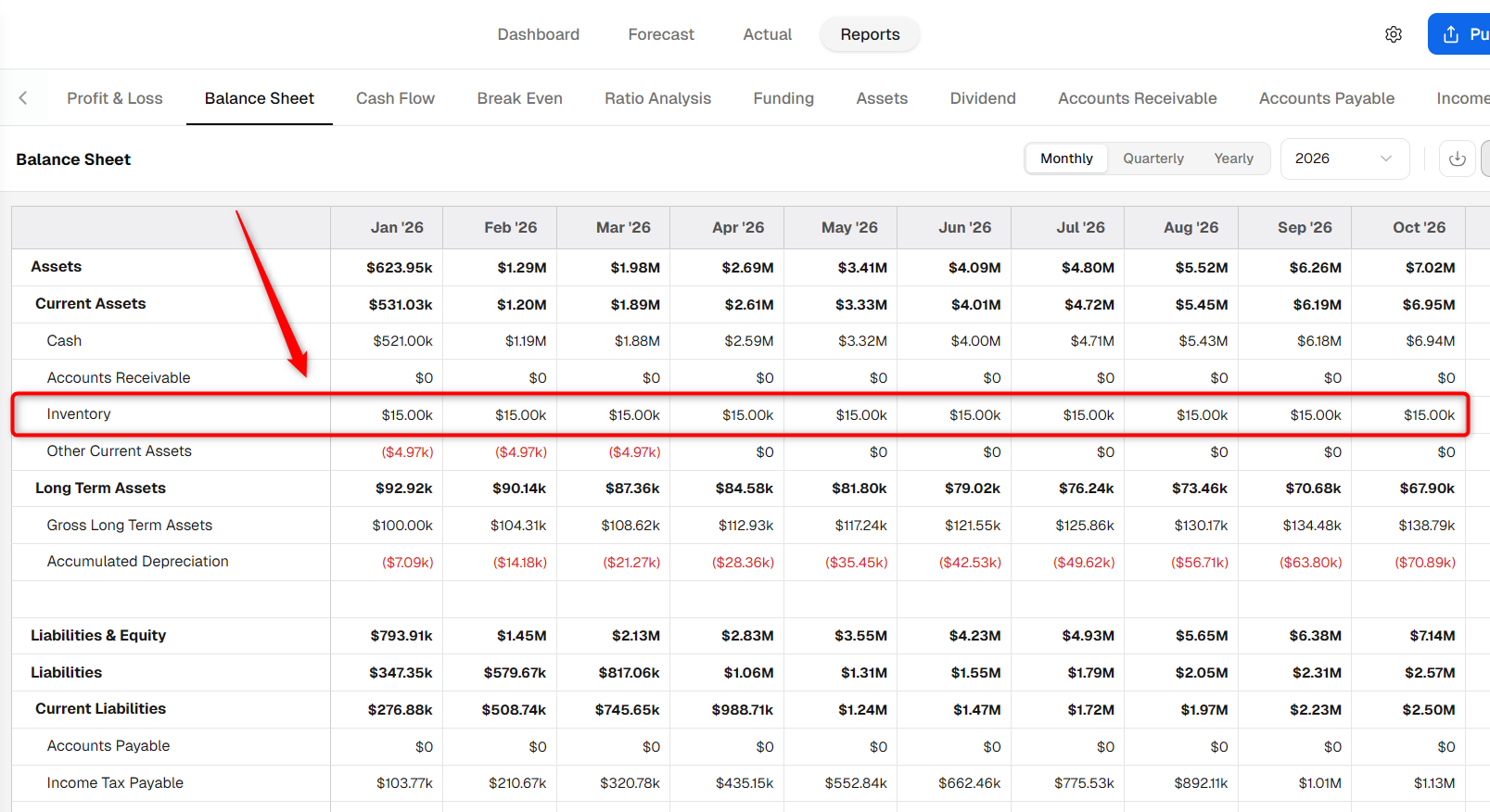
- Starting inventory will be recorded under the Balance Sheet in the Inventory section within the Assets category.
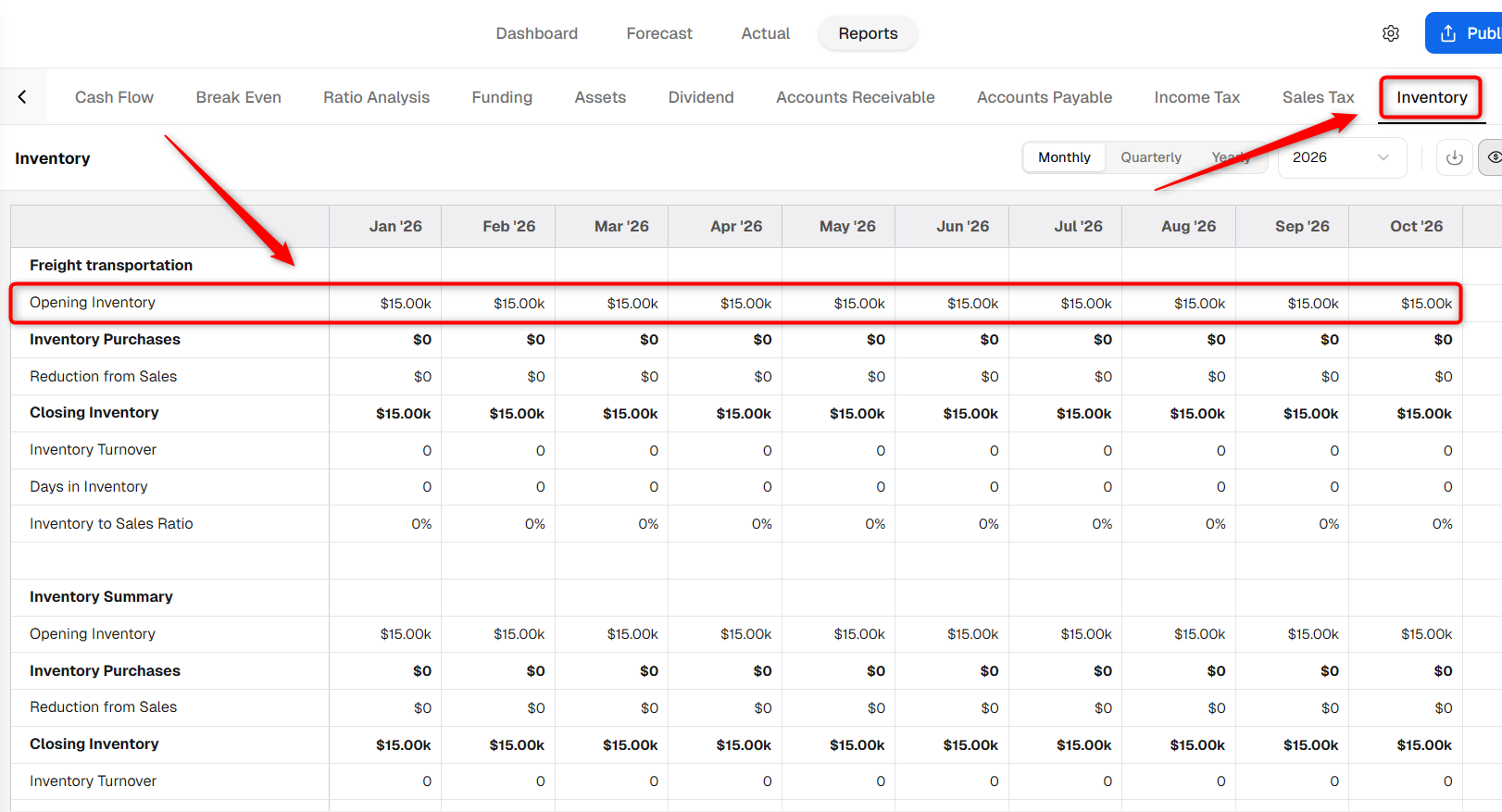
- In the Inventory Report, it will appear under the Opening Inventory section.