-(1).png)
Invite Member to your company
In today's collaborative work environment, the ability to seamlessly integrate team members into your projects is invaluable.
We understand this need and offer a comprehensive solution through it's company feature. This functionality enables the company owner to invite colleagues as collaborators or viewers, fostering a collaborative effort on business plans or other projects within the platform.
In this article
Invite New Members to Your Company:
- 1
-
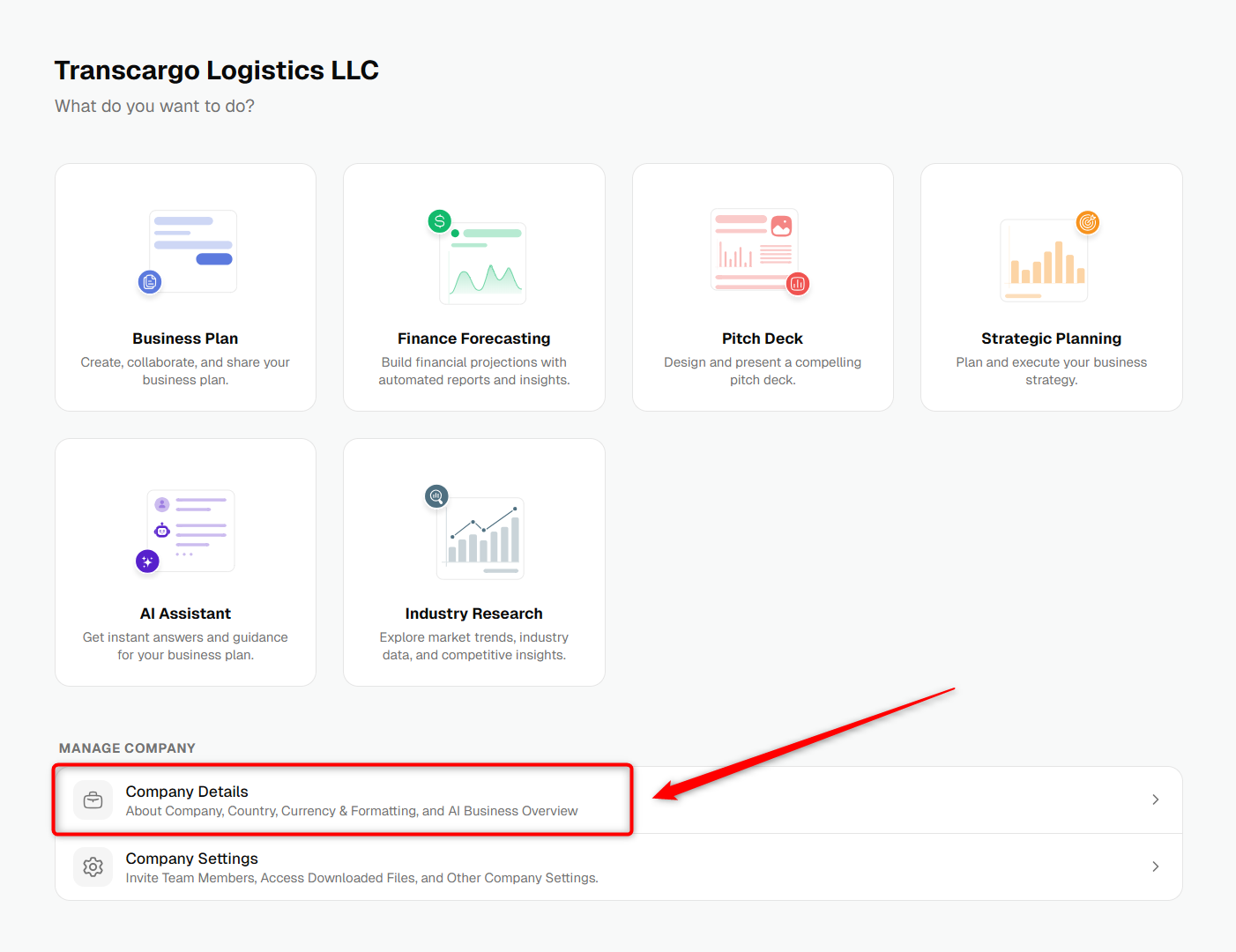
Navigate to the specific company and click on the "Company Details" to open.
- 2
-
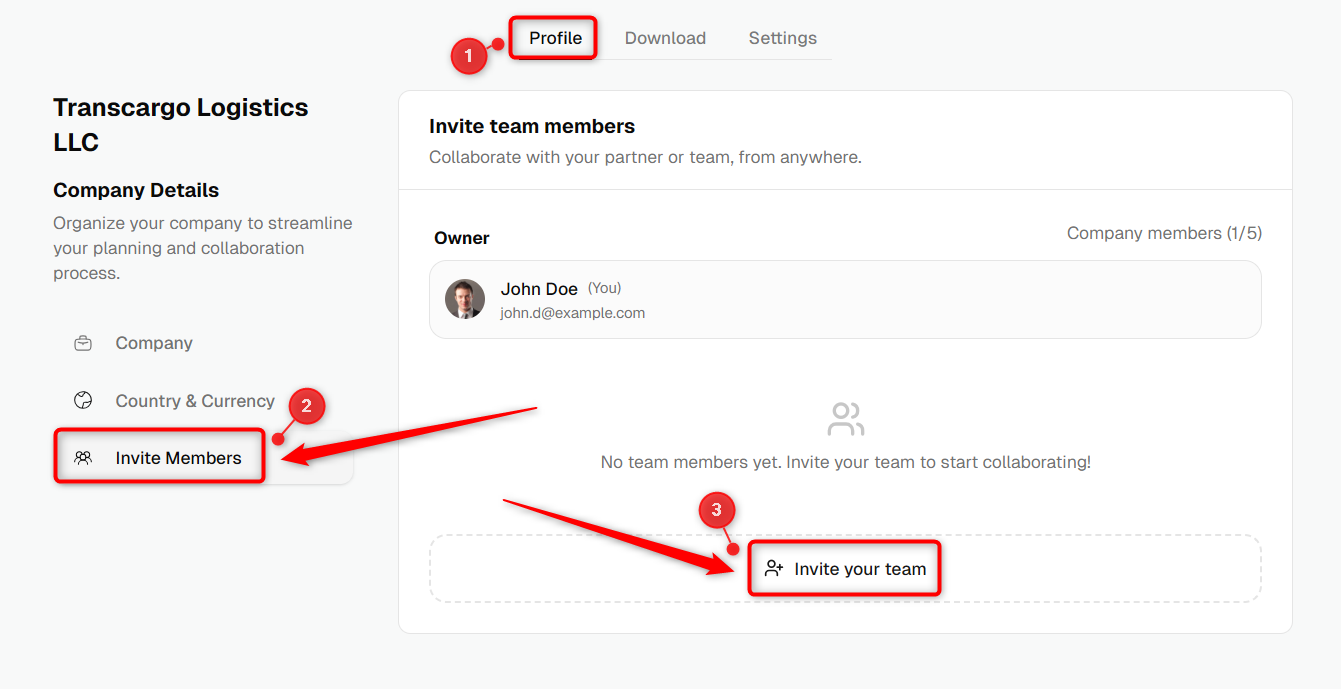
Within the company details, under the "Member" section, look for and click on the Invite New Member or Invite Your Team option to add a team member.
- 3
-
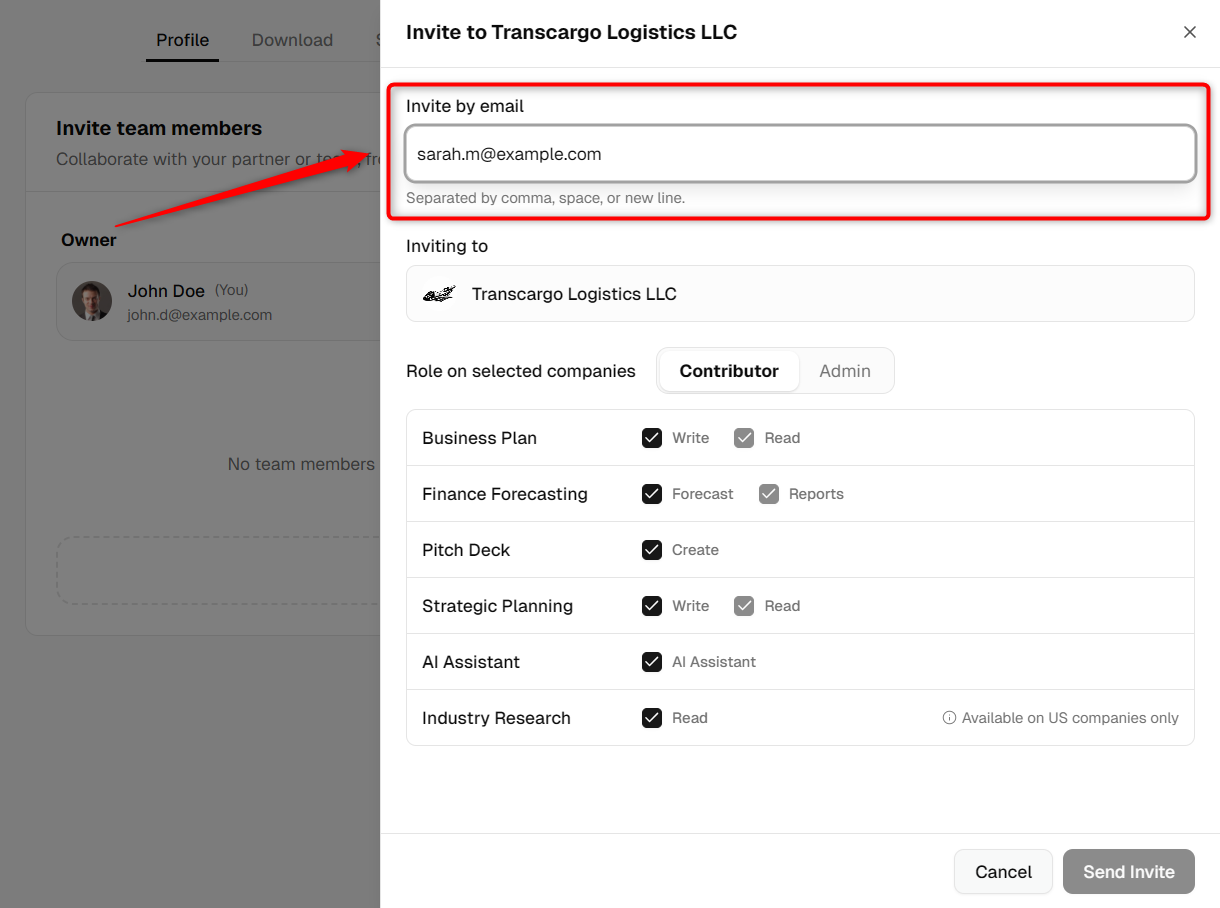
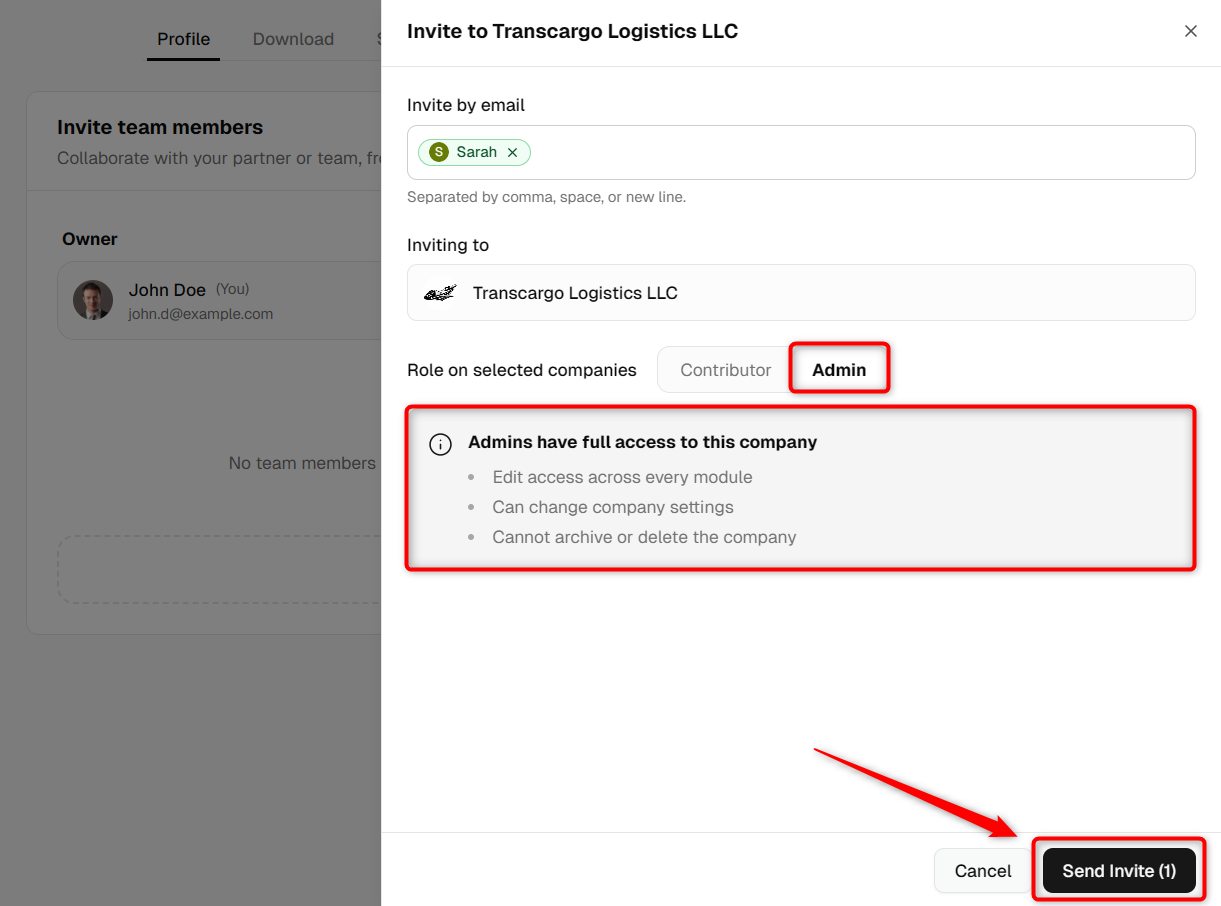
In the pop-up window, you'll be asked to enter the email address of the colleague you wish to invite to your company and click on the "Go To Next Step" option to continue.
Assign Permissions to Member:
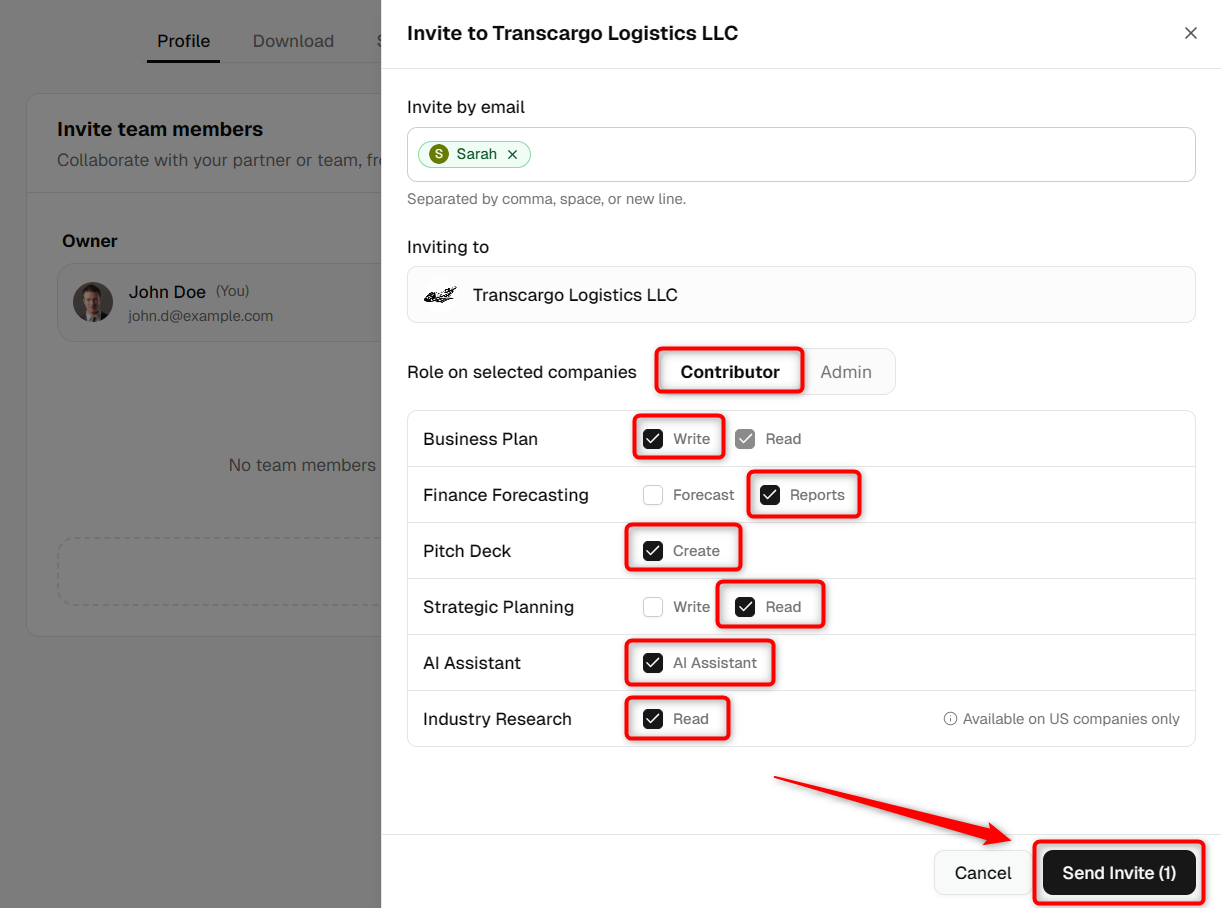
After inputting the email address, you will also need to provide additional details such as their Name, Designation, and Privileges.
- Contributor: This role is designed for team members who need to actively engage with the company by creating, editing, and discussing content.
Contributors have the capability to work on projects, making them ideal for individuals directly involved in the development of your business plan or other documents. They cannot, however, manage company settings or invite new members.
- Admin: Admins possess broader permissions, including everything a Contributor can do, plus additional administrative privileges.
This role allows for the management of company settings, the invitation of new members, and the alteration of user roles. The Admin role is suited for those who oversee the project or company, ensuring that everything runs smoothly and aligns with the team's objectives.


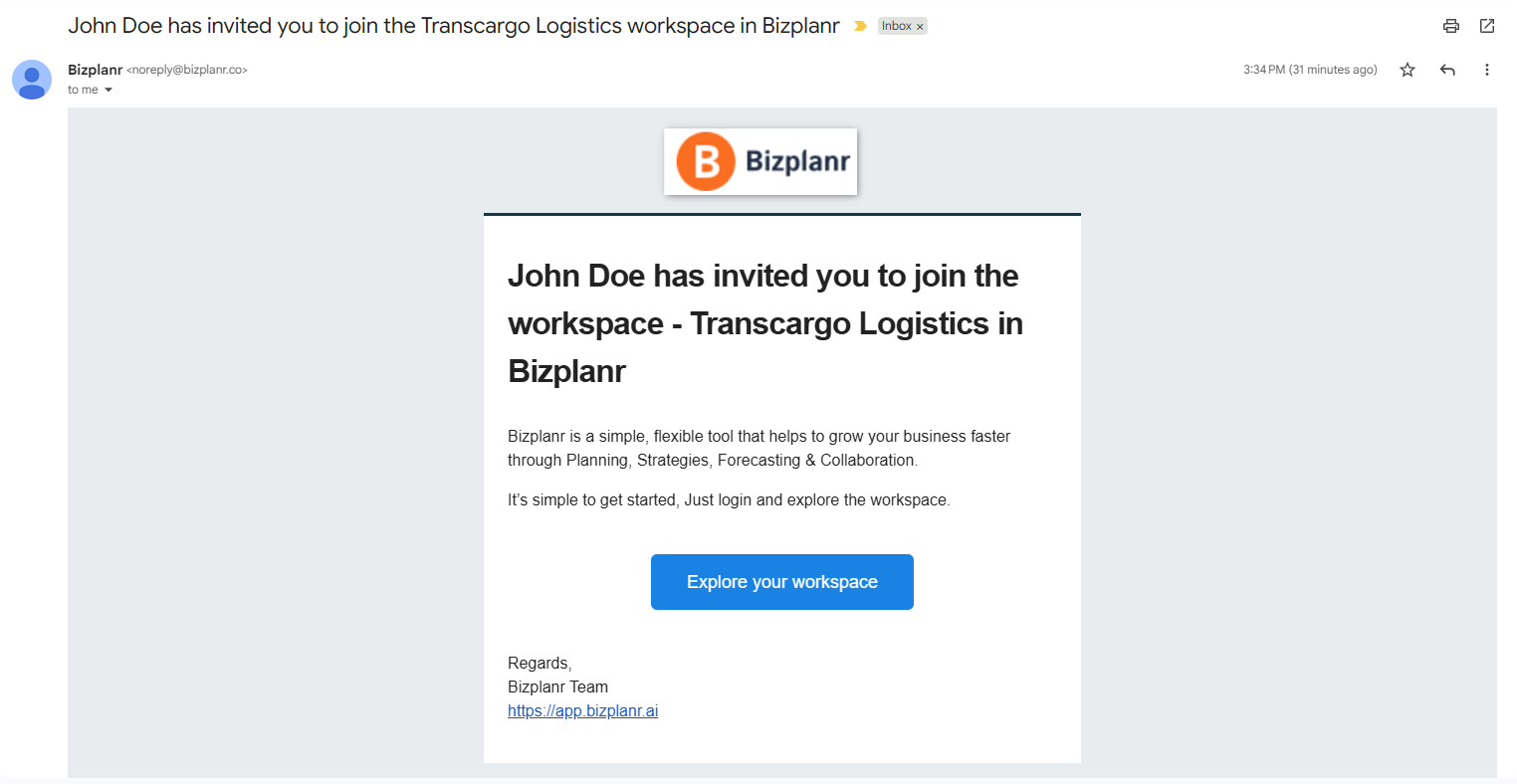
Following their invitation, the User will receive an invitation email in their inbox. This email contains a link that they can follow to join the company and easily engage with the team.
Removing Member from Your Company
Effective team management often involves adjusting access to your company. Whether due to role changes or project completion, removing a member may become necessary.
We provide a straightforward process for this, ensuring that you can manage your team's access with ease and precision.
- 1
-
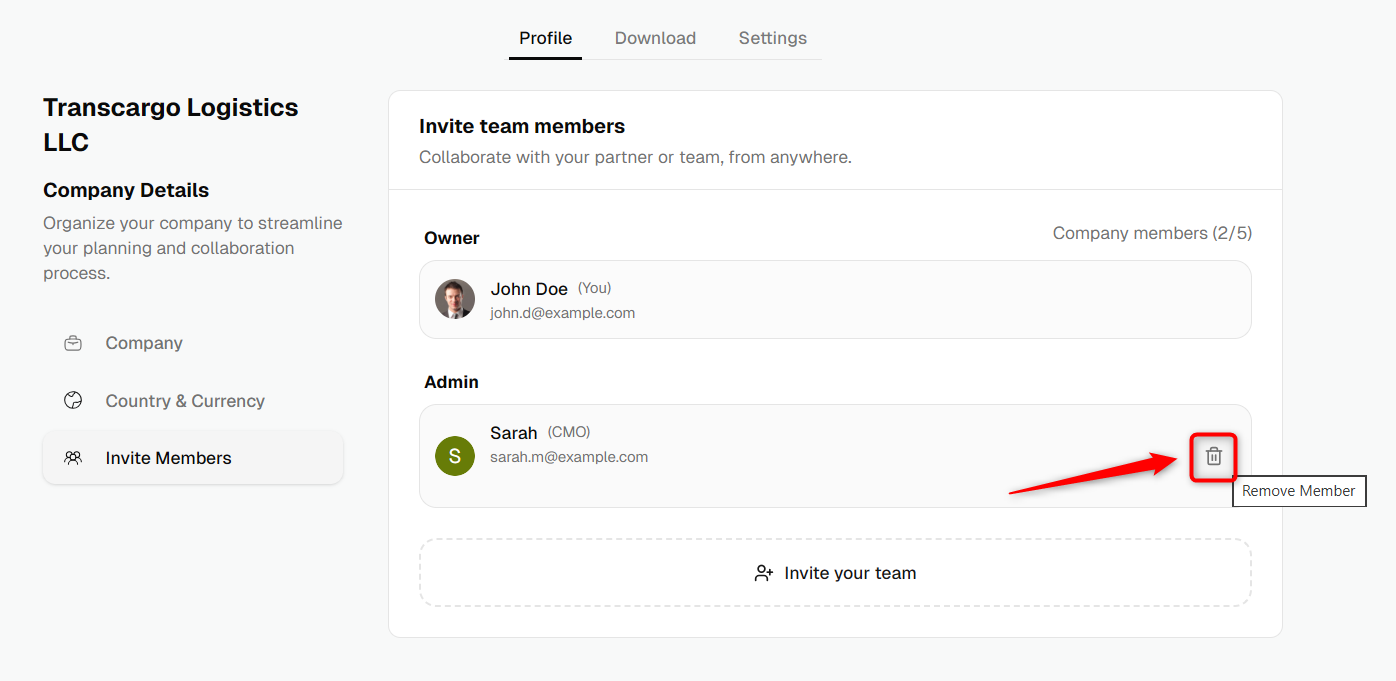
Find the member you wish to remove from the team list and click on the Remove Member option.
- 2
-
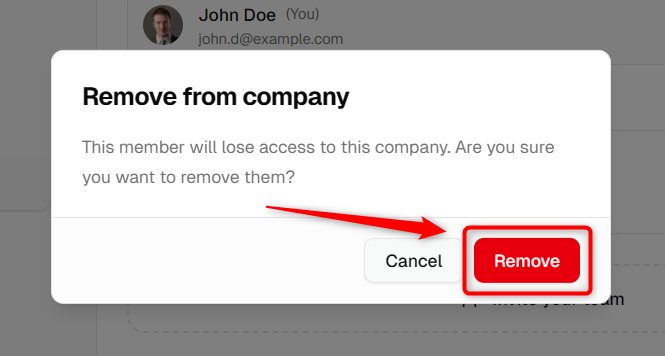
A confirmation pop-up will appear. Click on the "Remove" option to finalize the removal of the member from your company.
By following these steps, you can manage your company's team composition effectively, ensuring that only current and relevant members have access to your company and its resources.