-(1).png)
Entering Personnel as Cost Of Sales (Direct Labor)
In this article
Direct labor employees are those whose salaries are directly related to the products or services your business sells. For example, restaurant servers, truck drivers, warehouse workers, production staff, or other employees directly involved in delivering your offering can be considered direct labor.
Direct labor is treated as a Cost of Sales because these personnel costs are directly associated with generating revenue.
The platform gives you two ways to set up direct labor. You can describe your workforce and let Finance AI draft the teams and roles for you, or you can create them manually.
Adding Personnel as Cost of Sales (Direct Labor)
Creating Direct Labor with Finance AI
- 1
-
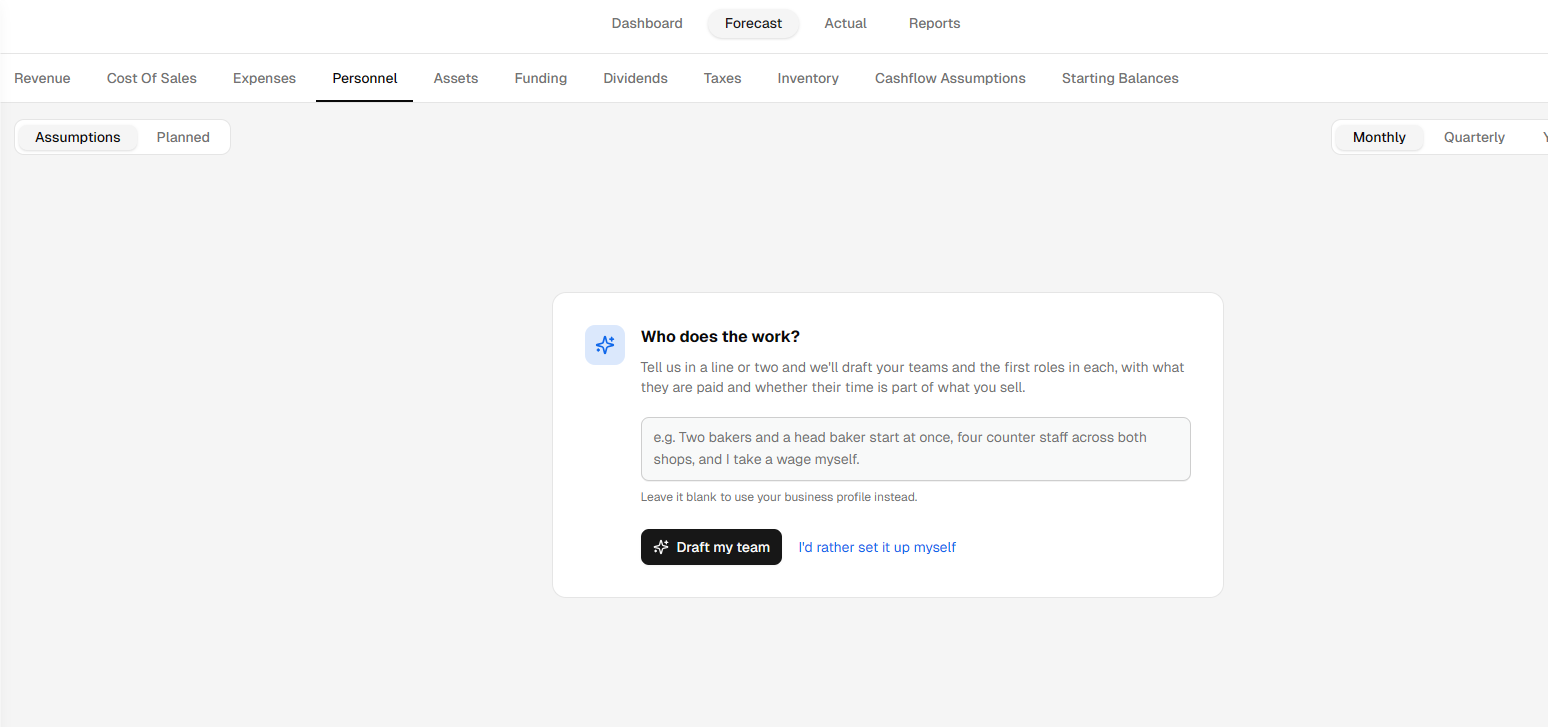
Go to the Finance Forecasting module, select the Forecast tab, and open the Personnel section.
You will see a guided setup asking Who does the work?
- 2
-
Enter a short description of the employees directly involved in delivering your products or services.
You can include details such as job roles, number of employees, expected salaries, benefits, and whether their work should be treated as direct labor.
Once you have entered the details, click Draft my team.
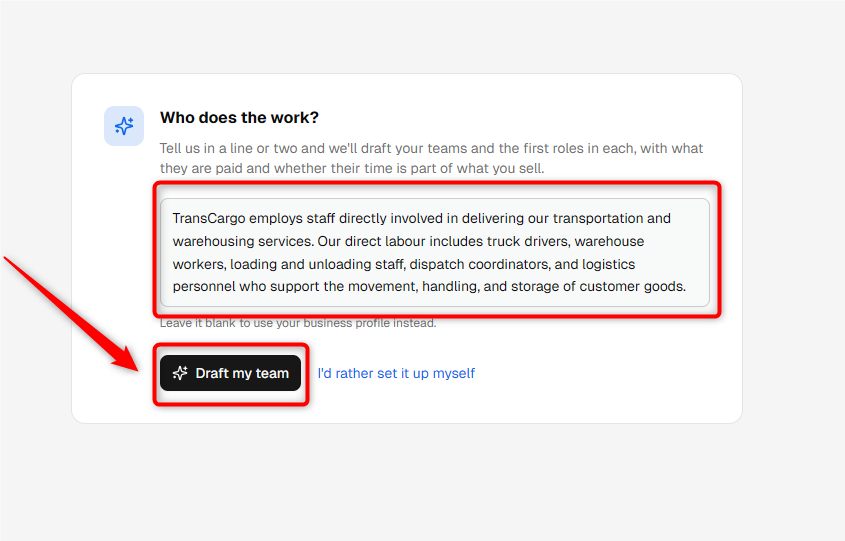
TIP: Include the main roles, expected headcount, salary, and benefits where possible. This helps Finance AI create a more relevant starting point for your personnel forecast.
- 3
-
Finance AI will create suggested teams and roles based on the information you entered.
Review the proposed roles, employee counts, salaries, benefits, and labor classification.
You can click the Edit icon beside any role to make changes before adding it.
Once the suggestions look correct, keep the required roles selected and click Add these roles.
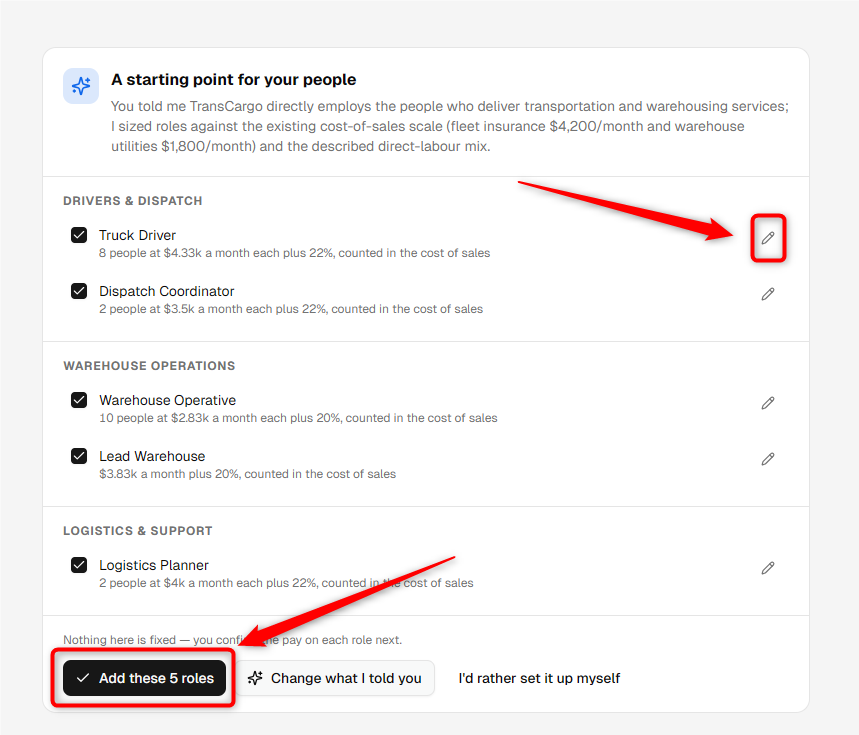
NOTE: The suggested figures are only a starting point. Review the employee counts, salary, benefits, and labor classification to make sure they match your actual business expectations.
- 4
-
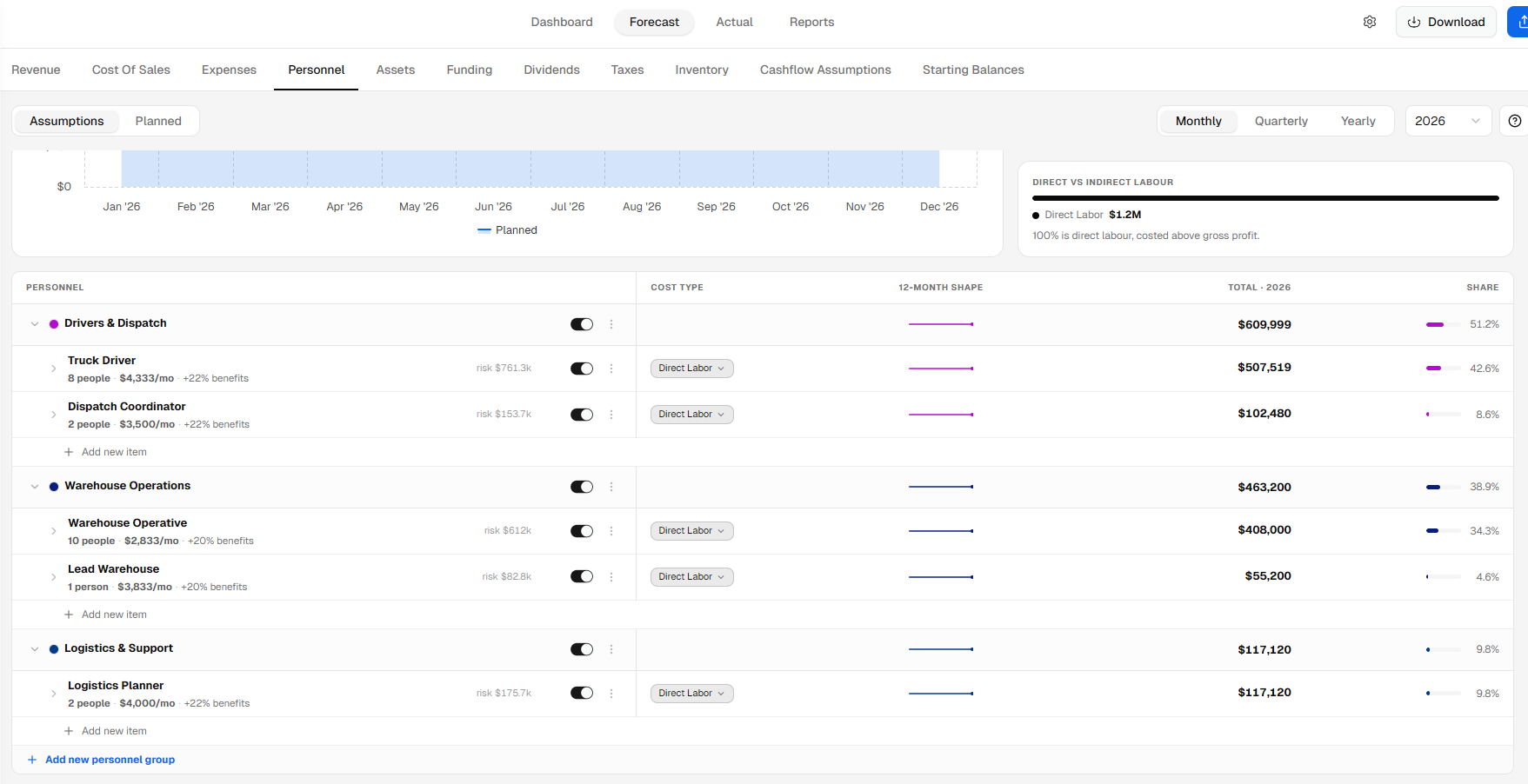
The selected teams and personnel roles will be added to your forecast.
From the Personnel section, you can review each role and update its assumptions whenever required.
Direct labor roles will appear with Direct Labor under the Cost Type column.
Creating Direct Labor Manually
- 1
-
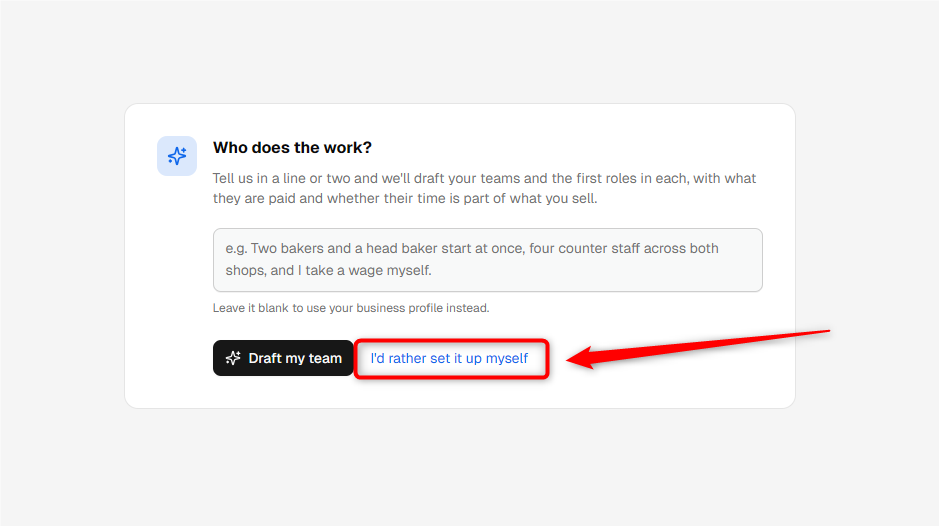
If you do not want Finance AI to draft your personnel roles, click I'd rather set it up myself from the Personnel setup screen.
- 2
-
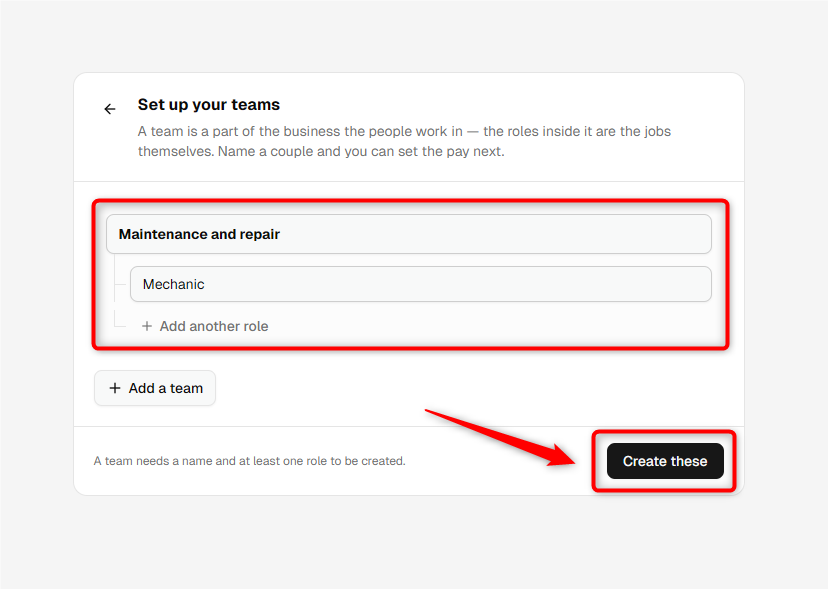
In the Set up your teams window, enter a name for the personnel team and at least one role within that team.
You can click Add another role to add more positions to the same team or Add a team to create another personnel group.
When you are ready, click Create these.
- 3
-
The system will create the team and personnel role in your forecast.
Locate the newly created role under the Personnel section and select Direct Labor from the Cost Type dropdown.
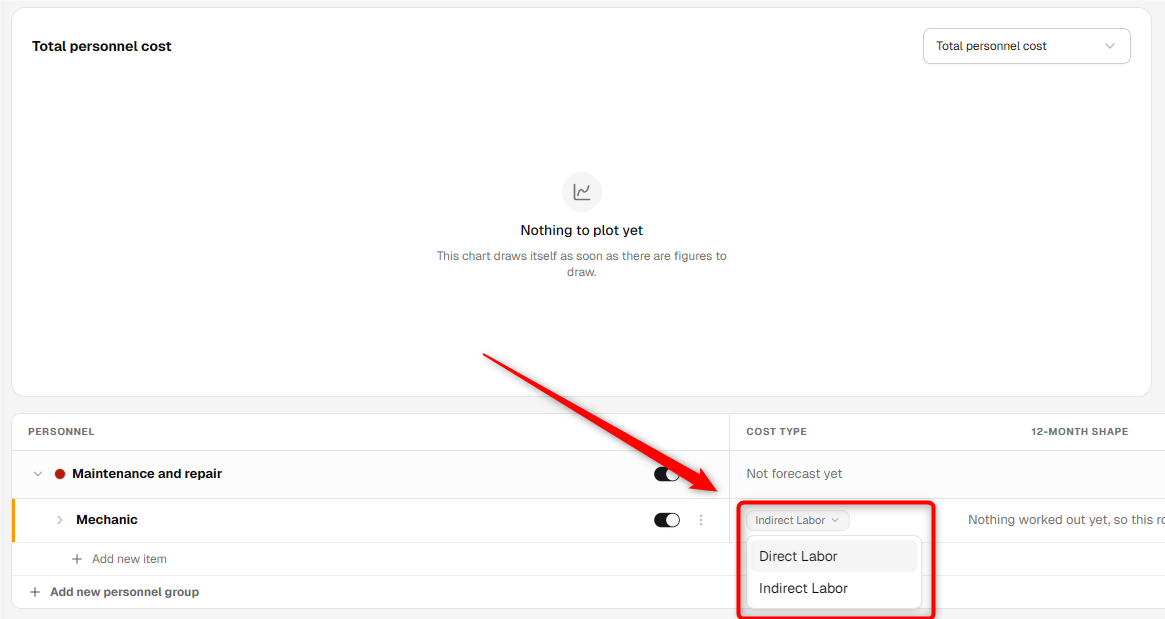
NOTE: Selecting Direct Labor ensures that the personnel cost is treated as a direct cost and included in Cost of Sales.
- 4
-
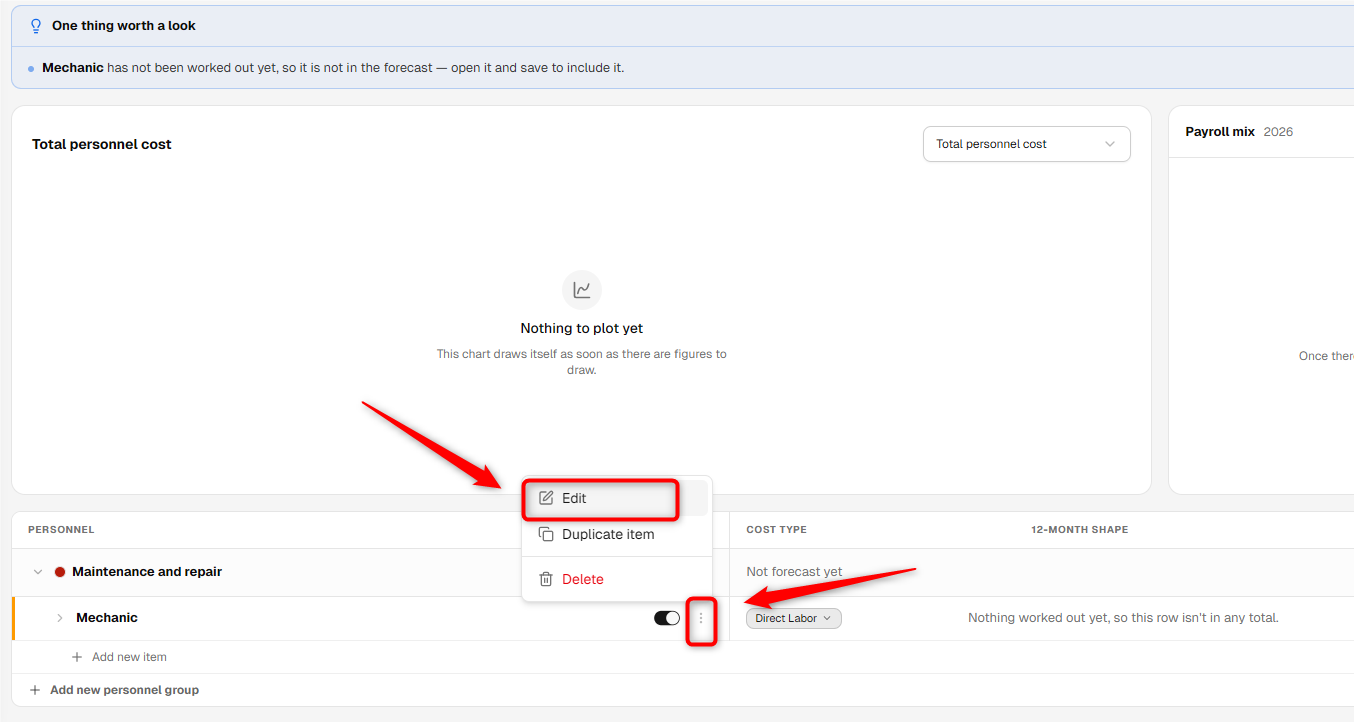
Click the three-dot menu beside the personnel role and select Edit.
The personnel assumption form will open, allowing you to enter the detailed payroll assumptions for the role.
- 5
-
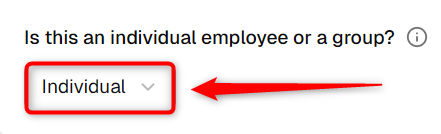
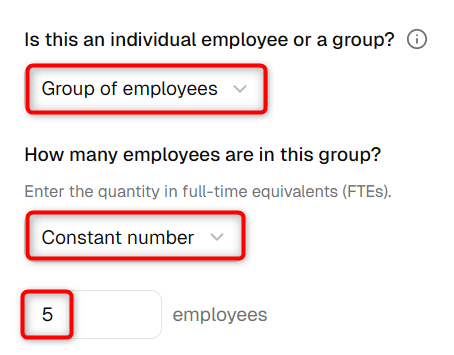
Select whether you are adding an Individual Employee or a Group of Employees.
If you select an individual employee, enter the applicable employee details.
If you select a Group of Employees, enter the number of full-time equivalents (FTEs) you expect to employ.
- 6
-
Choose whether the employee or group will be paid a Constant Amount or a varying amount over time.
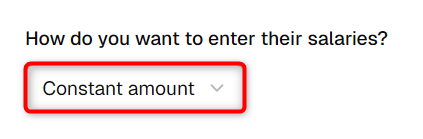
If you choose Constant Amount, enter the salary you expect to pay per month or per year.
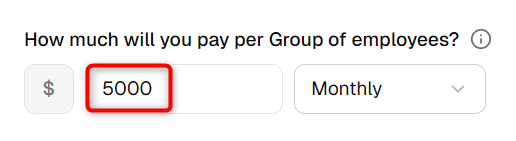
NOTE: For a group of employees, enter the salary for one full-time employee. The platform will multiply this amount by the number of employees in the group.
- 7
-
If applicable, enter the expected salary increase and specify whether the raise occurs monthly or annually.

- 8
-
Indicate whether the personnel are On-staff Employees or Contract Workers.
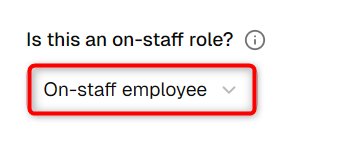
For on-staff employees, enter the applicable tax and benefits percentage, also known as the Burden Rate.
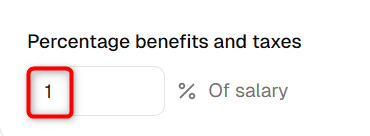
NOTE: The tax and benefits percentage applies only to on-staff employees and does not apply to contract workers.
- 9
-
Time Duration: Select when the employee or group will start working and, if applicable, when their employment will end.
Review the personnel assumptions and click Save.
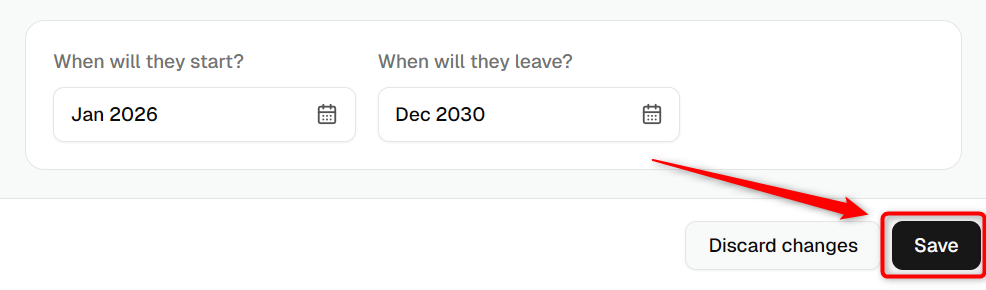
Once saved, the personnel role will be included in your forecast as direct labor. You can return to the Personnel section whenever you need to update employee counts, salaries, benefits, employment dates, or cost classification.
TIP: Moving finance items from one group to another is hassle-free. Check out our help guide here.
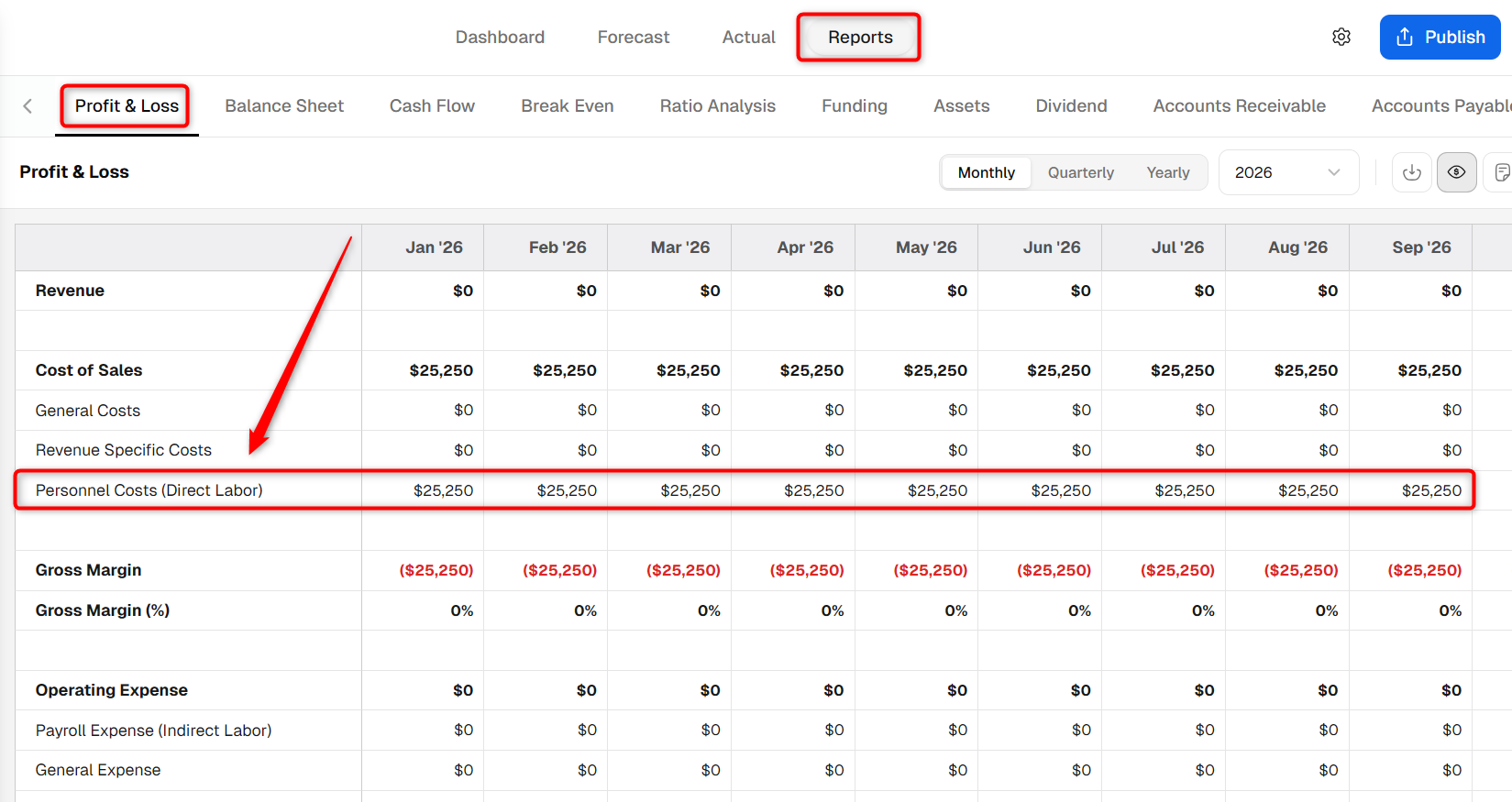
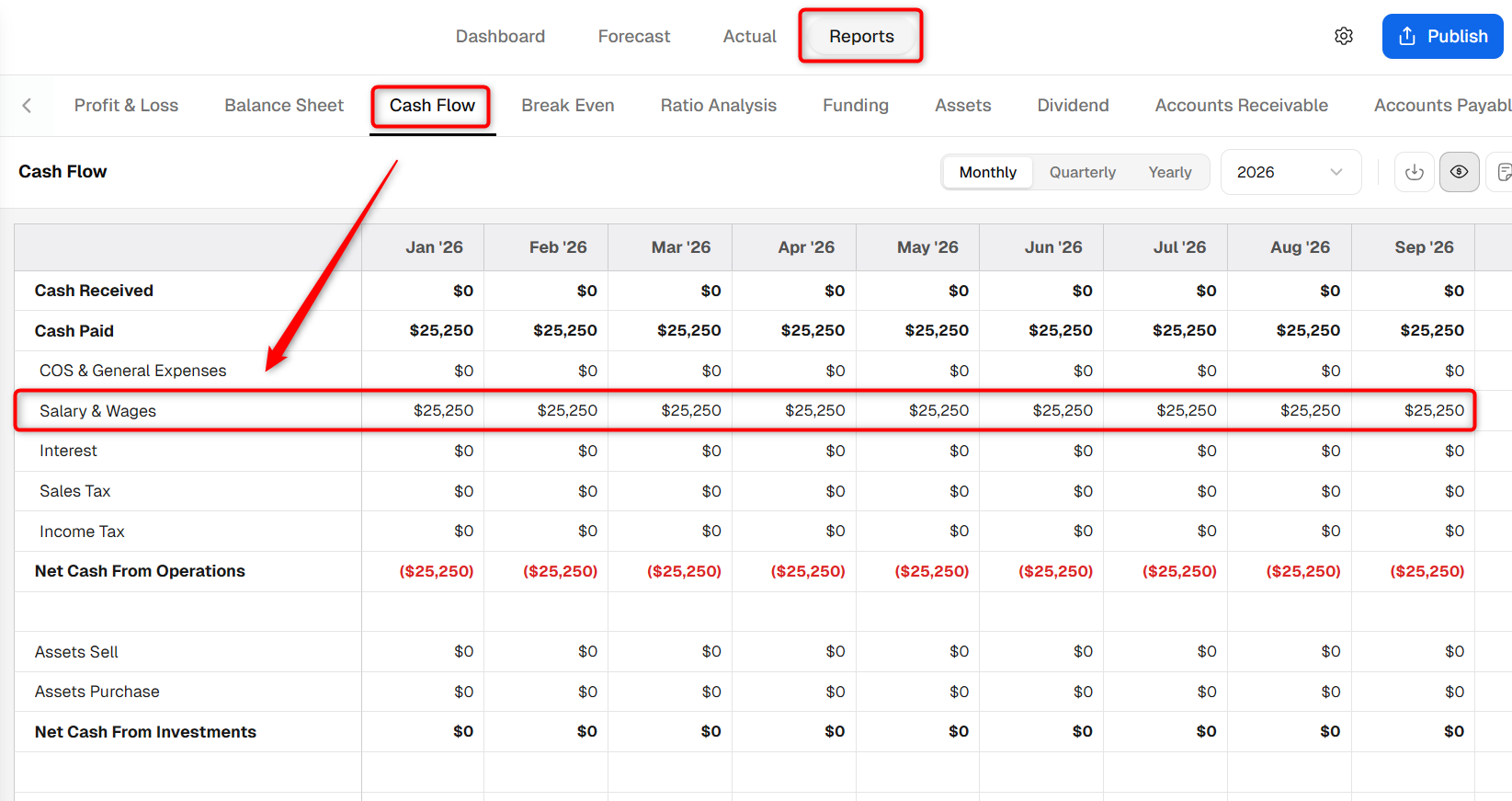
Where does this entry appear in the financial statements?
Your direct labor personnel costs are included in the applicable Cost of Sales calculations in the Profit & Loss report and are also reflected in the Cash Flow statement.