-(1).png)
Entering Assets
In this article
Long-lasting purchases, commonly called assets, are treated differently from regular business expenses. For example, fuel for a company truck is used quickly and is treated as a regular expense, while the truck itself provides value to the business for several years.
When you enter an asset into your forecast, The system includes its value in your financial statements and calculates the applicable depreciation or amortization over its useful life.
The system gives you two ways to set up assets. You can describe the assets your business owns or plans to purchase and let Finance AI draft the asset groups and items for you, or you can create them manually.
If you plan to take out a loan to purchase an asset, add the loan separately under the Funding section. The steps below are only for entering the asset itself.
NOTE: Cash, accounts receivable, and inventory are also assets, but they are handled separately in the forecast. Use the Assets section for items such as equipment, vehicles, furniture, or short-term assets such as annual contracts.
Adding a Long-term Asset
Creating a Long-term Asset with Finance AI
- 1
-
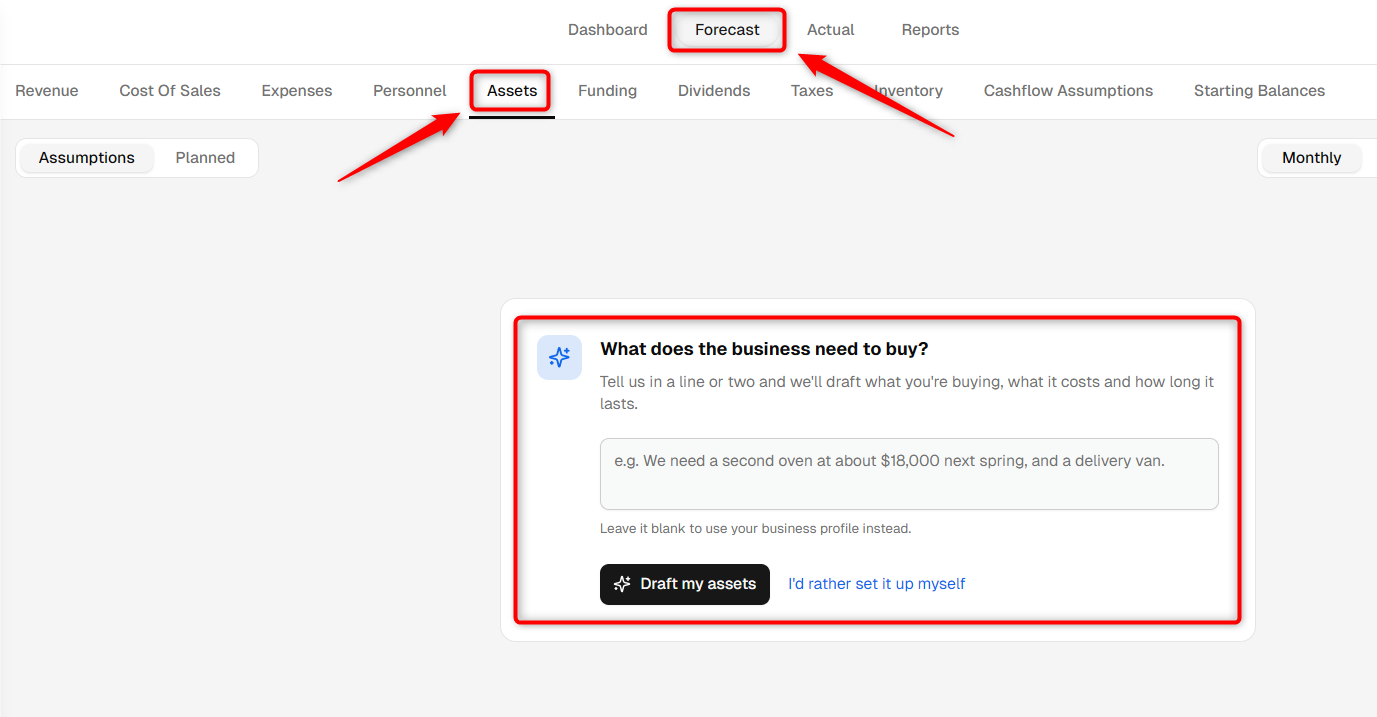
Go to the Finance Forecasting module, select the Forecast tab, and open the Assets section.
You will see the guided asset setup where you can describe the assets your business owns or plans to purchase.
- 2
-
Enter a short description of the long-term assets you want to include in your forecast.
Include details such as the asset name, expected purchase price, purchase date, useful life, and whether the asset already existed before the plan started.
Click the option to draft my assets with Finance AI.
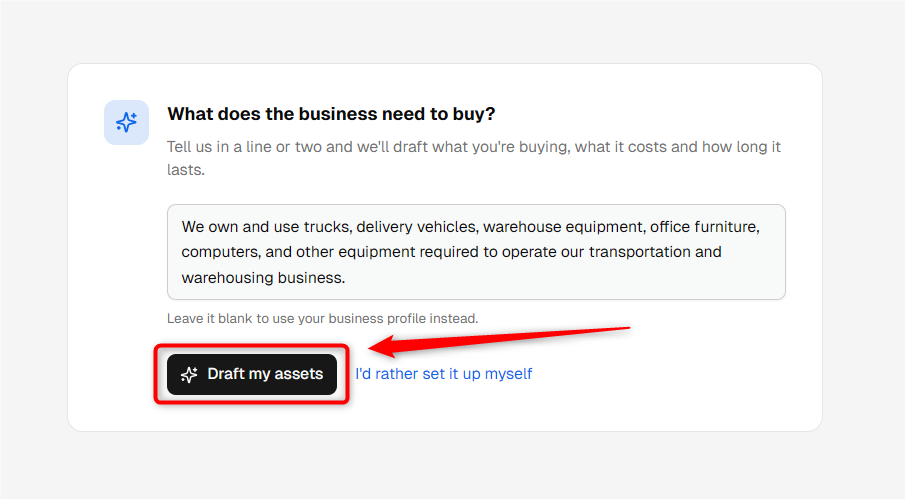
TIP: Include the purchase amount, expected purchase date, and useful life where possible. This helps Finance AI create a more relevant starting point for your asset forecast.
- 3
-
Finance AI will create suggested asset groups and asset items based on the information you entered.
Review the proposed assets and their starting assumptions. You can use the Edit option beside an asset to make changes before adding it.
When the suggestions look correct, keep the required assets selected and add them to your forecast.
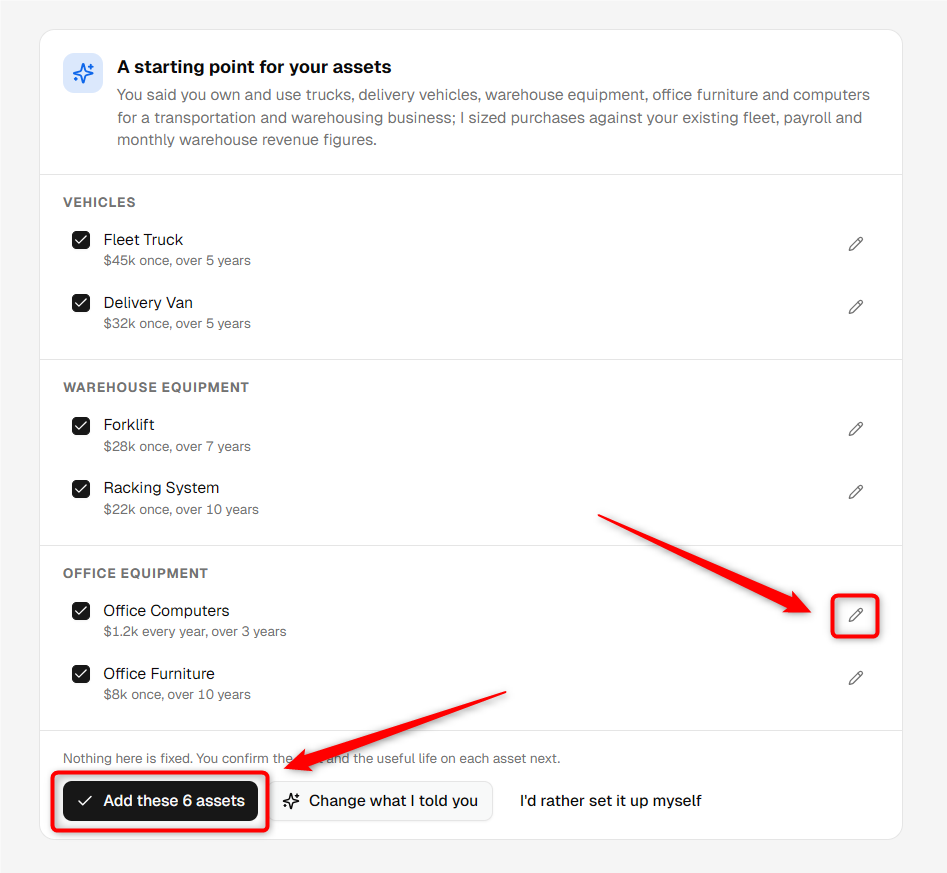
NOTE: Finance AI provides a starting point. Review the purchase amount, timing, useful life, and asset classification to make sure they match your actual plans.
- 4
-
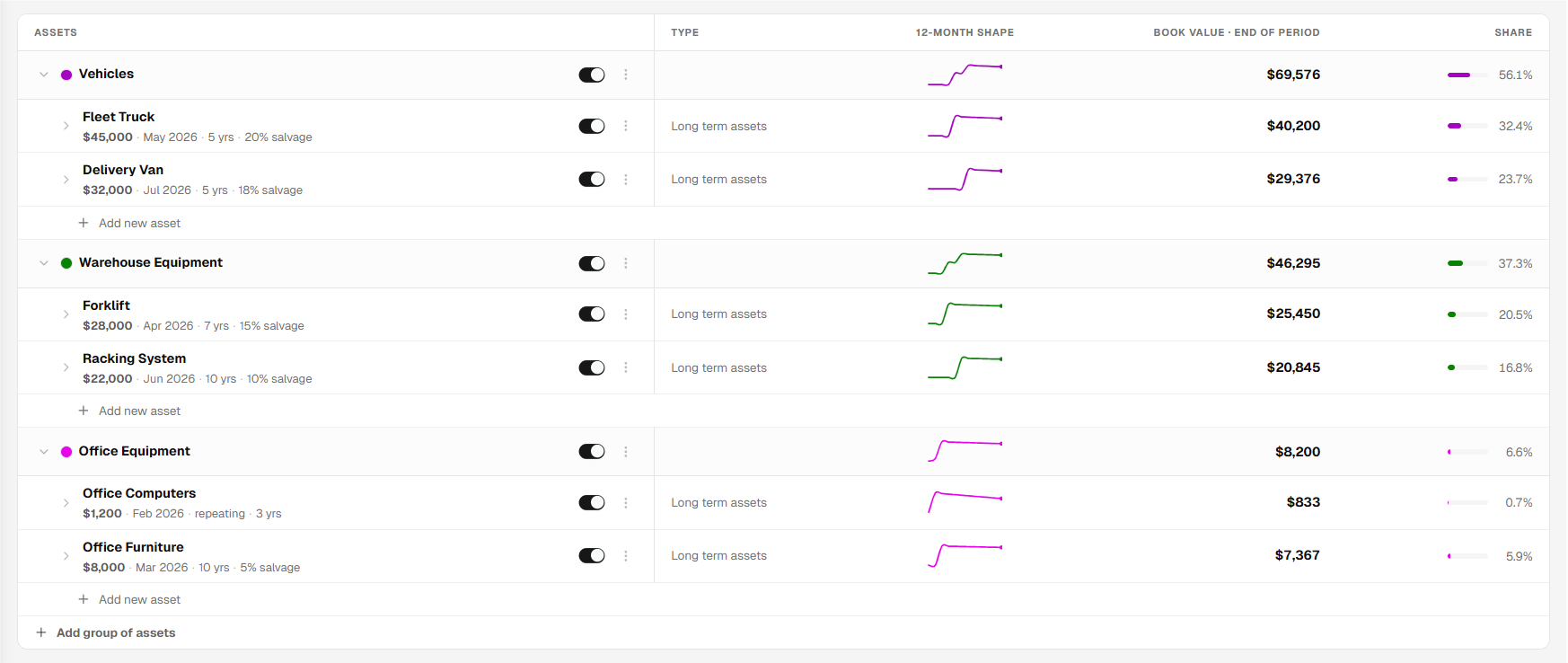
The selected asset groups and items will be added to the Assets section of your forecast.
You can review each asset and update its assumptions whenever required.
Creating a Long-term Asset Manually
- 1
-
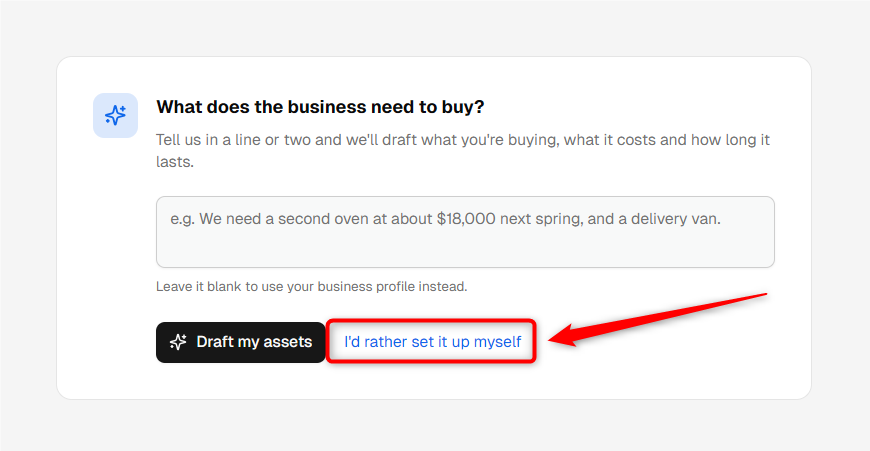
If you do not want Finance AI to draft your assets, click I'd rather set it up myself from the initial asset setup screen.
- 2
-
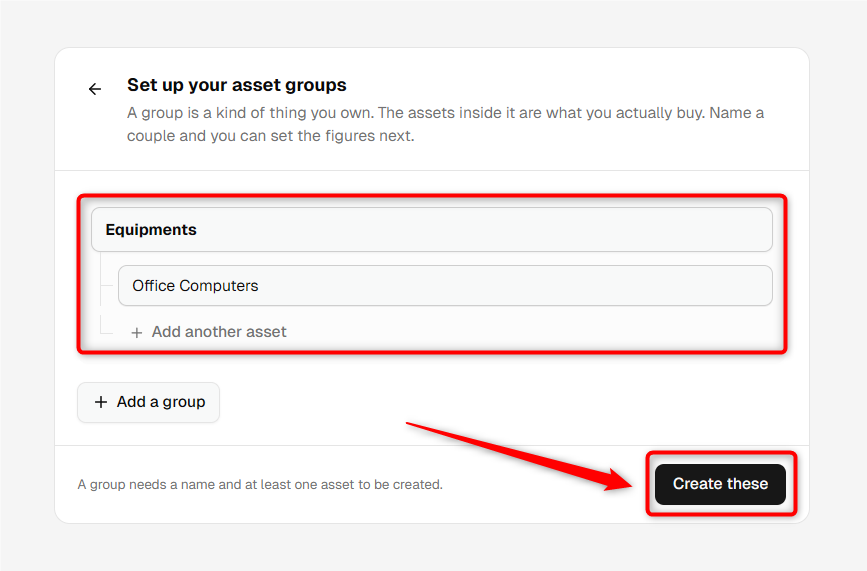
In the manual setup window, enter an asset group name and at least one asset within that group.
You can add additional assets to the same group or create another asset group if required.
When you are ready, click Create these.
- 3
-
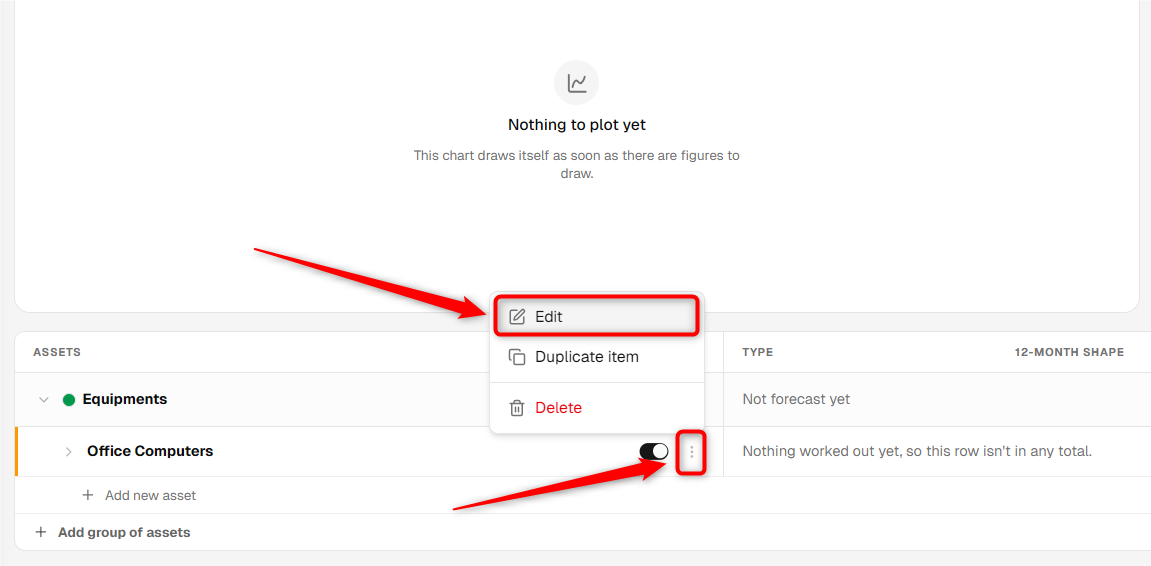
The system will create the asset group and asset item in your forecast.
Open the newly created asset to enter its detailed assumptions.
- 4
-
In the asset assumption form, review the asset name and select Long-term as the asset type.
Enable the applicable option if the asset was already in place before the start of your plan.

- 5
-
Choose how you want to forecast the asset purchase:
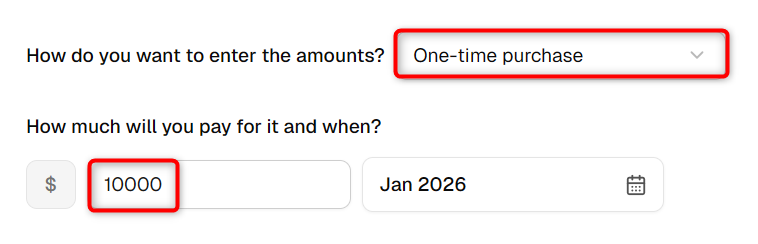
- One-time Purchase: Use this option when you expect to purchase the asset once. Enter the expected purchase price and purchase date.
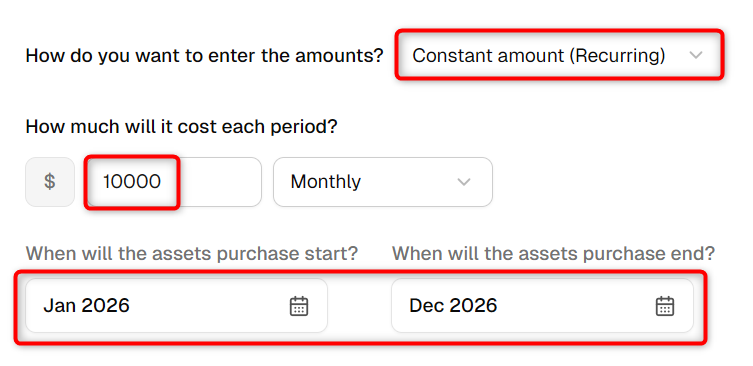
- Constant Amount (Recurring): Use this option when you expect to spend the same amount on assets every month or year.
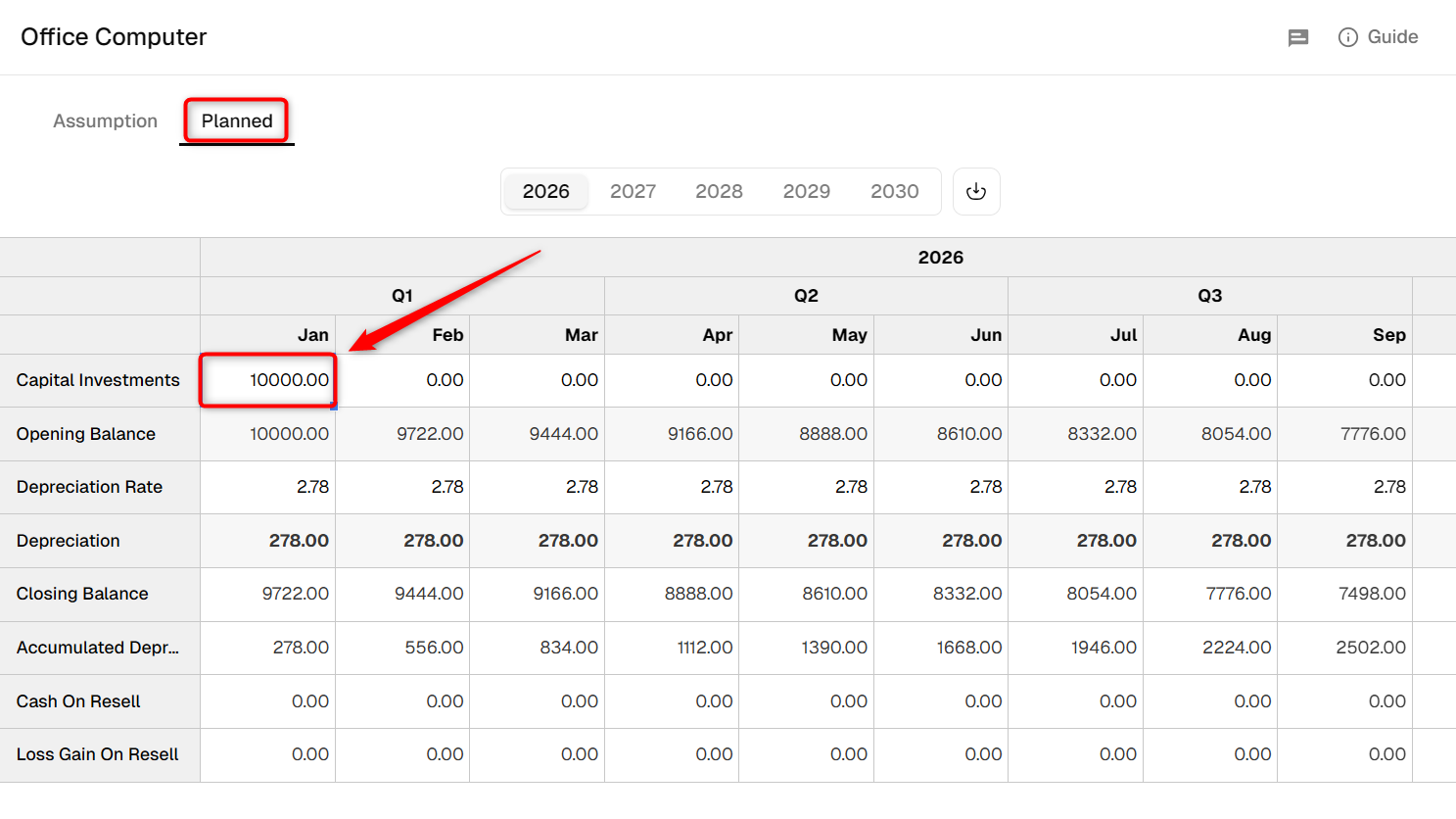
- Varying Amounts Over Time: Use this option when the amount spent on assets changes from period to period.
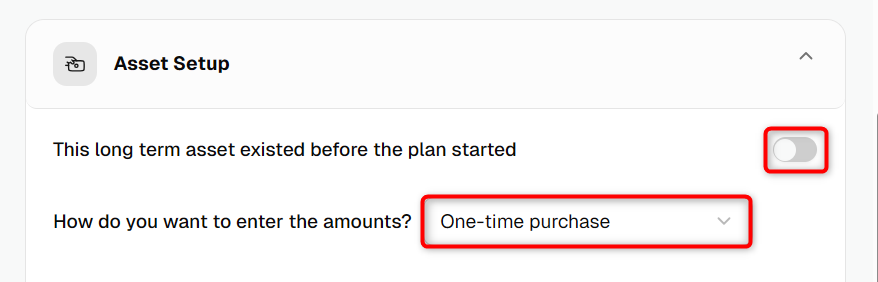
If you choose One-time Purchase, enter the purchase price and purchase date.
If you choose Constant Amount (Recurring), enter the amount you expect to spend per month or year and when the spending should begin.
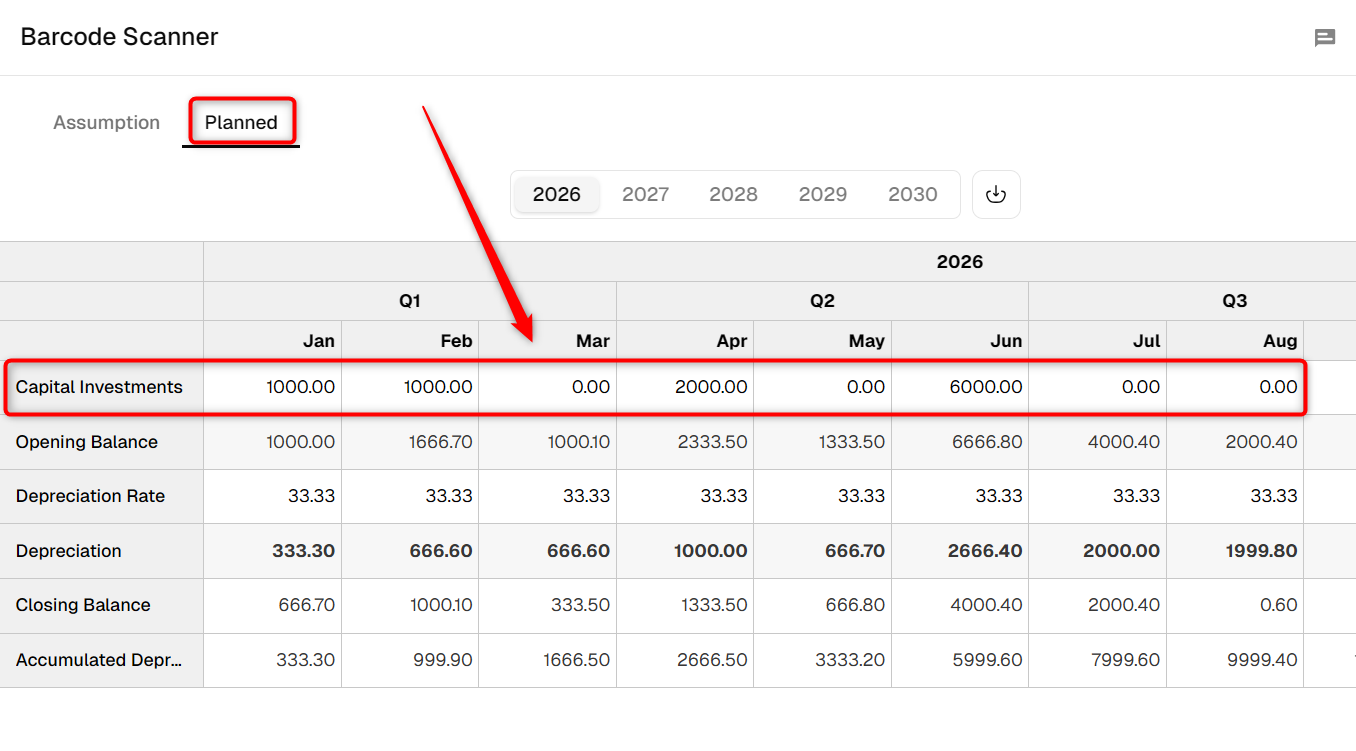
If you choose Varying Amounts Over Time, you can enter the applicable amounts in the forecast sheet after saving the asset assumptions.

- 6
-
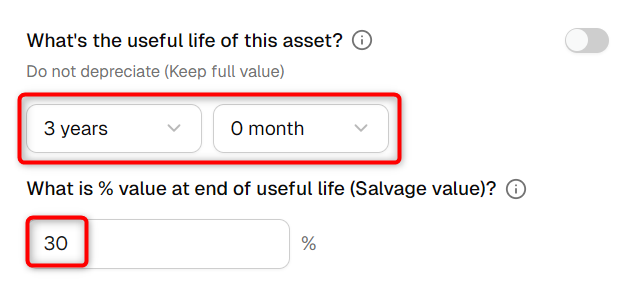
Depreciation: Select the useful life of the asset. The system will use this period to calculate depreciation.
If the asset should not depreciate, choose Forever (do not depreciate).
- 7
-
If you selected a One-time Purchase, indicate whether you expect to sell the asset during the forecast period.
Review the assumptions and click Save.
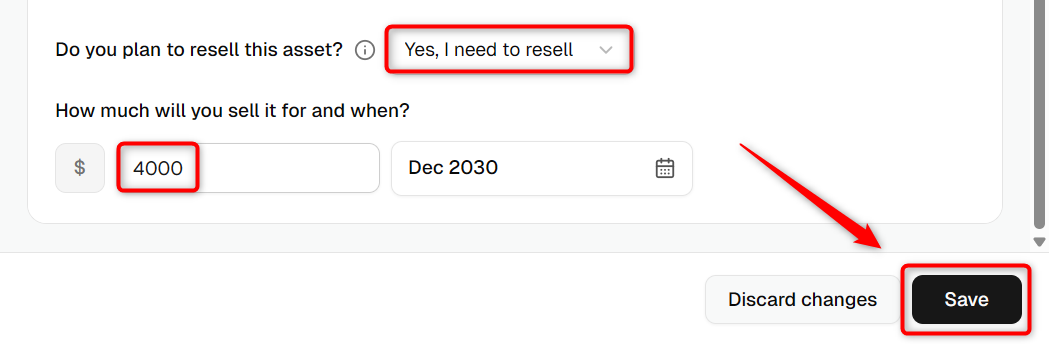
NOTE: The option to enter an expected asset sale is available for one-time asset purchases. It may not appear when you select a constant or varying purchase method.
Determining the useful life of a Long-term Asset
For more information about choosing the useful life of an asset, see Depreciation, Amortization, and Determining the useful life of an asset.
Adding a Current Asset
A current asset is generally an asset that provides value for 12 months or less, such as an annual service contract.
For more information, see the difference between a long-term asset and a current asset.
You can create a current asset using Finance AI or set it up manually.
Creating a Current Asset with Finance AI
- 1
-
Open the Assets section under the Forecast tab and describe the current asset you want to add.
Include the asset name, expected amount, purchase timing, and how long you expect the asset to provide value.
- 2
-
Use Finance AI to draft the asset. Review the suggested asset type, amount, timing, and amortization assumptions.
Edit the suggestion if necessary, then add the asset to your forecast.
- 3
-
Once added, review the current asset in the Assets section and update its assumptions whenever required.
Creating a Current Asset Manually
- 1
-
From the initial Assets setup screen, click I'd rather set it up myself.
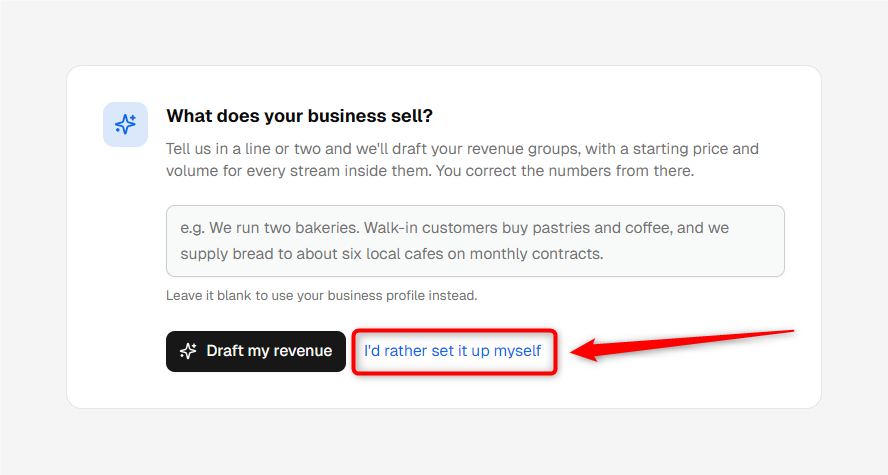
Create an asset group and enter the current asset name, then click Create these.
- 2
-
Open the newly created asset and select Current as the asset type.
Enable the applicable option if the asset was already in place before your plan started.

- 3
-
Choose how you want to forecast the current asset:
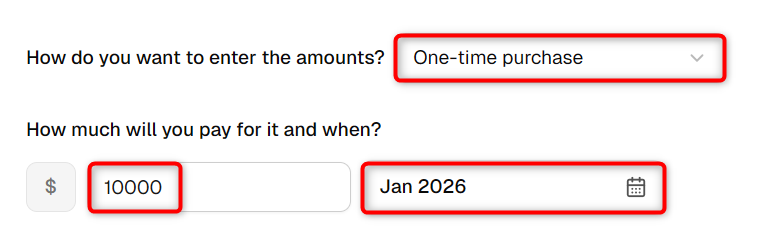
- One-time Purchase: Enter the expected purchase price and purchase date.
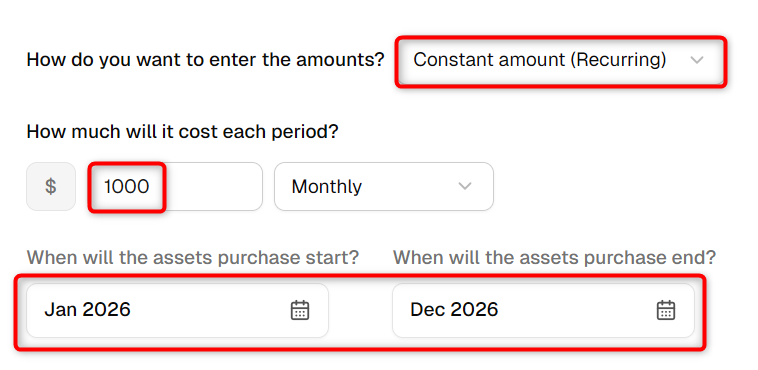
- Constant Amount: Enter the amount you expect to spend per month or year and when that spending begins.
- Varying Amounts Over Time: Enter the applicable spending amounts in the forecast sheet after saving.

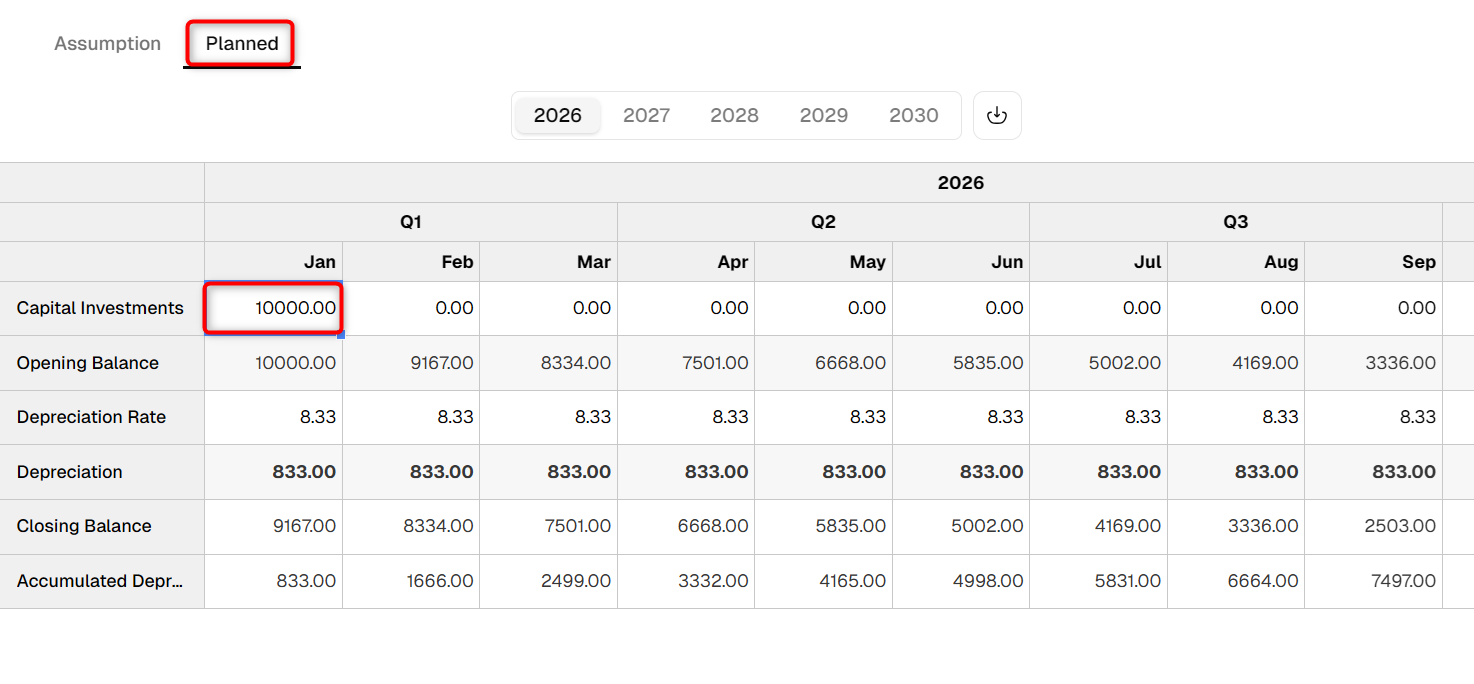
For a one-time purchase:
For a constant amount:
For varying amounts:

- 4
-
Select how long the current asset will provide value so the system can amortize it over that period.
If you do not want to amortize the asset, select Do Not Amortize (Keep at full value).
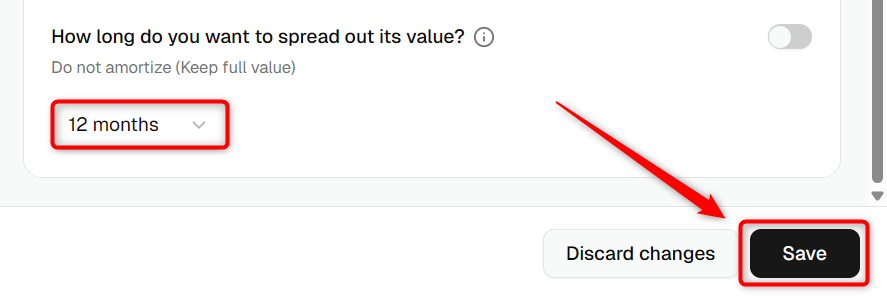
Review the assumptions and click Save.
Where does this entry appear in the financial statements?
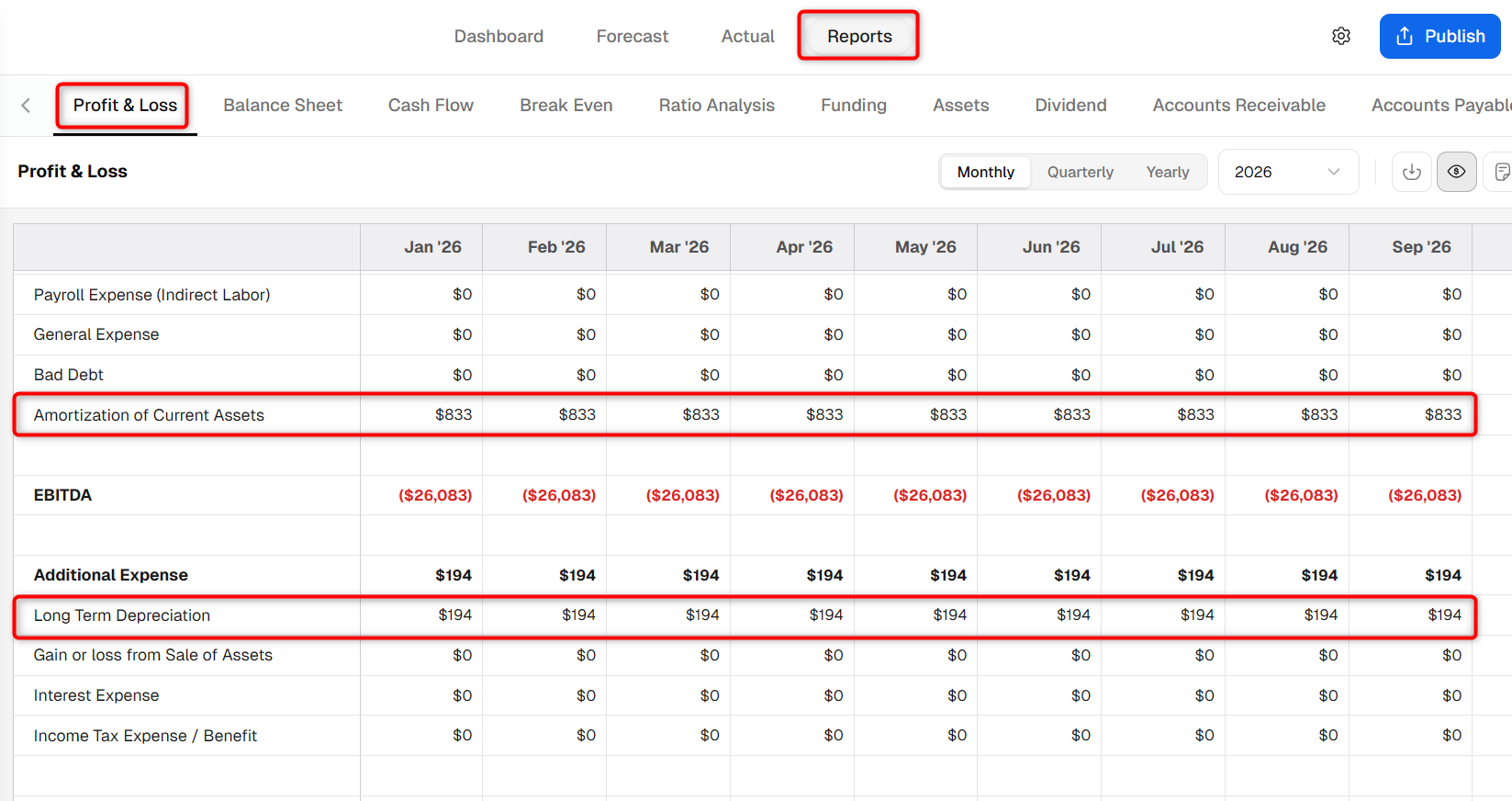
Current and long-term assets appear differently in your financial statements.
In the Profit & Loss report, only the depreciation or amortization associated with an asset is recorded as an expense. Amortization of a current asset appears under Operating Expenses, while depreciation of a long-term asset appears under Additional Expenses.
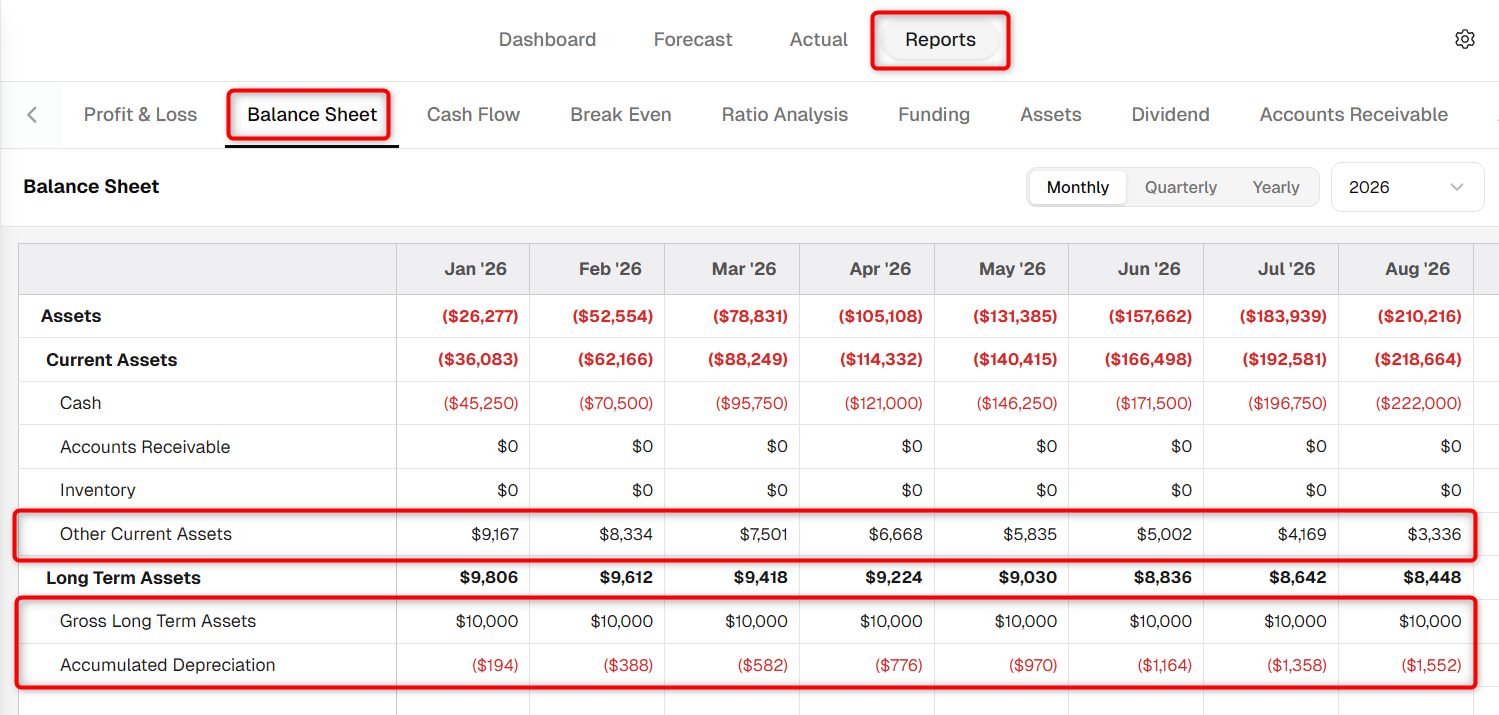
In the Balance Sheet, a current asset appears under Other Current Assets, with its value decreasing as it is amortized.
A long-term asset appears with its asset value and accumulated depreciation reflected separately.
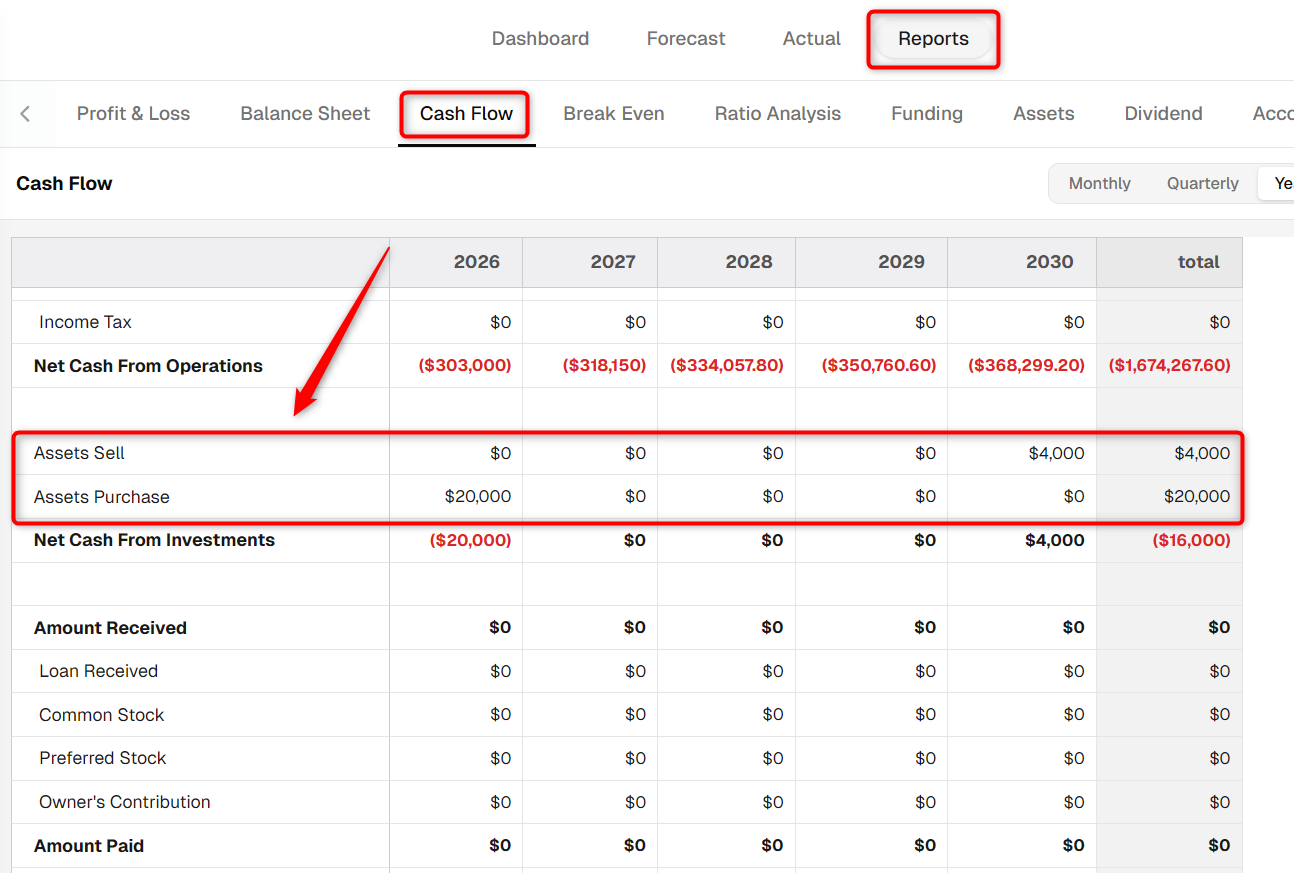
In the Cash Flow statement, purchases and sales of current and long-term assets are reflected in the applicable asset purchase and asset sale lines.
Once your assets are set up, you can return to the Assets section whenever you need to review or update the purchase amount, timing, useful life, depreciation, amortization, or asset classification.