-(1).png)
How to add Page Break in the Business Plan?
Keeping your business plan organized is essential for a professional appearance. Page breaks allow you to conclude pages where necessary and start new sections cleanly, improving your document's overall structure. Managing page breaks is just a click away, simplifying content organization.
This guide will walk you through the simple steps to add page breaks to your business plan.
In this article
How to add a Page Break?
- 1
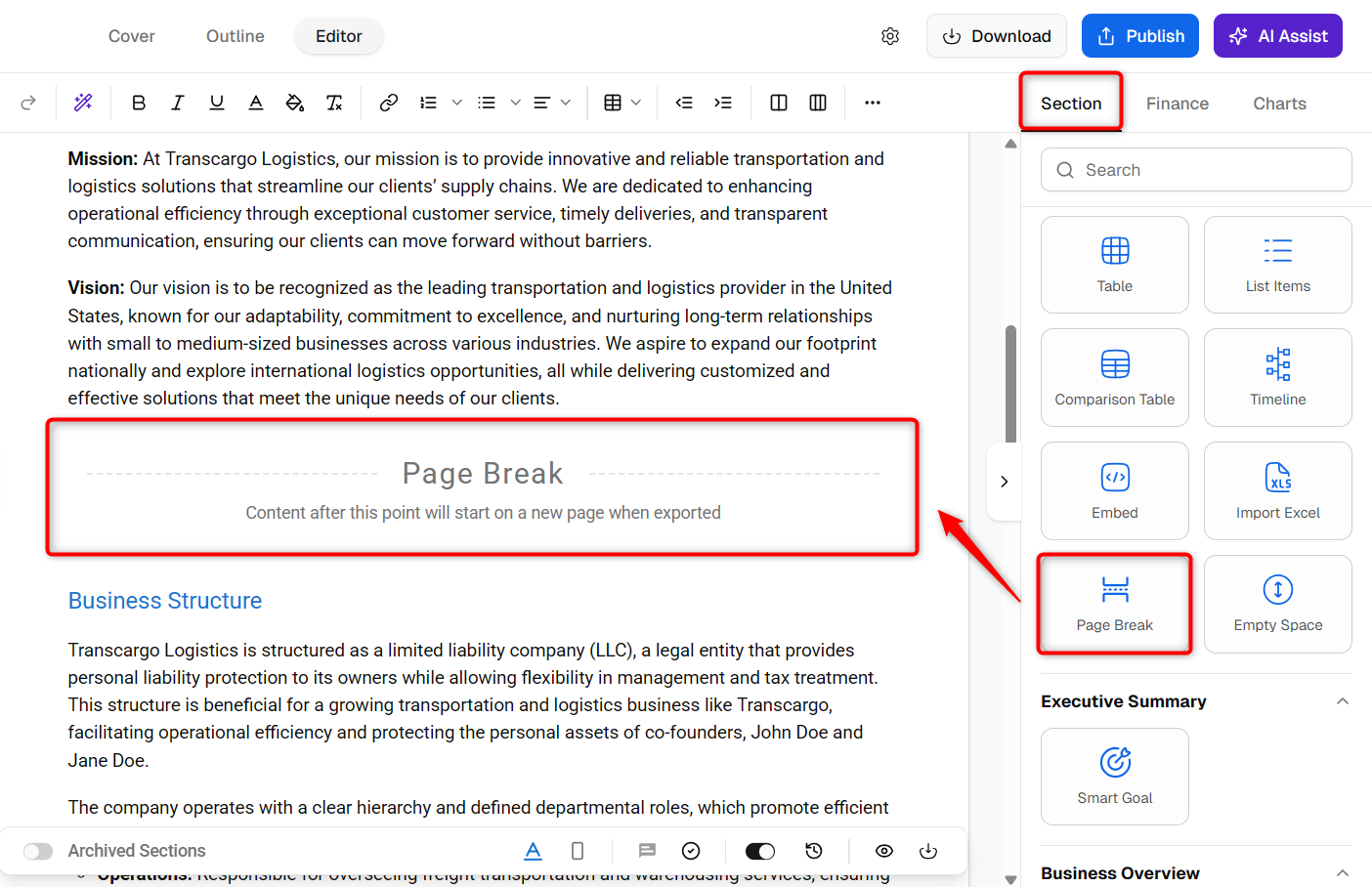
- Open your business plan. Navigate to the specific chapter where you intend to insert a page break.
- 2
- Within the Section, in the "general" options, you should find the "Page Break" feature listed among the available tools.
- 3
-
Utilize the drag-and-drop feature to position the page break exactly where you need it in your business plan. This action will ensure that your document is neatly organized into distinct sections for better readability.
How to Delete/ Remove Page Break?
- 1
-
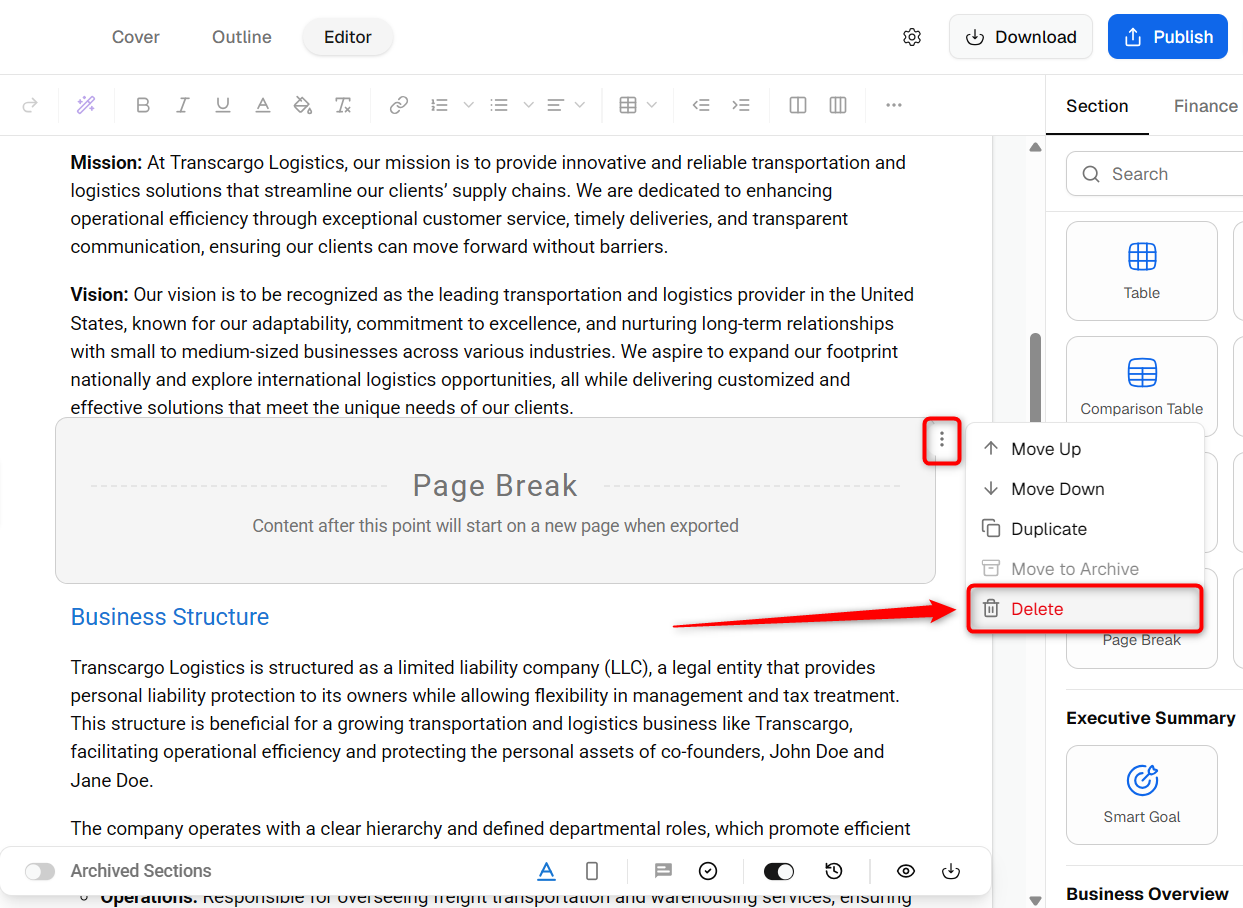
Navigate to the page break you wish to remove. Look for an option labeled delete associated with that particular page break.
By following these steps, you gain full control over how your business plan is divided into pages, ensuring it looks as good on paper as it does on your screen.